Start here
VaultStamp gives a file proof of who had it, and when. You drop a file in, say what it is, and get a receipt: a signed, dated record of that exact file, at a link anyone can open. If someone later claims your work, edits it, or passes it off as theirs, your receipt is older, and their copy won't pass the check.
Everything in VaultStamp happens around a stamp. These are the words you'll see in the app:
- Stamp
- The proof on one file: its fingerprint, what you said about it, and the exact time, signed by VaultStamp.
- Vault
- A folder of stamped files with its own rules, such as Portfolio or Client work.
- Receipt
- The signed record of a stamp, at its own link. Anyone can open it and check a file against it.
- Seal
- The round pattern drawn from a file's fingerprint. The same file always draws the same seal.
- Check a file
- Compare a file with a receipt. Change one byte and the check fails.
- Source
- Somewhere your files come in from, like an Instagram account.
- Similar work
- Other files that share parts with a stamp, found by fingerprints, for you to review.
- Copy
- Your work found somewhere it shouldn't be, reported by someone or found by fingerprints.
The app has the same few places for everyone:
- Home: your recent seals and what needs you.
- Library: your Vaults, Stamps, Ownership, Traits and Sources, as tabs.
- Copies: Reported copies and Similar work.
- Talent (for agencies) or Agencies (for talent): who you work with, and on what terms.
- Settings: your account, public page, members, stamp types, assistants and developer keys.
Two buttons are always in the top bar: Check a file and Stamp a file.
Worked example
Protect an illustration, from stamp to takedown
Maya Lind is an illustrator. She's just finished Harbour at dusk, which she'll post online and sell as prints. She wants proof it's hers before she shares it, and a way to act when copies turn up. Follow along with your own file; each step takes a minute or less.
1. Create an account
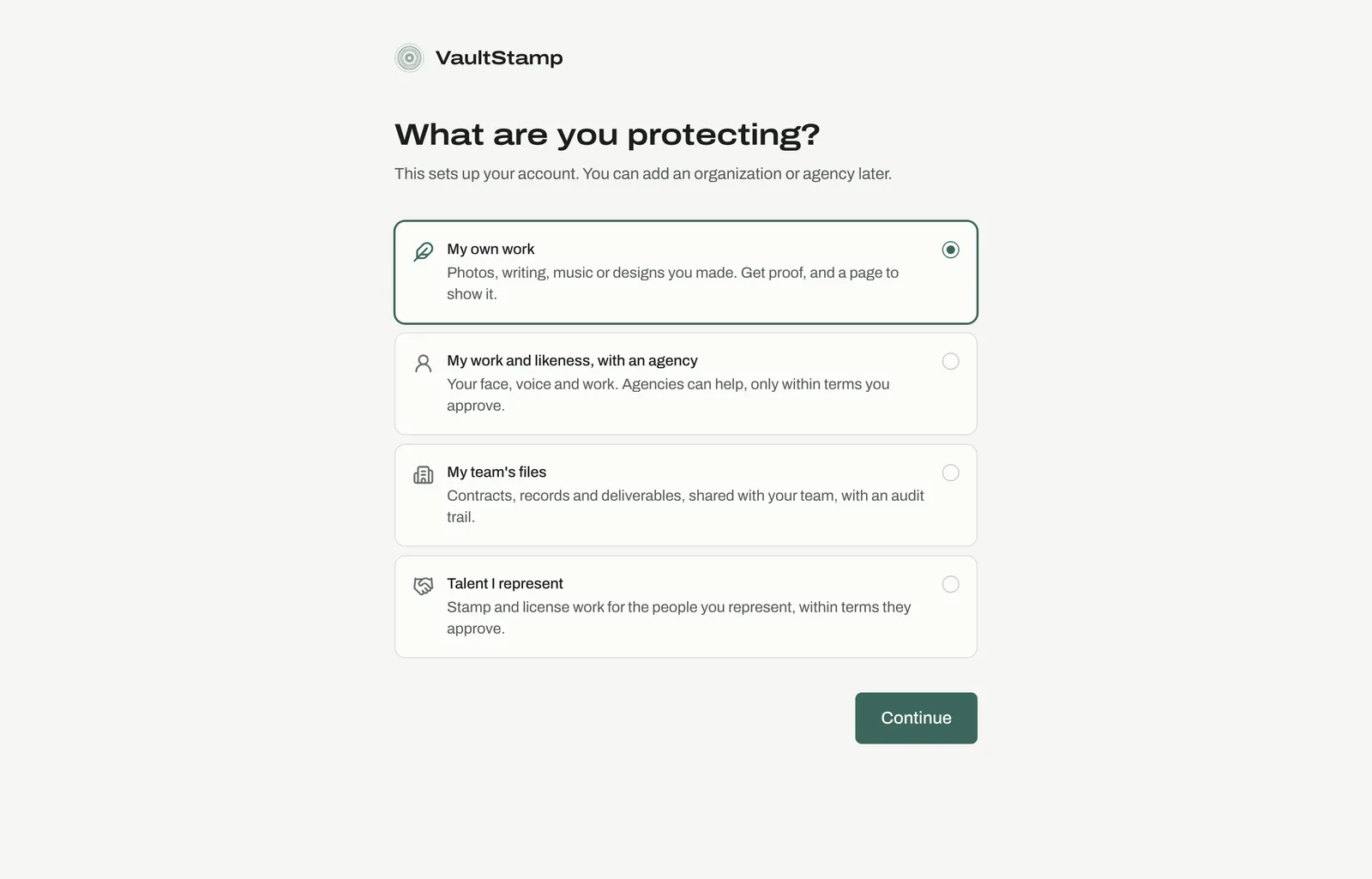
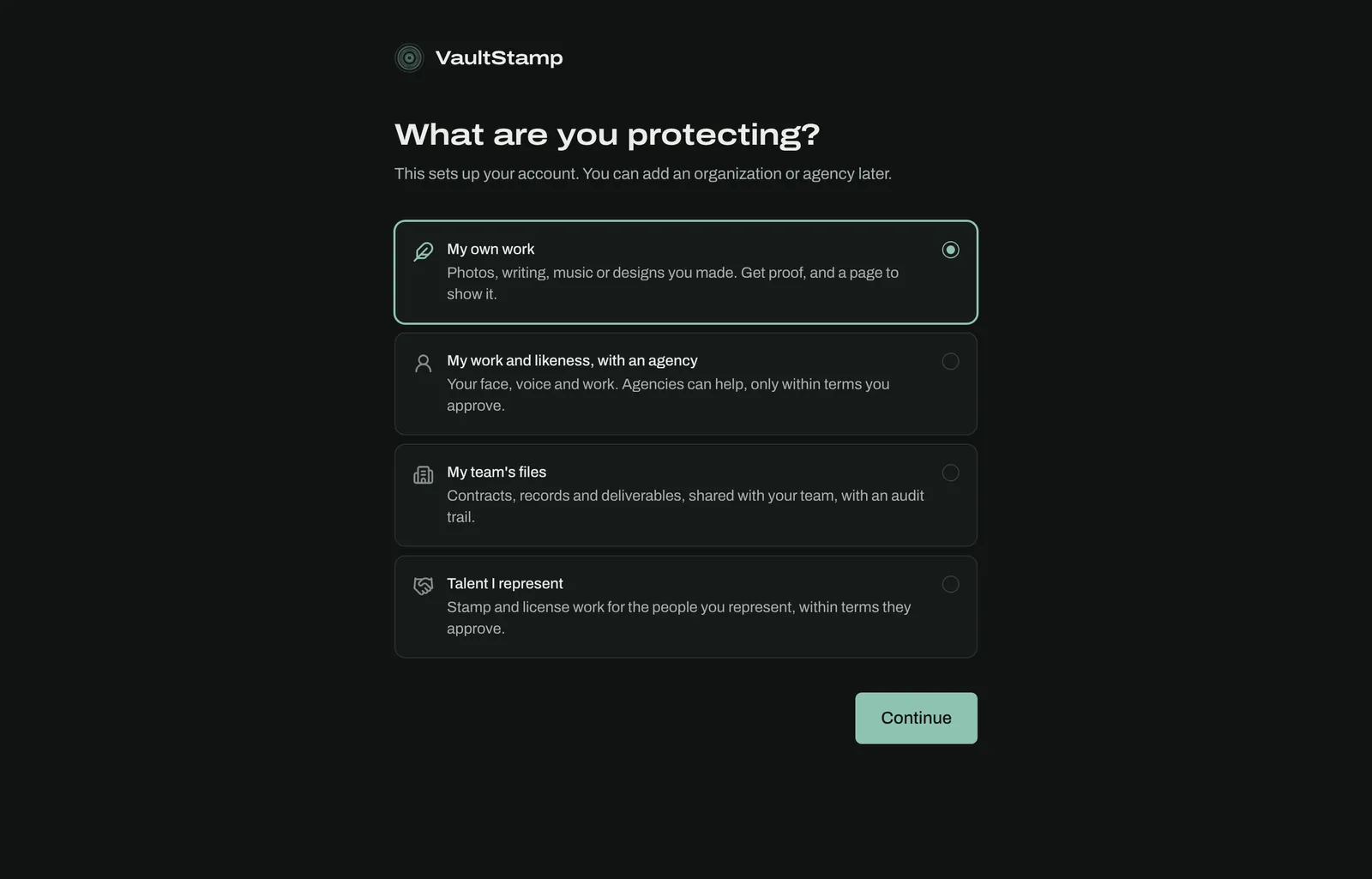
Choose Get started on the home page, then sign up with your email and a password, or ask for an email link. VaultStamp then asks what you're protecting. The answer sets up your first screens:
- My own work: photos, writing, music or designs you made. Maya picks this.
- My work and likeness, with an agency: for talent whose face, voice and work an agency helps manage.
- My team's files: contracts, records and deliverables, shared with your team.
- Talent I represent: for agencies.
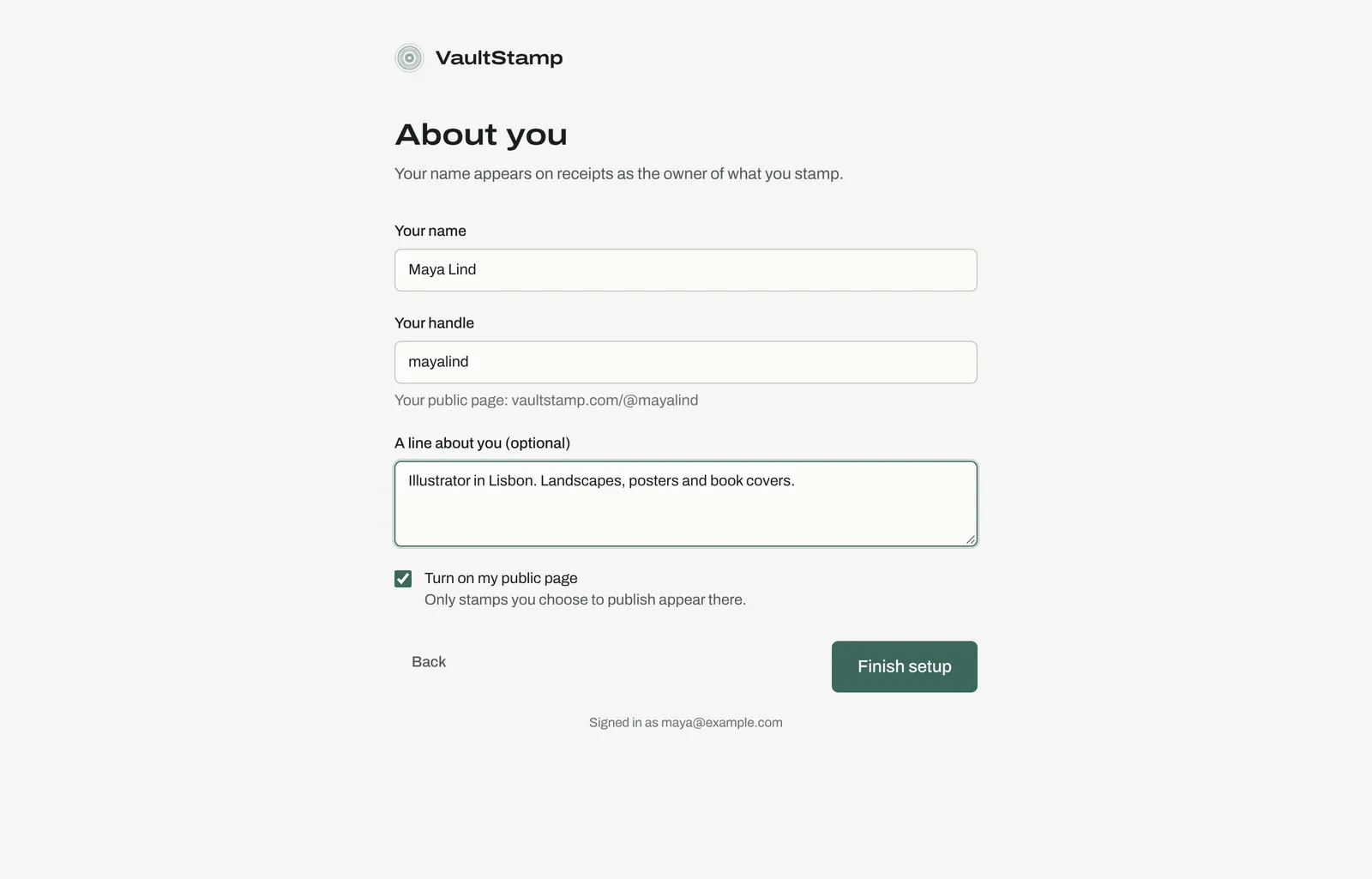
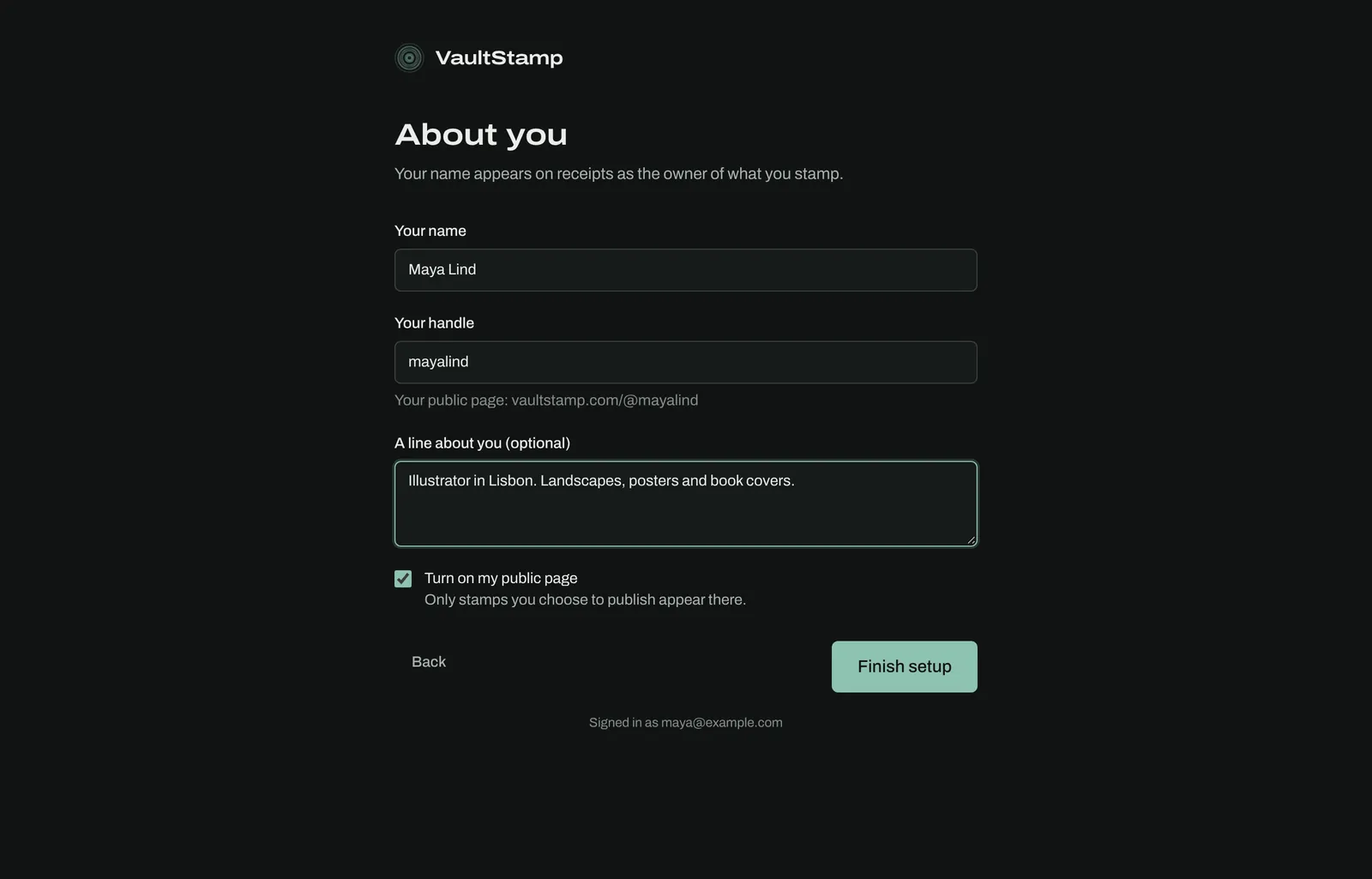
Next, add your name and a handle. The handle is your public page address, like vaultstamp.com/@mayalind. Leave Turn on my public page ticked if you want a page that shows the work you choose to publish. You can add an organization or agency later from the account switcher.
2. Make vaults
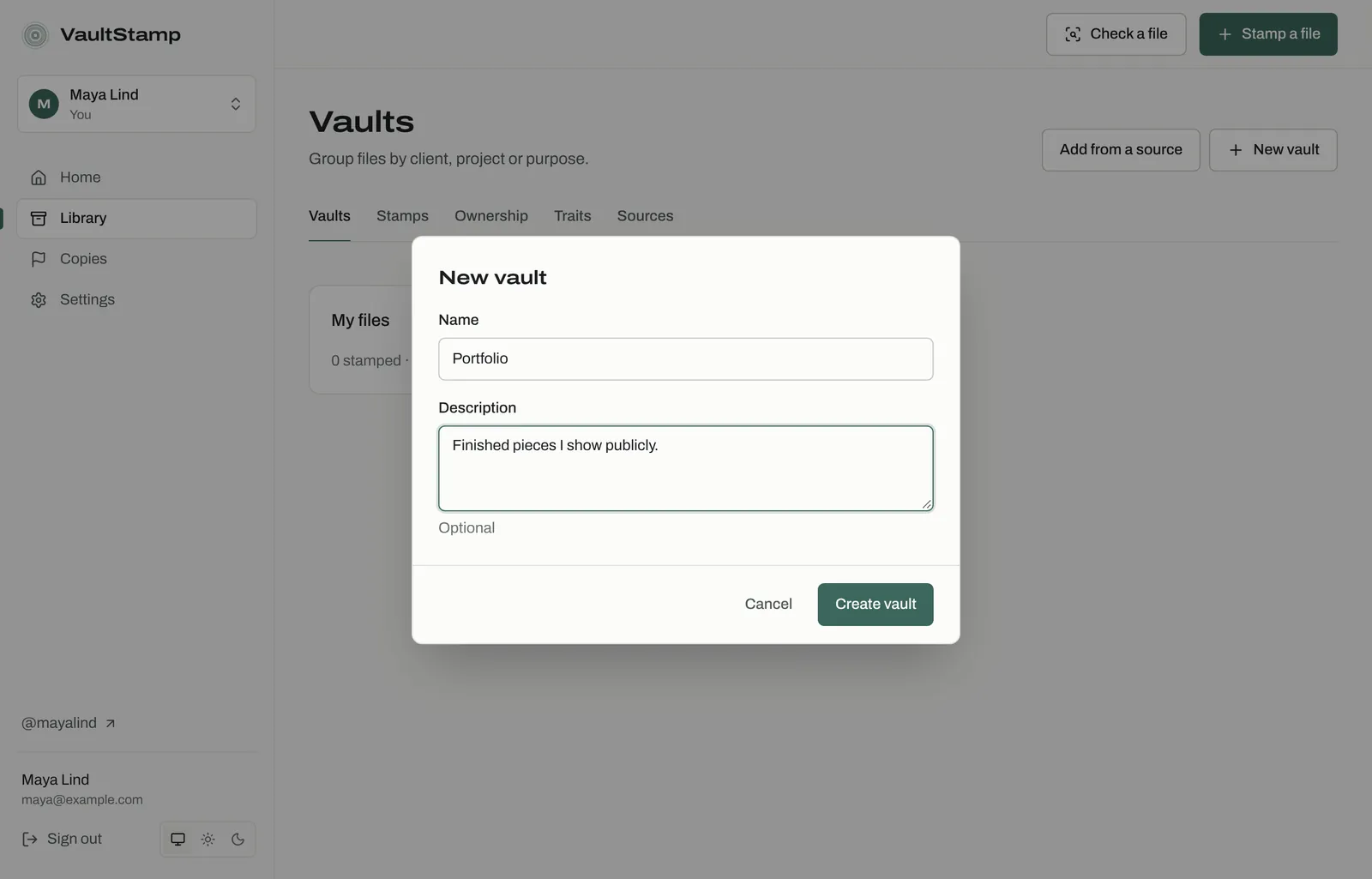
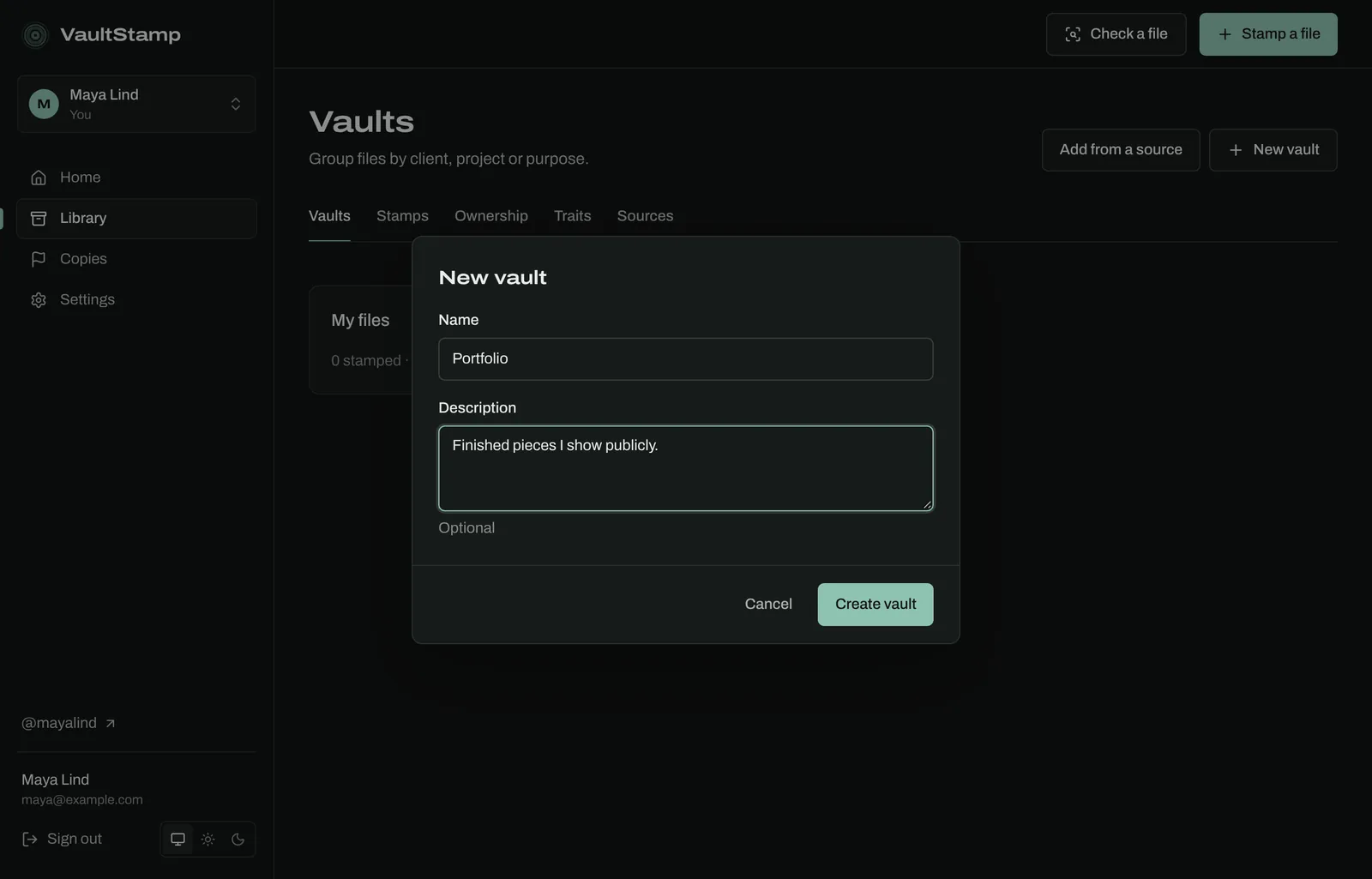
Your account starts with one vault, My files. Vaults keep work apart by client, project or purpose. Maya makes two: Portfolio for finished pieces she shows publicly, and Commissions for client work. Go to Library, then New vault.
3. Stamp the file
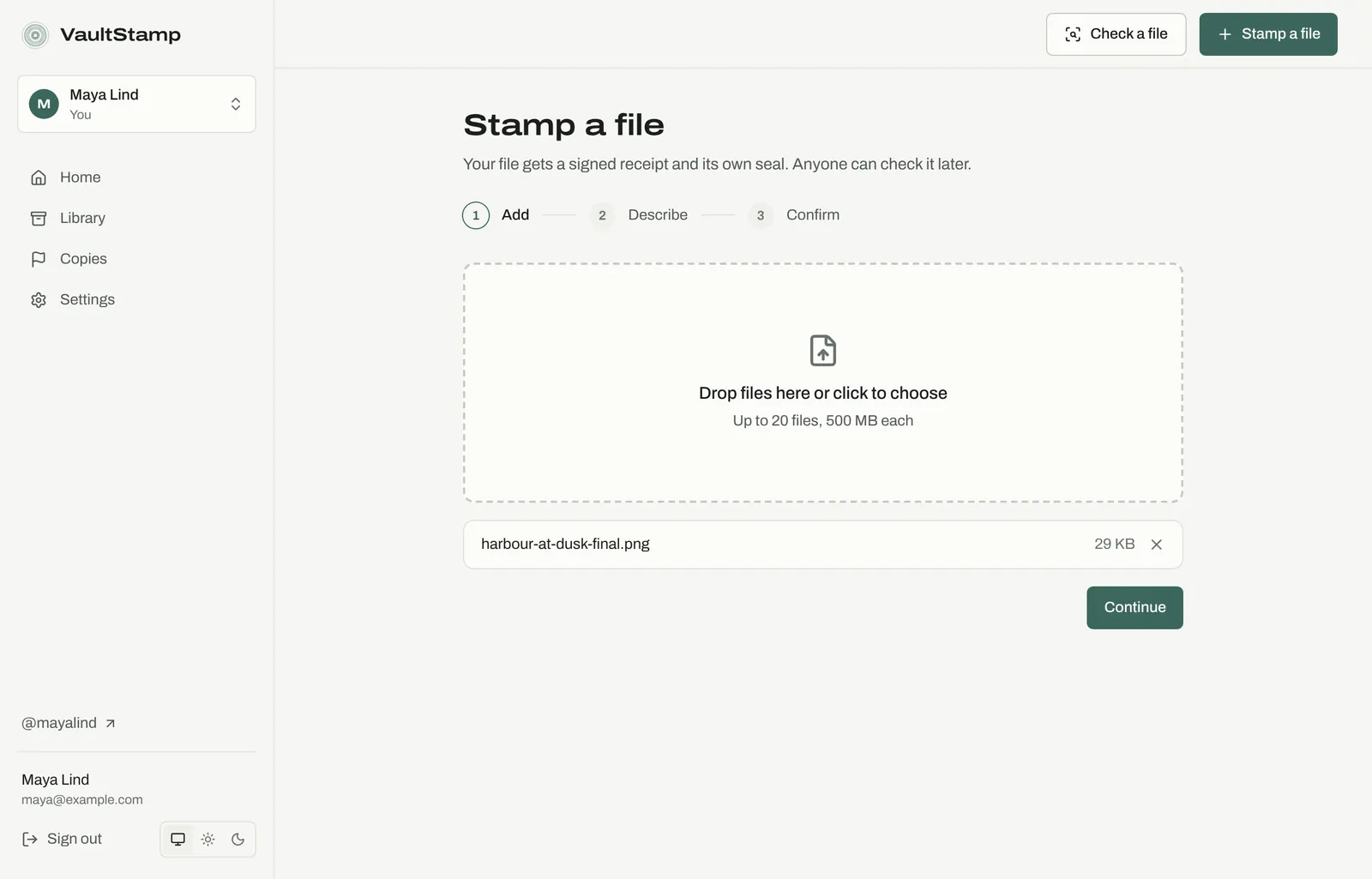
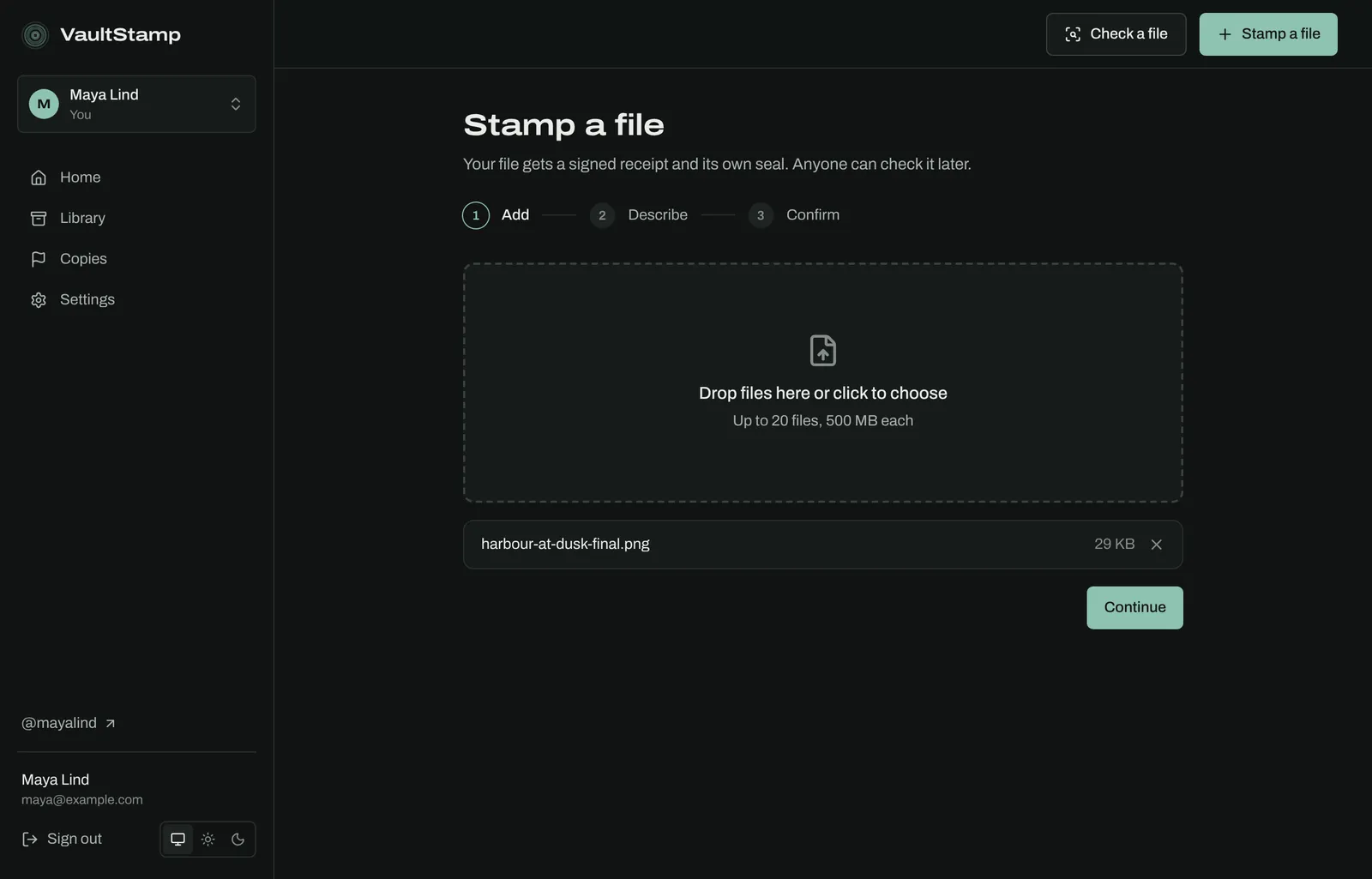
Choose Stamp a file in the top bar. Stamping has three steps: Add, Describe and Confirm.
Add: drop the file in, or click to choose it. You can add up to 20 files at once, 500 MB each. Your browser works out the file's fingerprint (its SHA-256) before anything is uploaded.
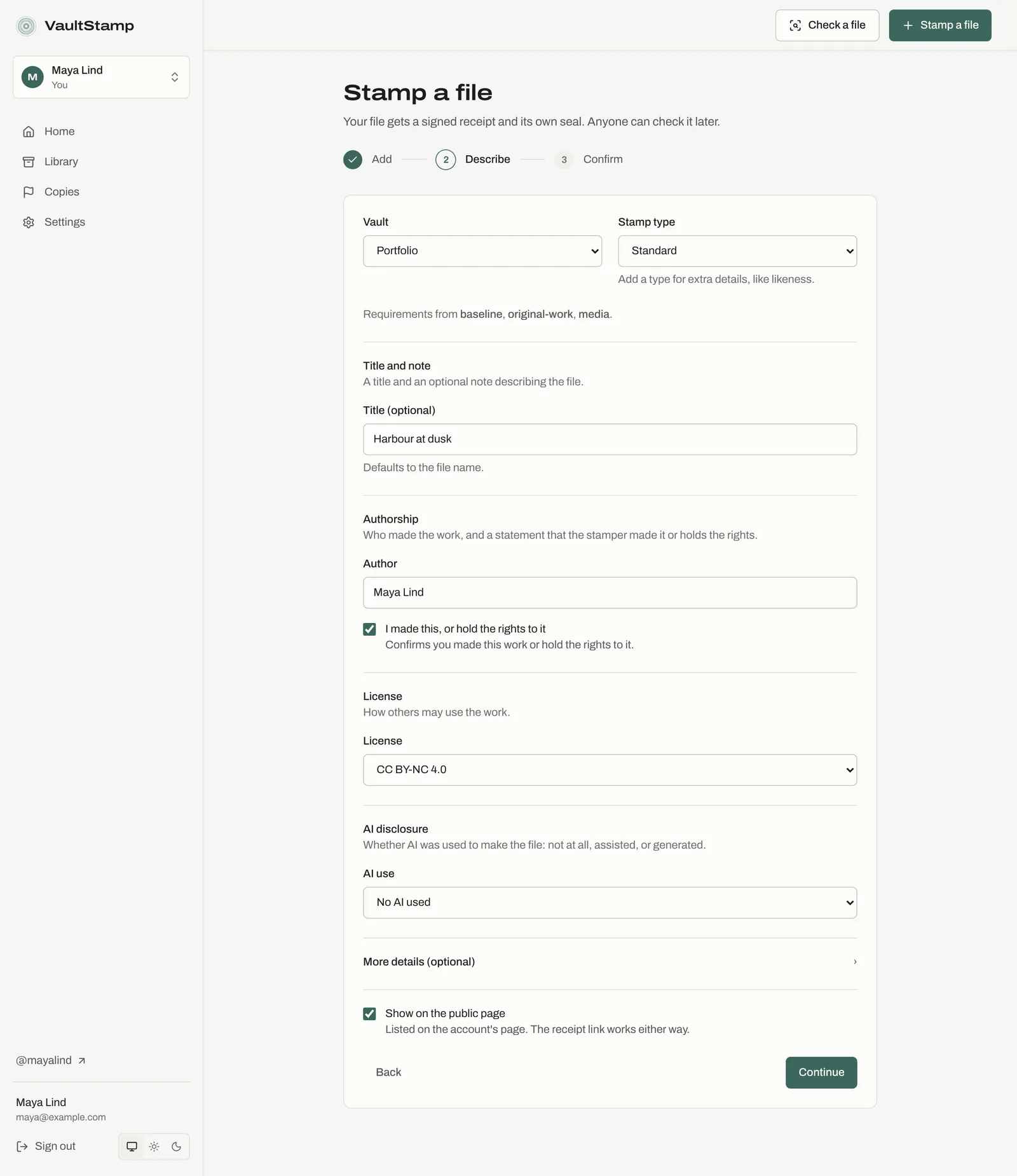
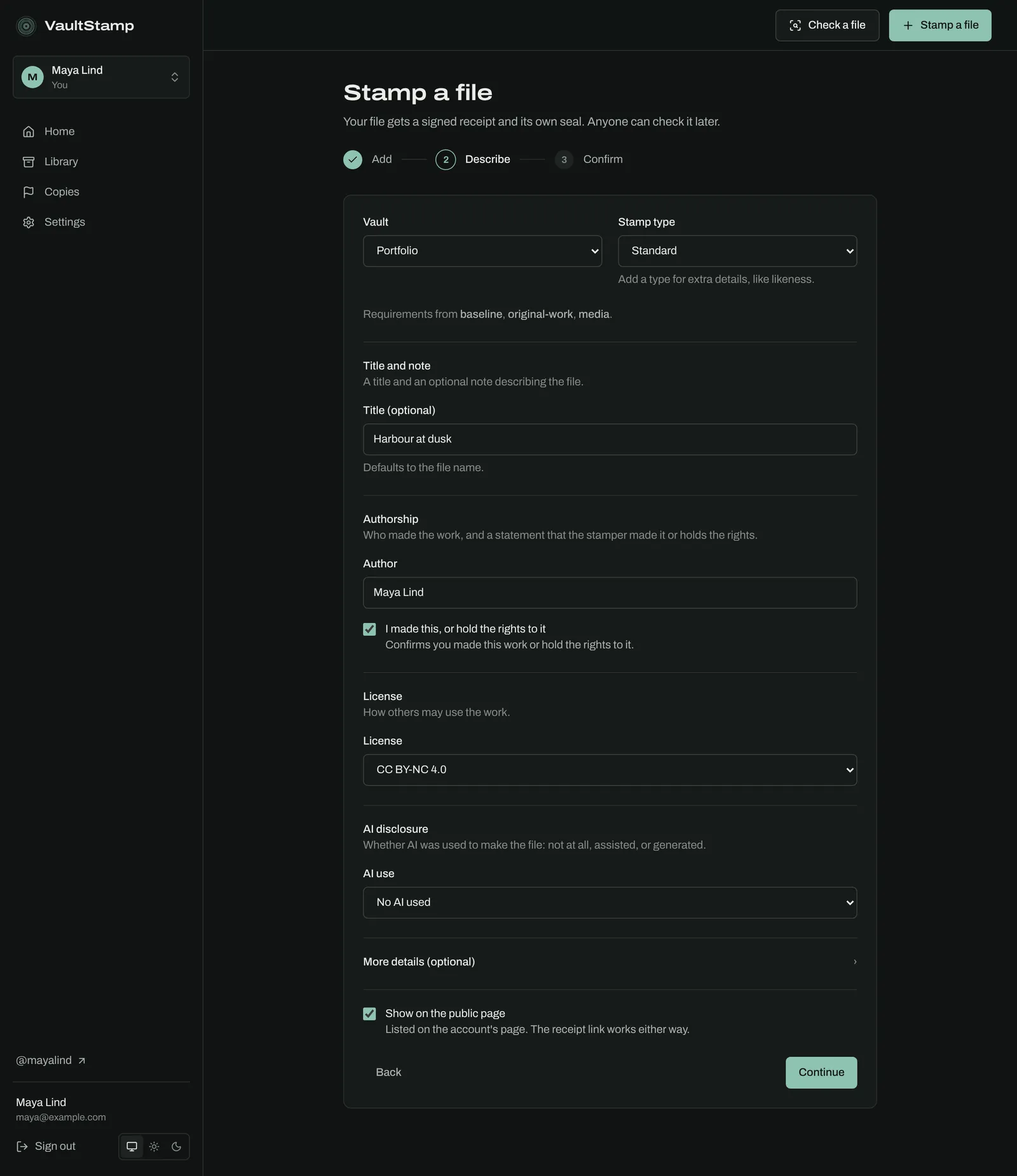
Describe: pick the vault and say what the file is. The form asks only for what your account's stamp types require; the line Requirements from … tells you which rules apply. For an image, Maya fills in:
- Title: Harbour at dusk. If you leave it empty, the file name is used.
- Author and I made this, or hold the rights to it.
- License: how others may use it. She picks CC BY-NC 4.0; the default is All rights reserved.
- AI use: No AI used, AI-assisted, or AI-generated. Images, video and audio always ask.
- Show on the public page: ticked, so it appears on her page. The receipt link works either way.
Optional details, like capture date or credit, are folded under More details (optional). If something required is missing, the form says what under the Continue button.
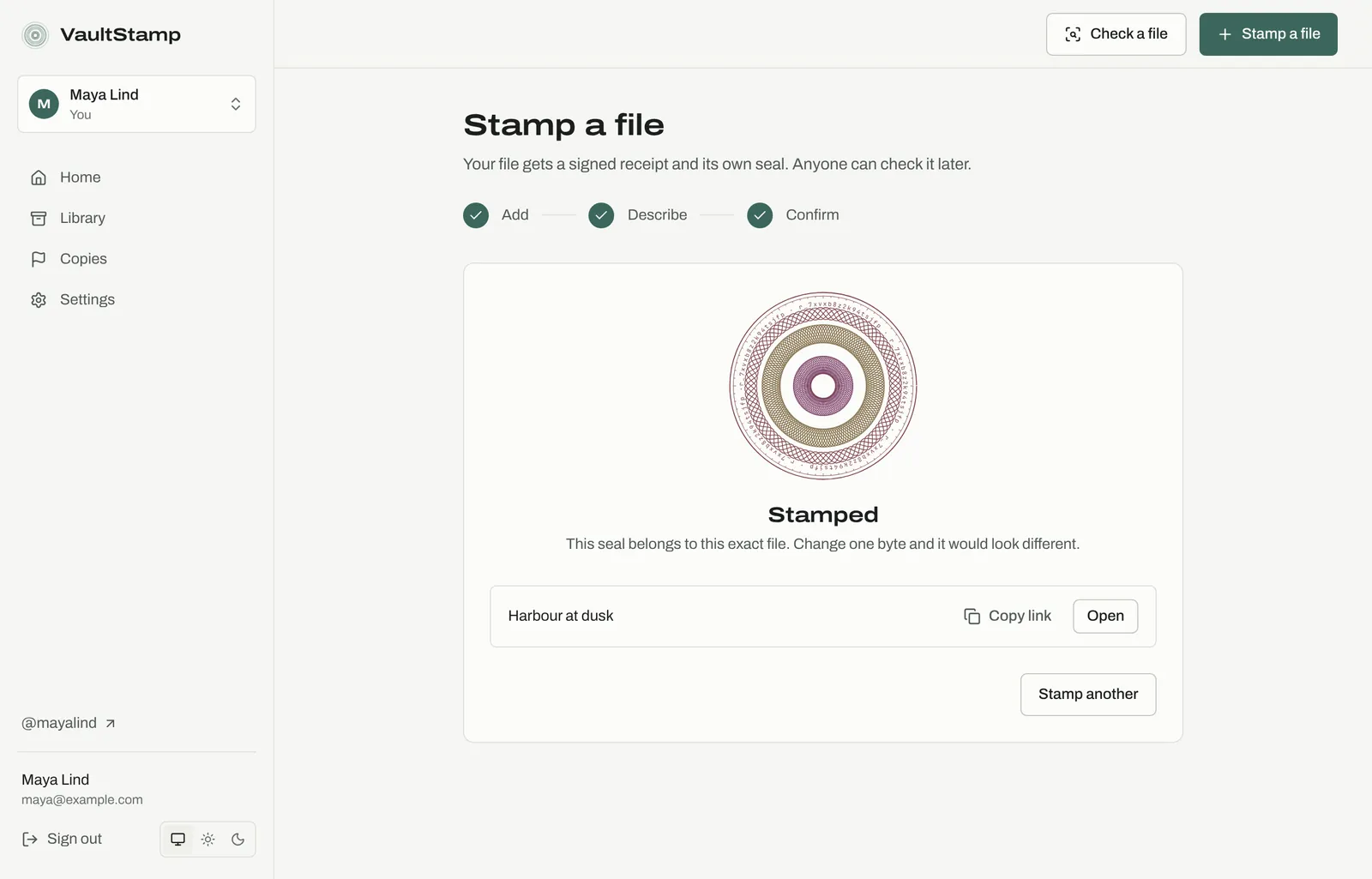
Confirm: check the summary and choose Stamp file. The receipt records the fingerprint, the details you gave and the exact time, signed by VaultStamp. It can't be changed later.
4. The stamp page
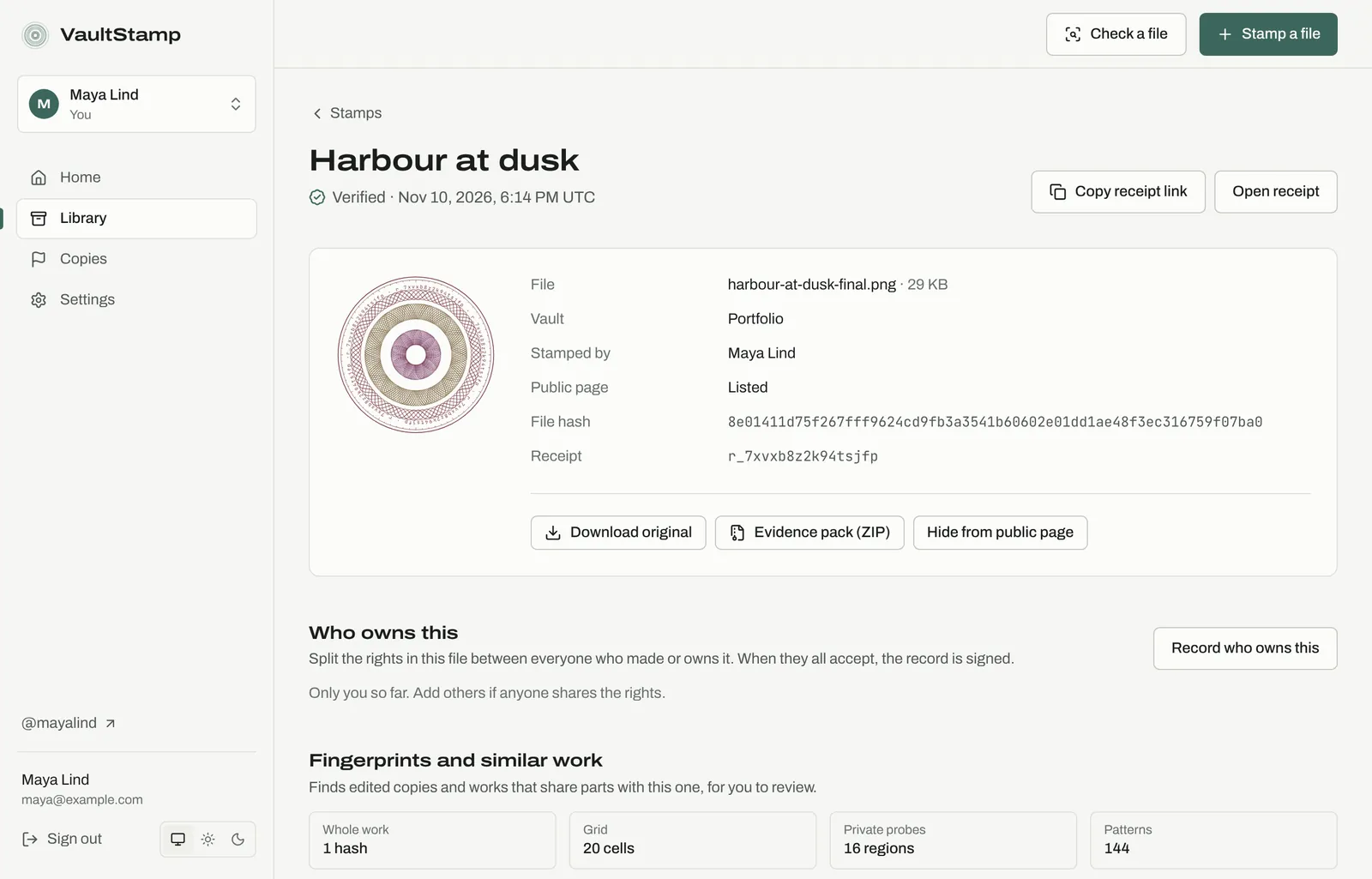
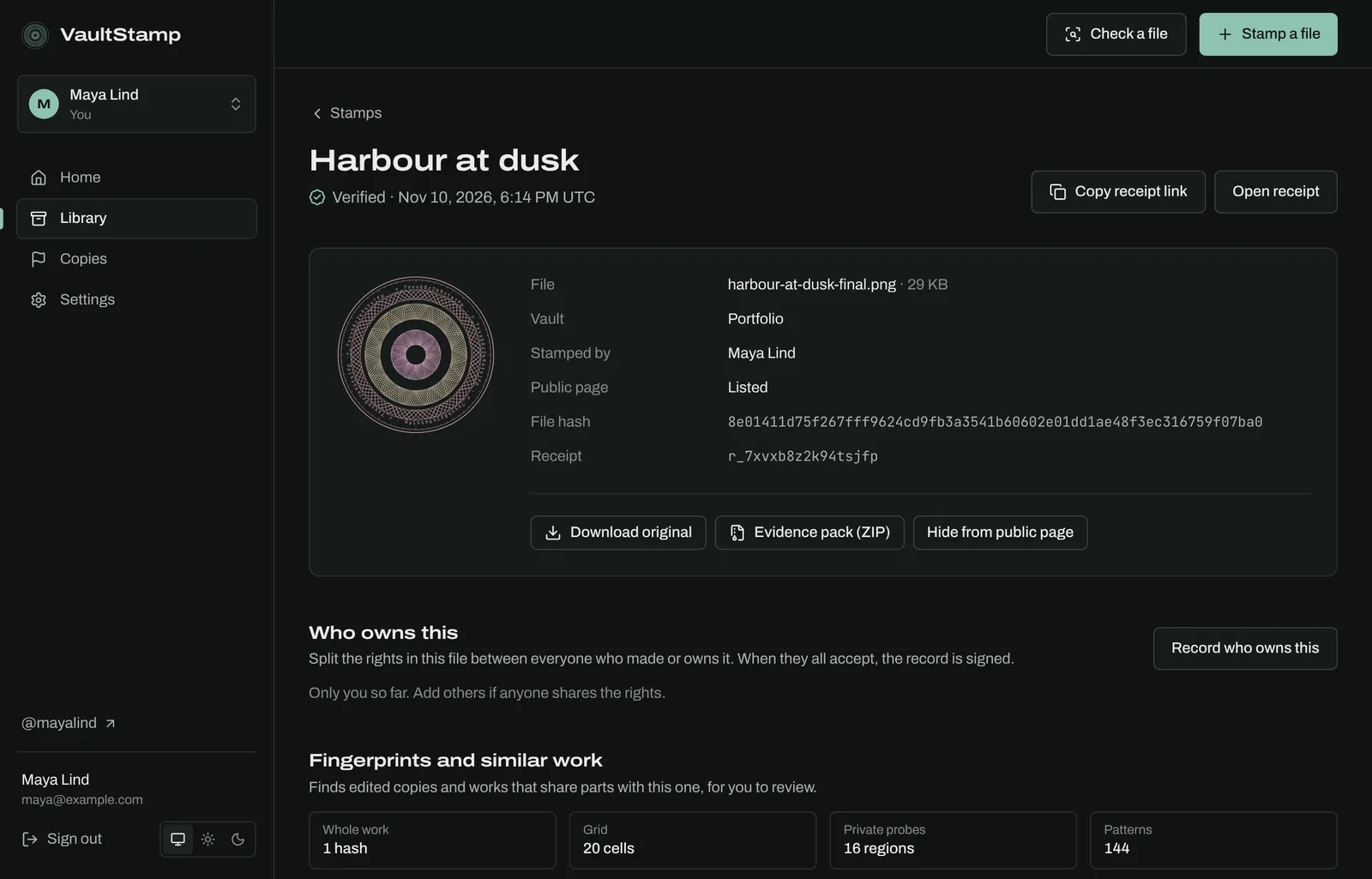
Choose Open (or find the file under Library → Stamps) to see its stamp page. This is where everything else is added to a stamp later:
- Copy receipt link and Open receipt: the public receipt.
- Download original, Evidence pack (ZIP), and Show on public page or Hide from public page.
- Who owns this: split the rights with others (see Ownership).
- Fingerprints and similar work: edited copies and works that share parts with this one (see Similar work).
- Issued to: give this file to a person with a record you can revoke (see Issue to someone).
5. Share the receipt
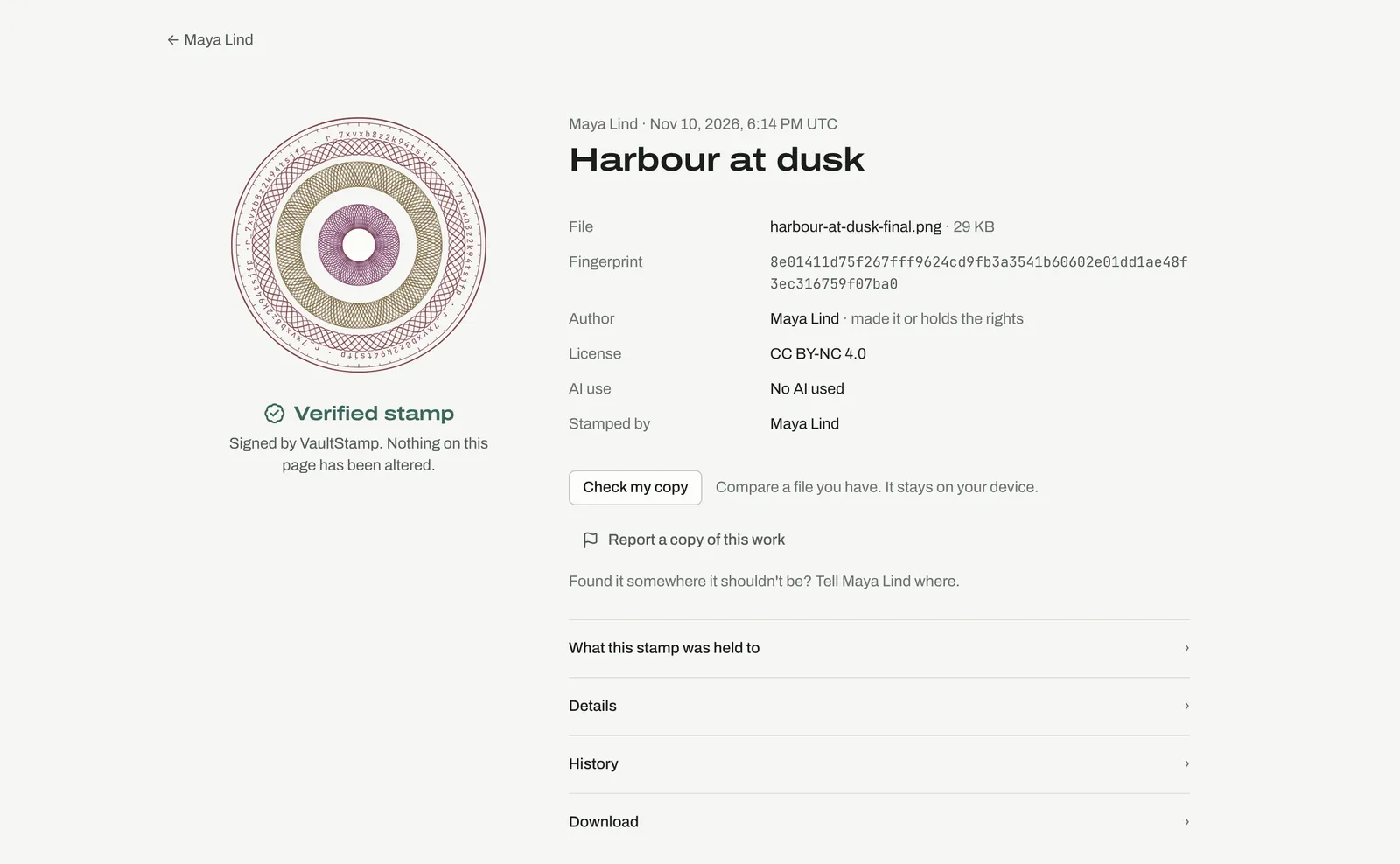
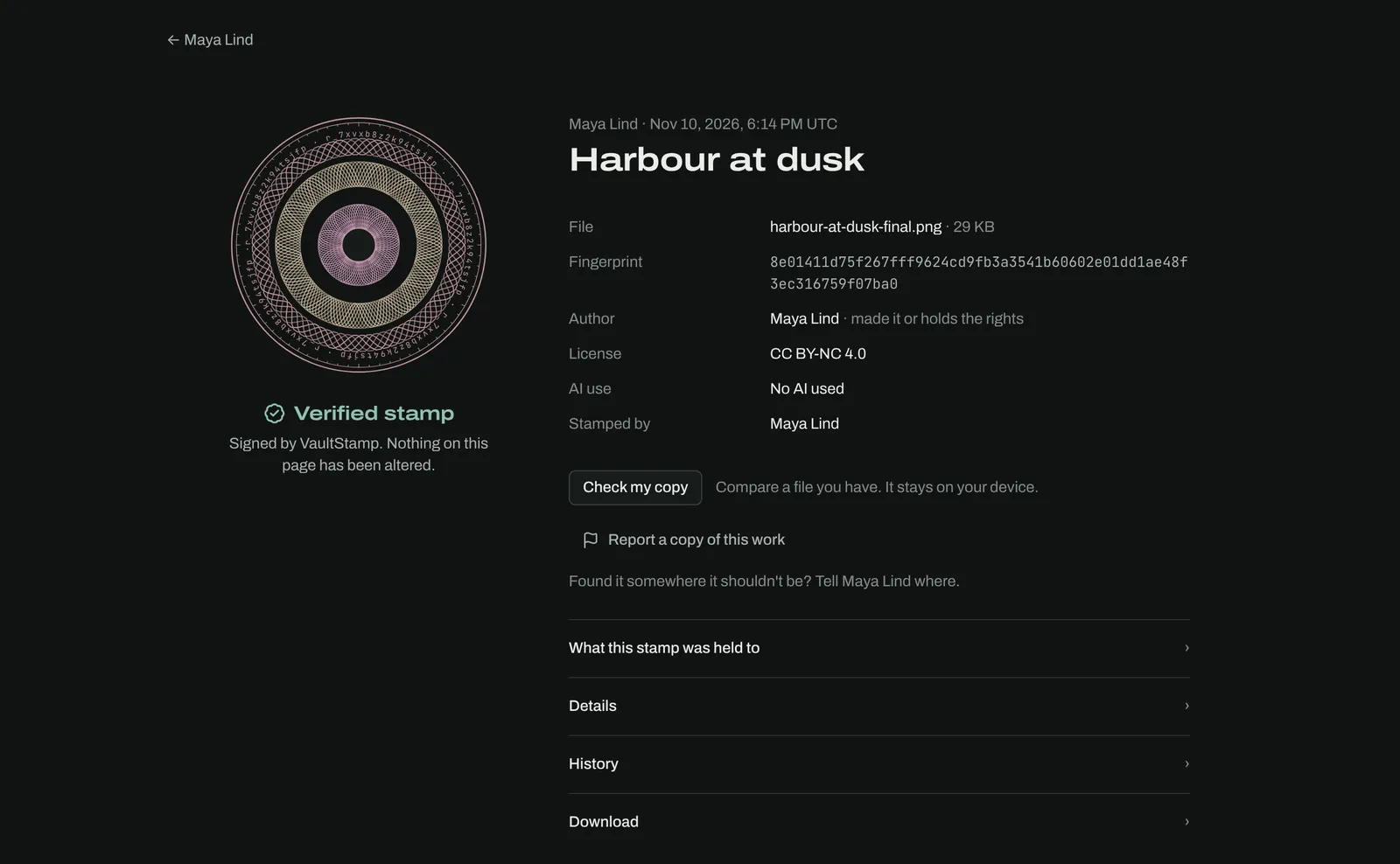
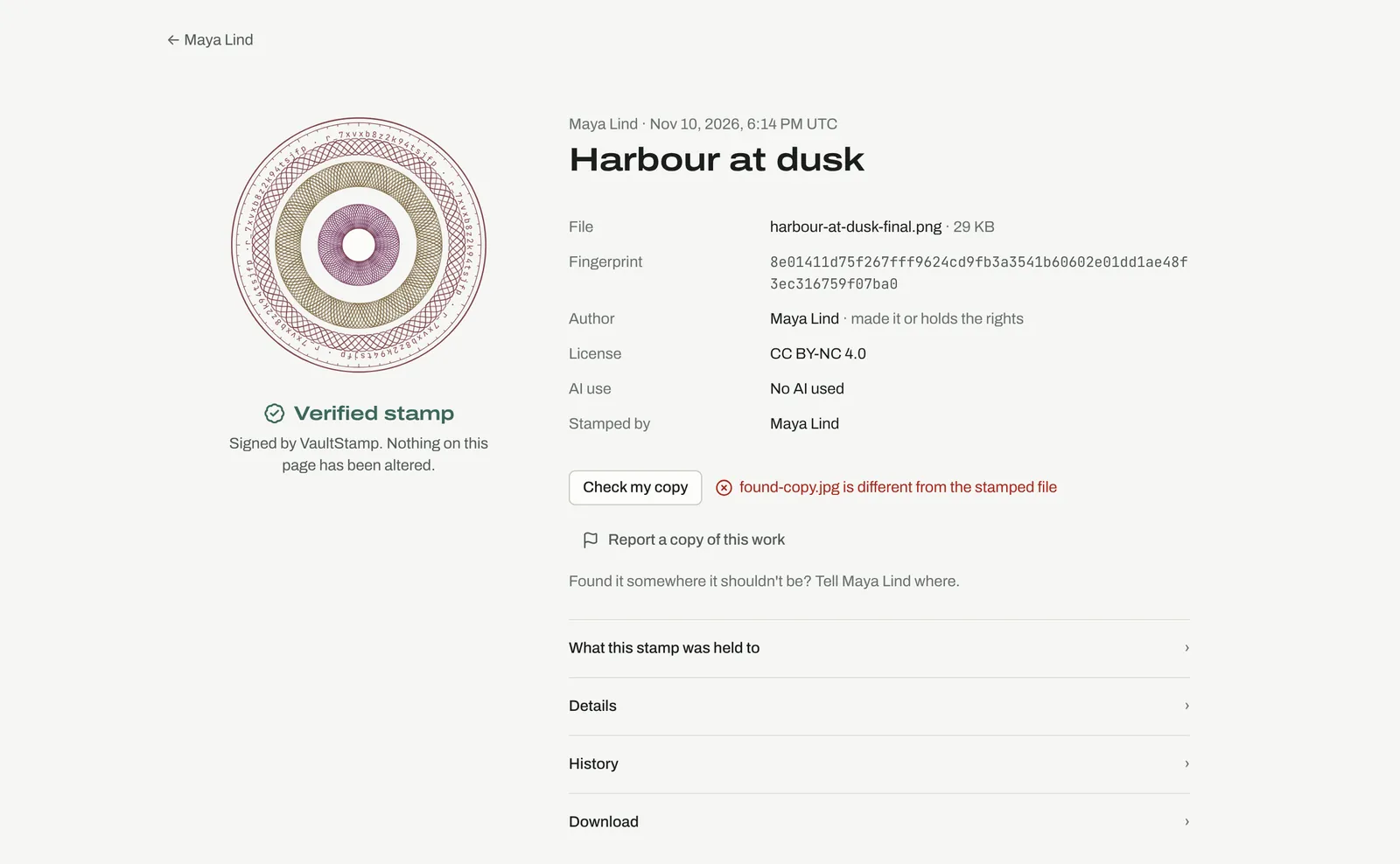
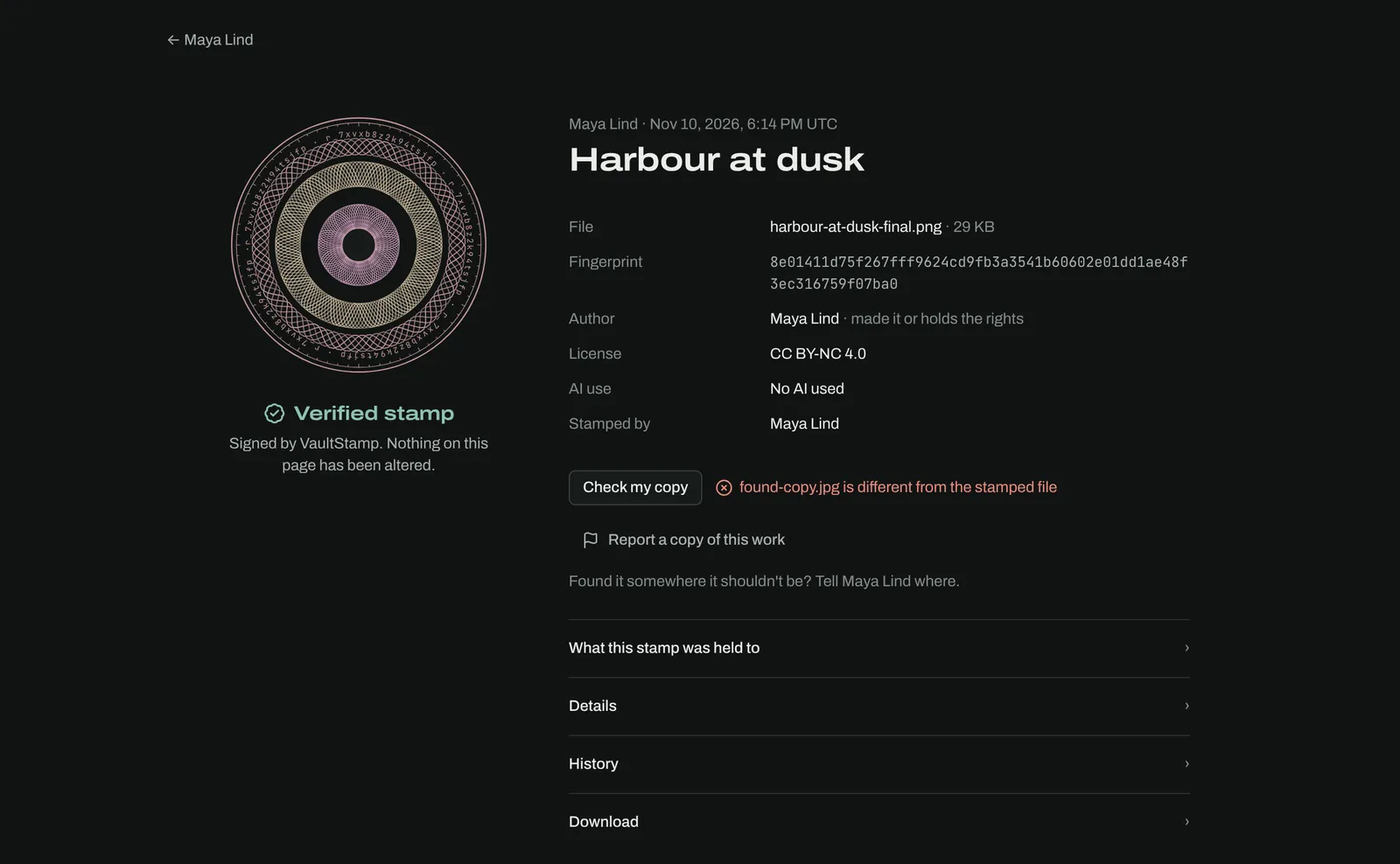
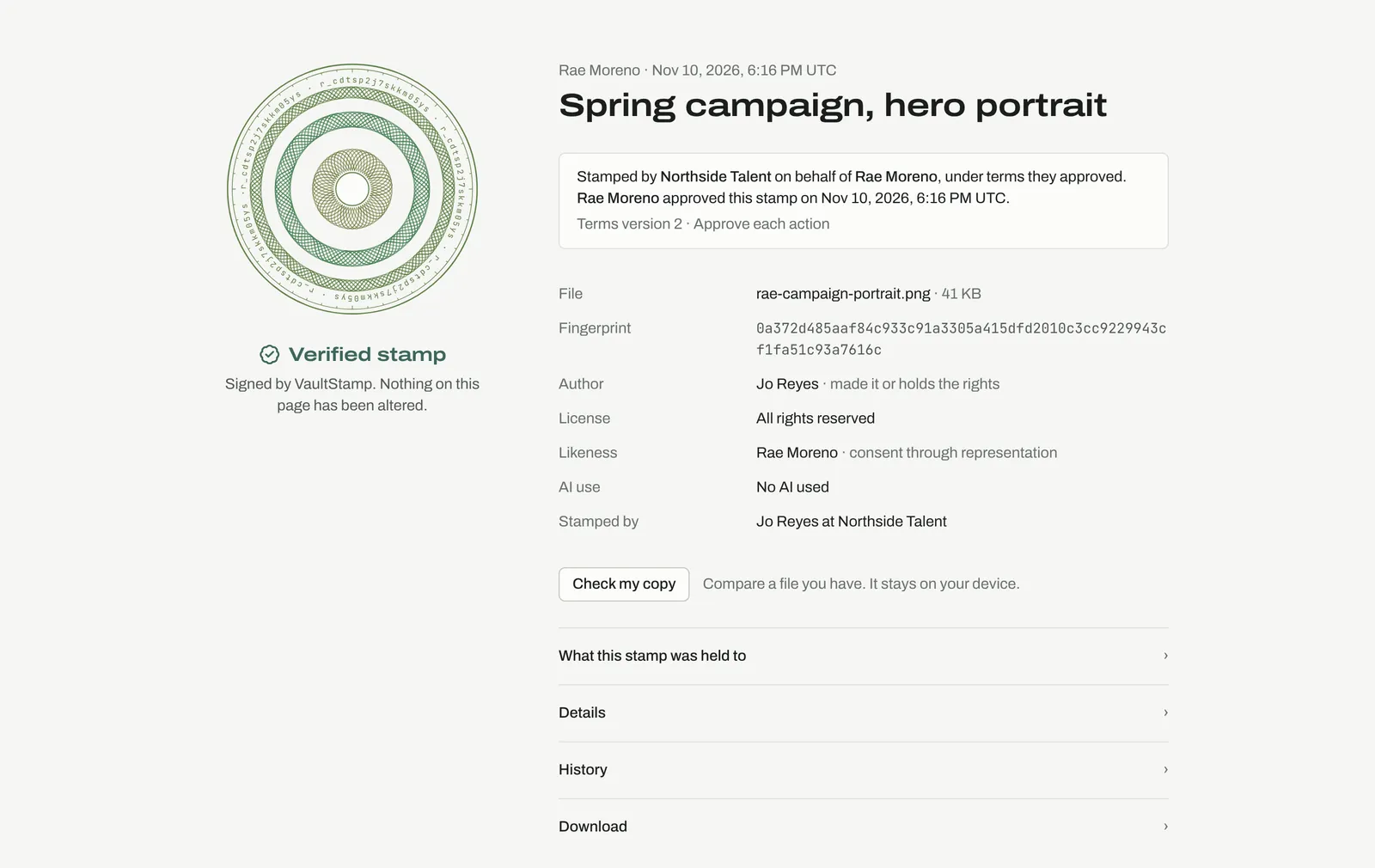
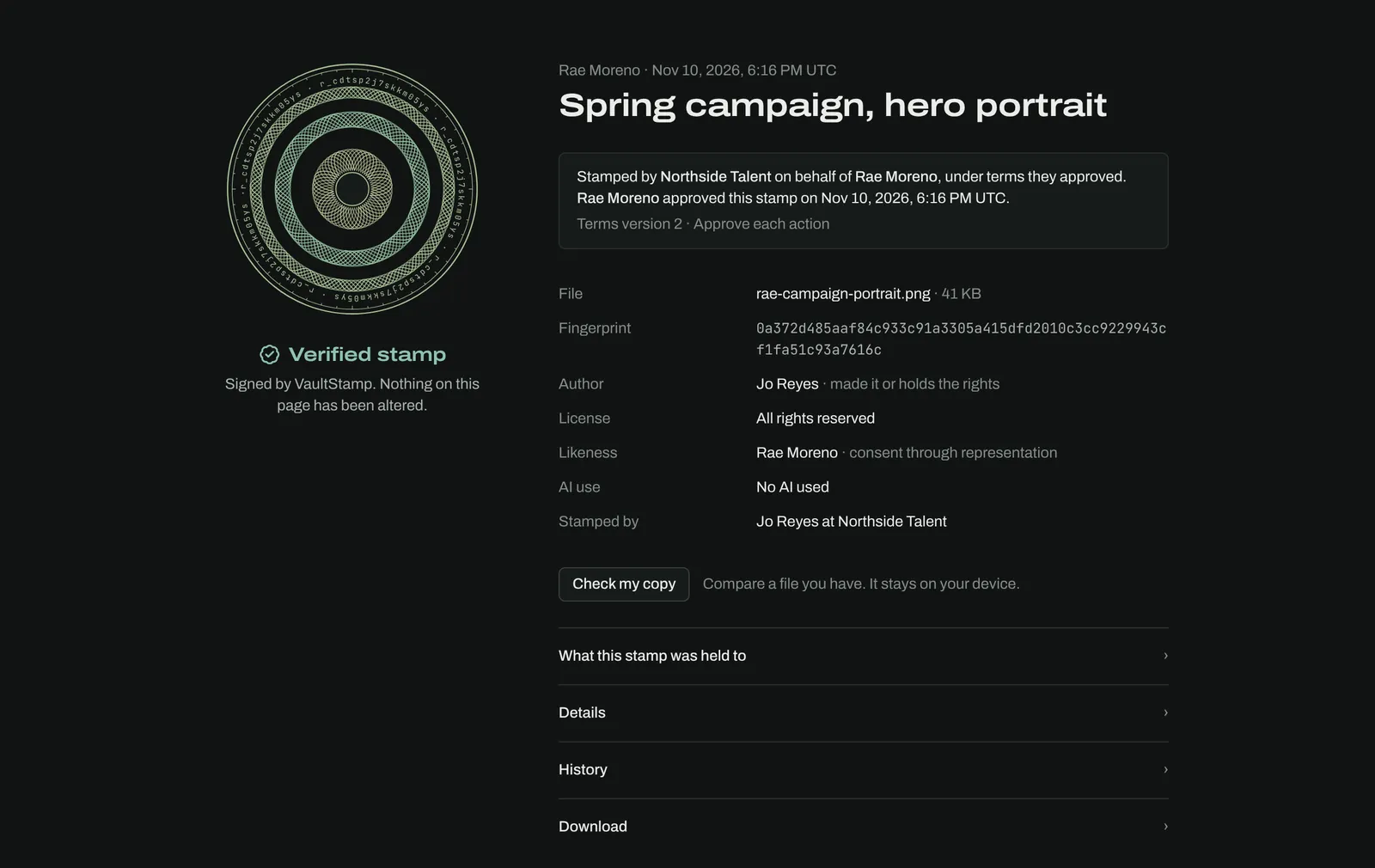
Post your work wherever you already post it, and add the receipt link or your public page. The receipt answers “is this real?” first, with the seal and Verified stamp. Then it shows what was declared and who stamped it. More is folded away under What this stamp was held to, Details, History and Download. Your email is never shown.
6. Someone checks a file
A gallery is offered a print and wants to know if the file is genuinely Maya's. On the receipt they choose Check my copy and pick their file. The check runs in their browser; the file isn't uploaded. An exact match says the file is identical to the stamped file. Anything else, even a re-saved or cropped version, says it's different.
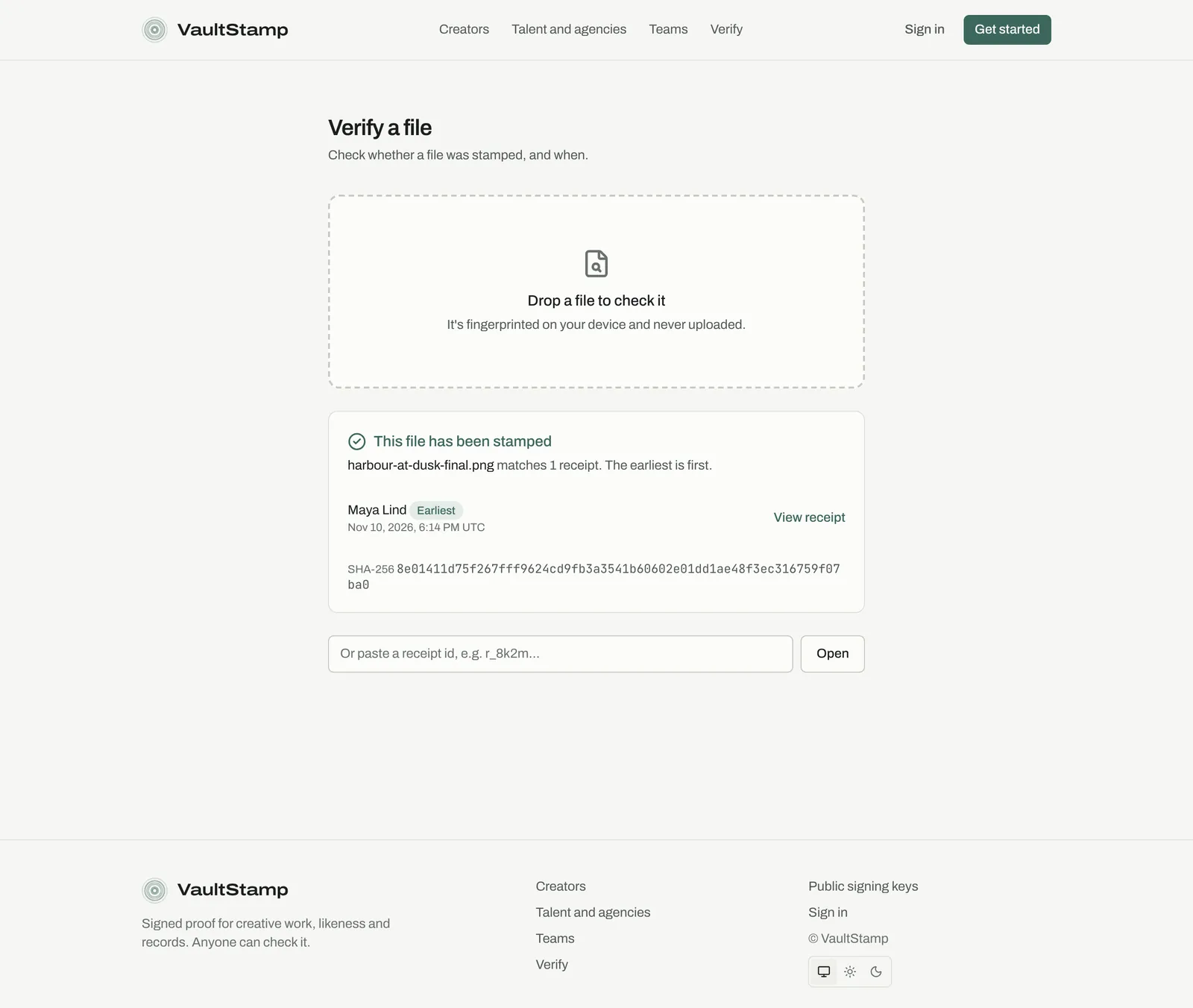
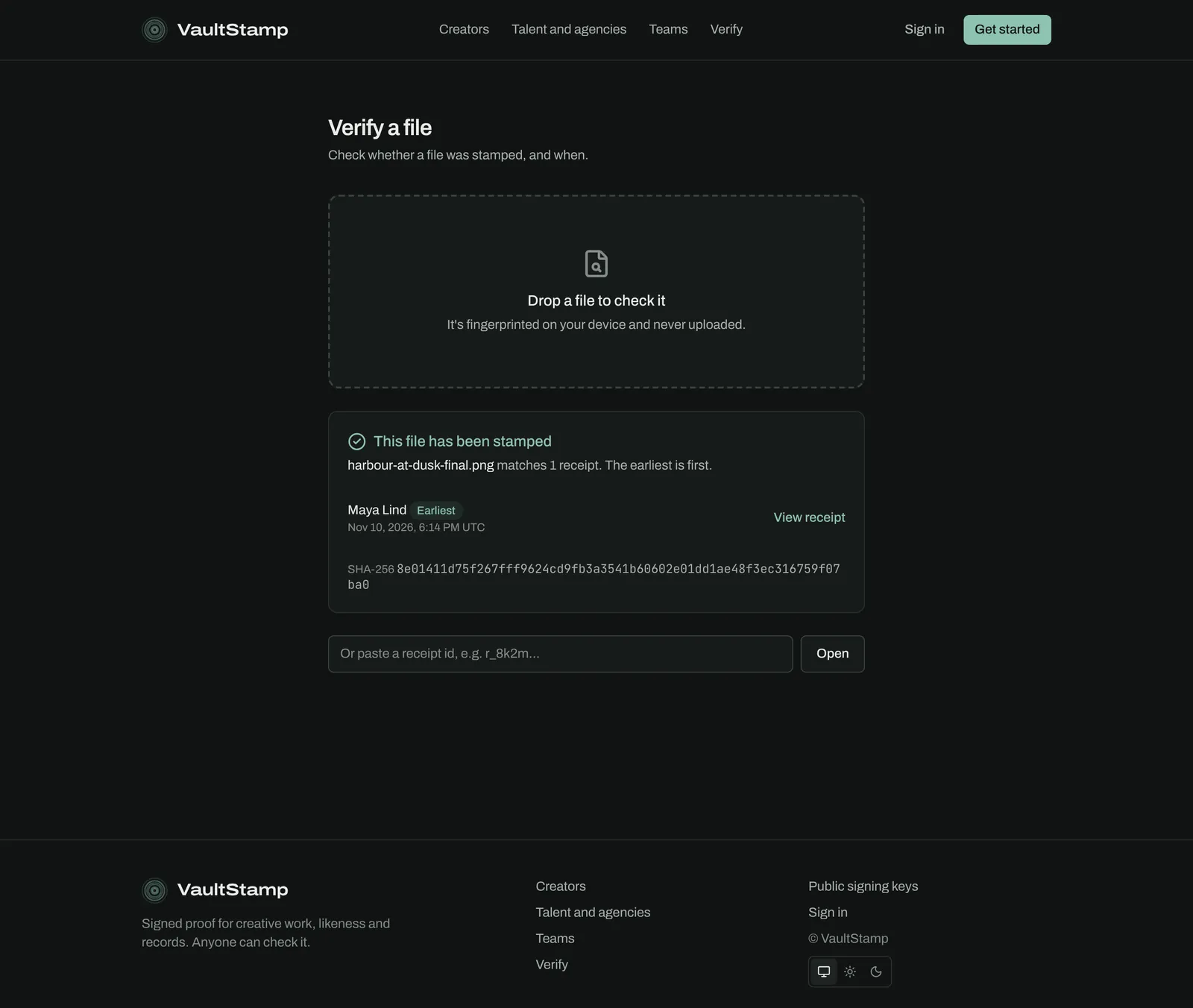
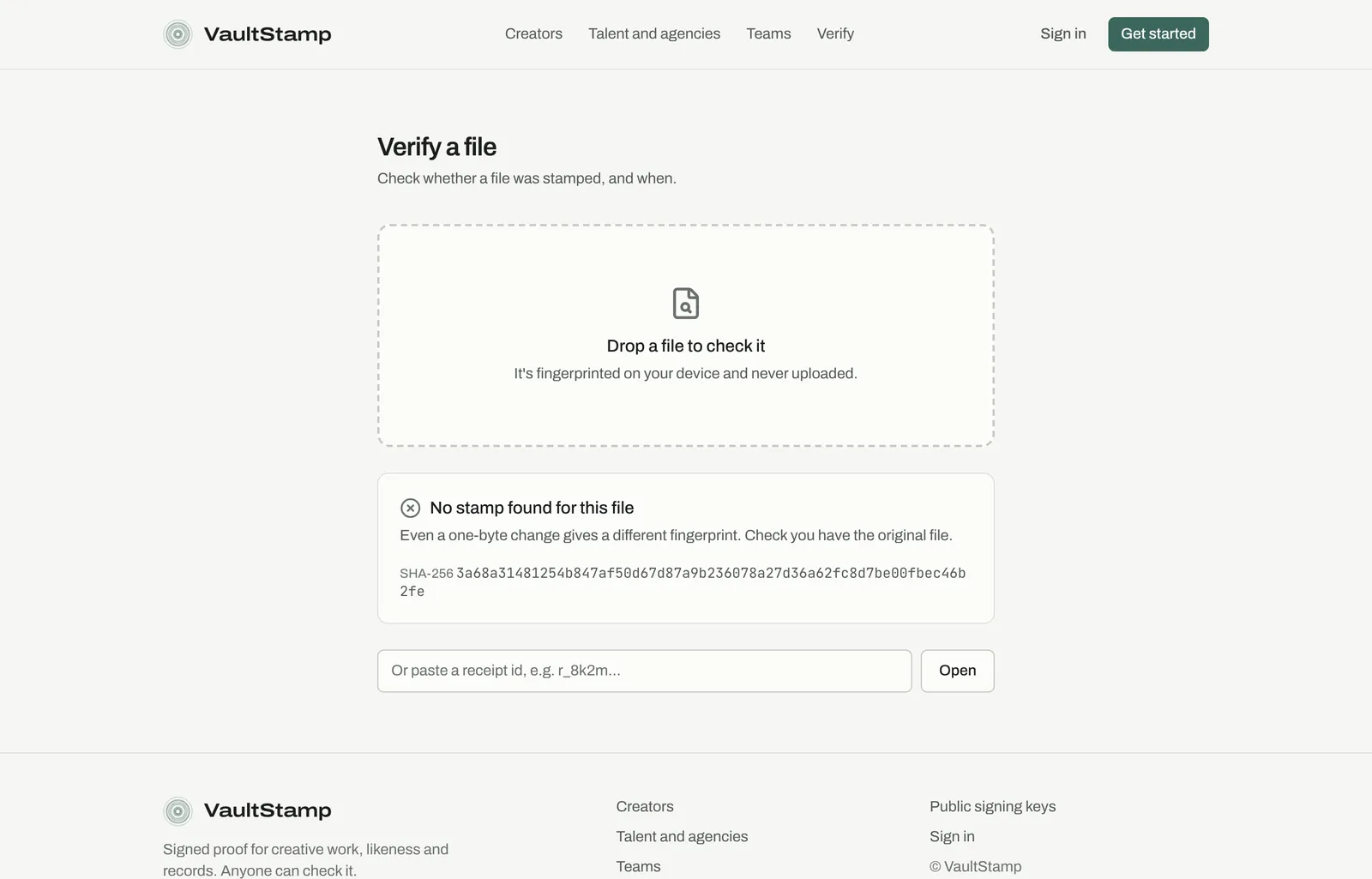
Without a receipt link, anyone can use Verify on the VaultStamp site (or Check a file in the app). Drop a file and VaultStamp looks up its fingerprint, or paste a receipt id.
7. A copy is reported
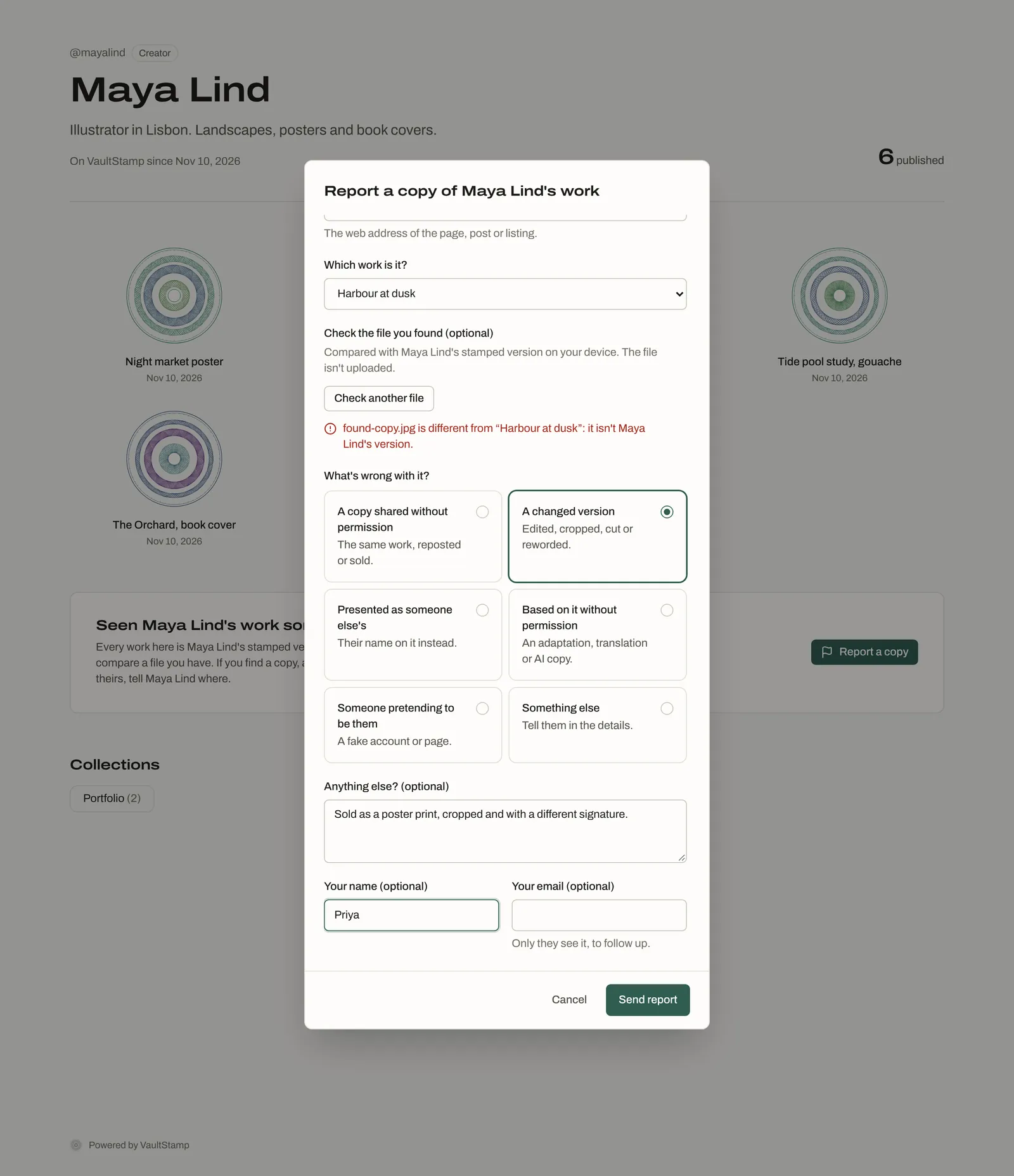
A fan, Priya, finds a cropped print of Harbour at dusk for sale on another site. On Maya's public page she chooses Report a copy, pastes the address, picks the work, and can check the file she found. She picks what's wrong: a copy shared without permission, a changed version, presented as someone else's, based on it without permission, someone pretending to be them, or something else. The report goes only to Maya, not to the site.
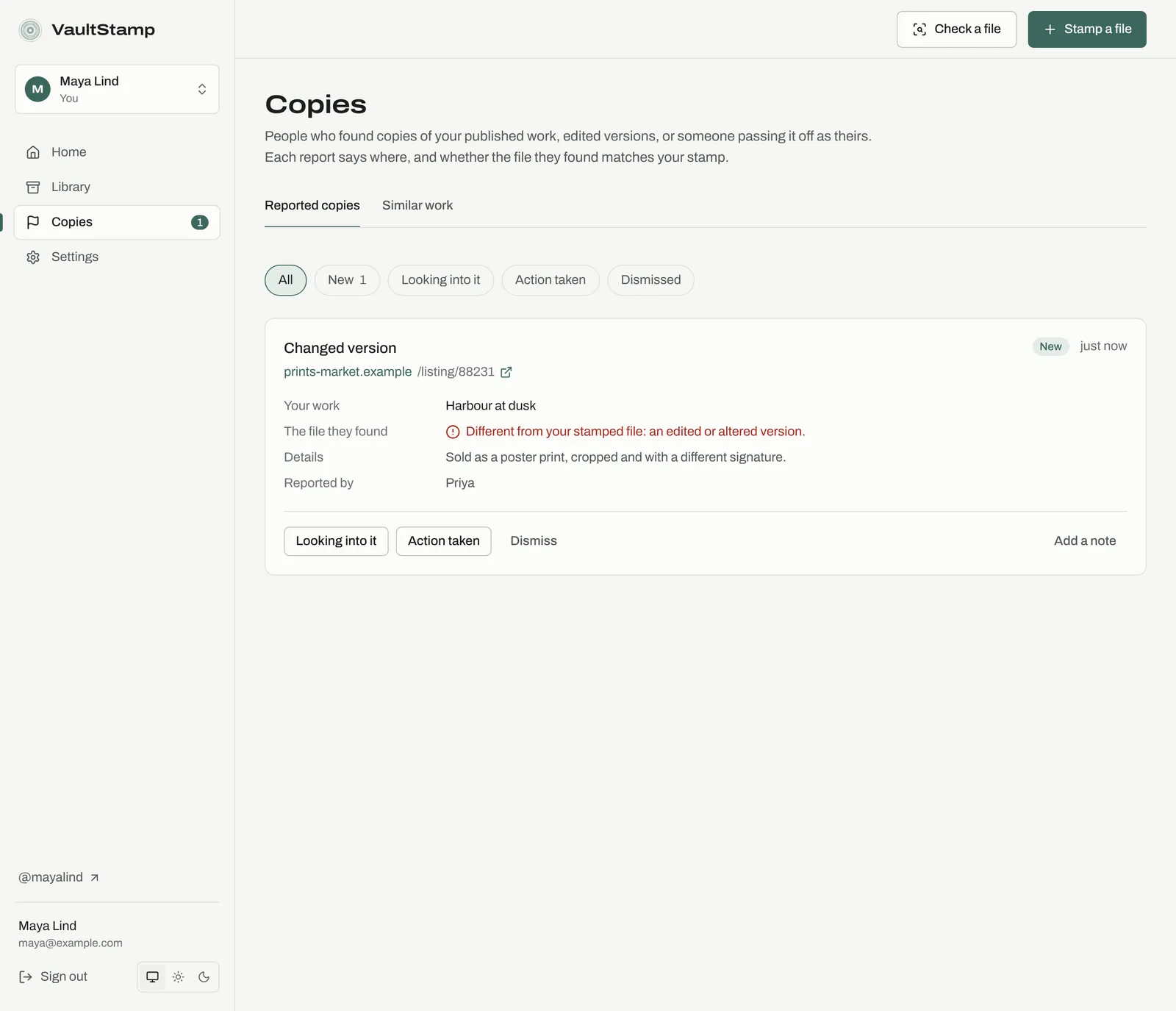
Maya gets an email, and the report shows under Copies → Reported copies, including whether the file Priya found matches the stamp. She moves it through Looking into it and Action taken, or chooses Dismiss, and can add notes.
8. Get it taken down
Send the host the receipt link. It shows Maya stamped the original first, and their copy fails the check. For a formal takedown, open the stamp page and choose Evidence pack (ZIP). It contains:
- the original file;
- the receipt, its signature and VaultStamp's public key;
- a README with the OpenSSL commands to verify it all offline;
- any issuances of the file.
The pack checks out without VaultStamp, so a host, platform or lawyer can confirm it themselves.
Reference
Every feature
Each section says what a feature does, where to find it, and how to use it. What you see depends on your account: talent and agencies see a few extra screens, and some settings are only for owners and admins.
Home and accounts
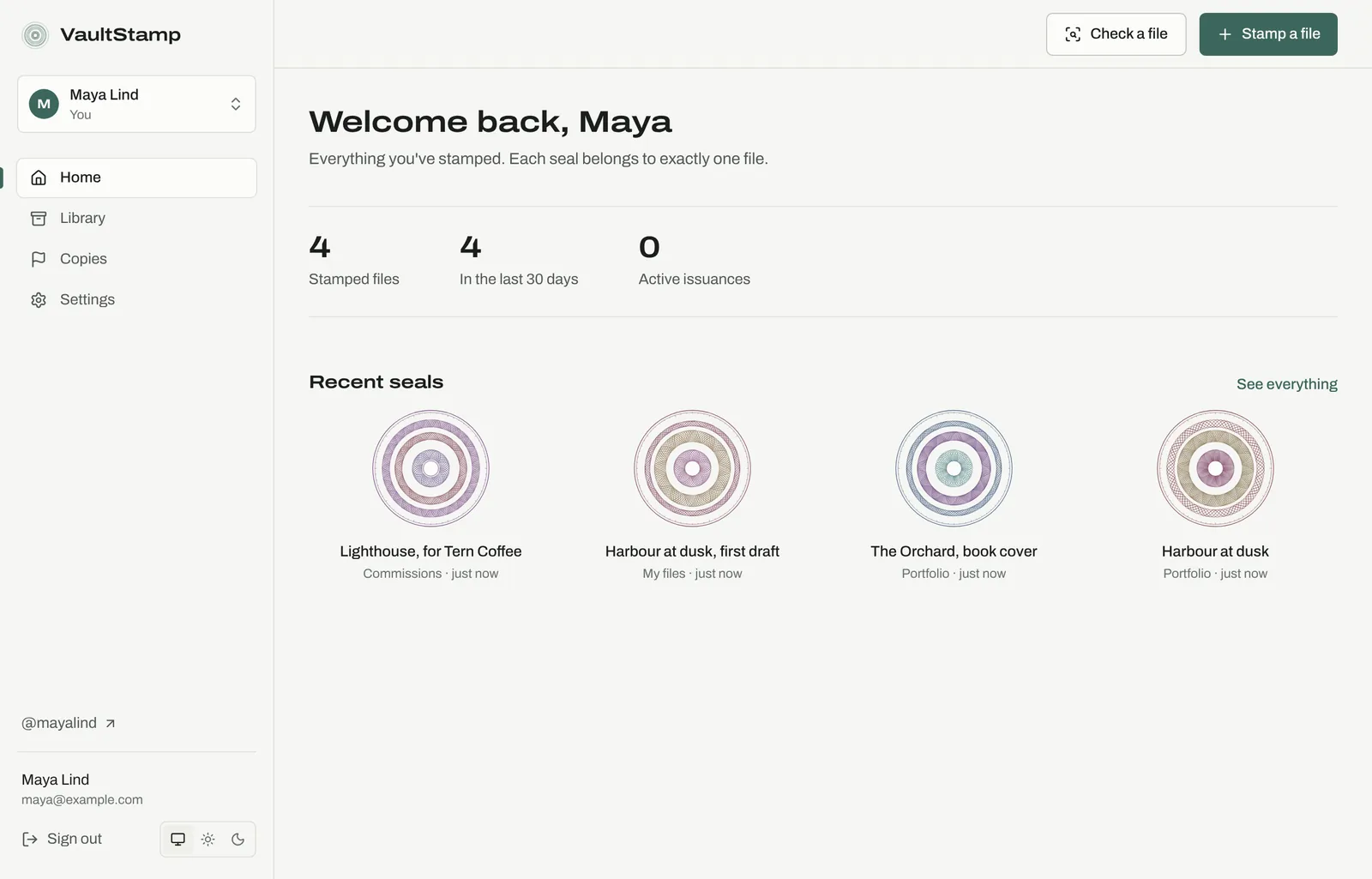
Home shows how many files you've stamped, how many in the last 30 days, active issuances, and your recent seals. Agencies see their talent here.
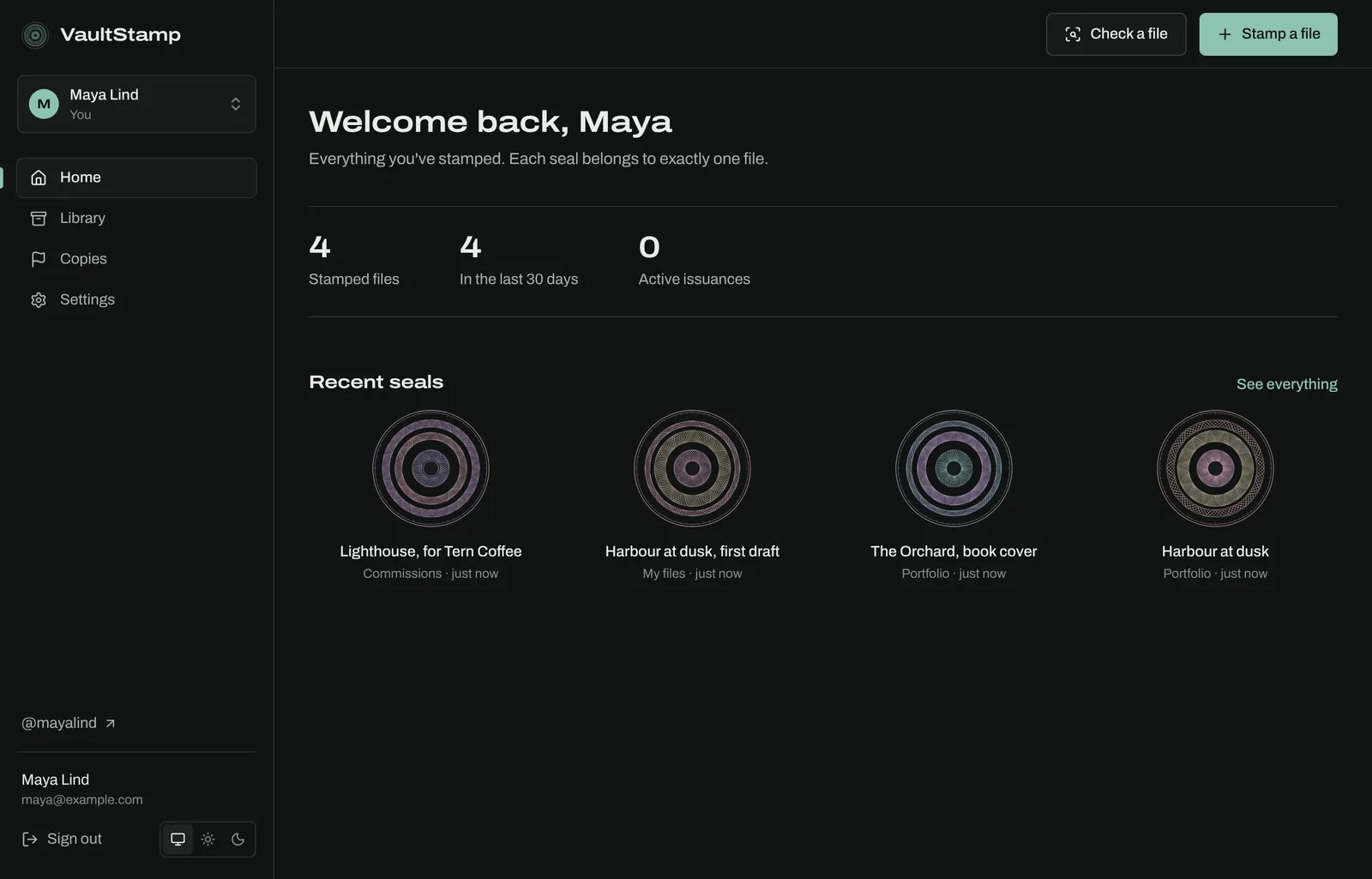
The account switcher at the top left lists every account you can work in: your own, organizations and agencies you belong to, and, for agency staff, the talent you represent. Choose New organization or agency there to create a shared account.
Vaults
Where: Library → Vaults
A vault is a folder of stamped files with its own rules. Open one to see its files, choose Stamp into this vault, or Add from a source. Edit changes its name and description, its Visibility, or archives it.
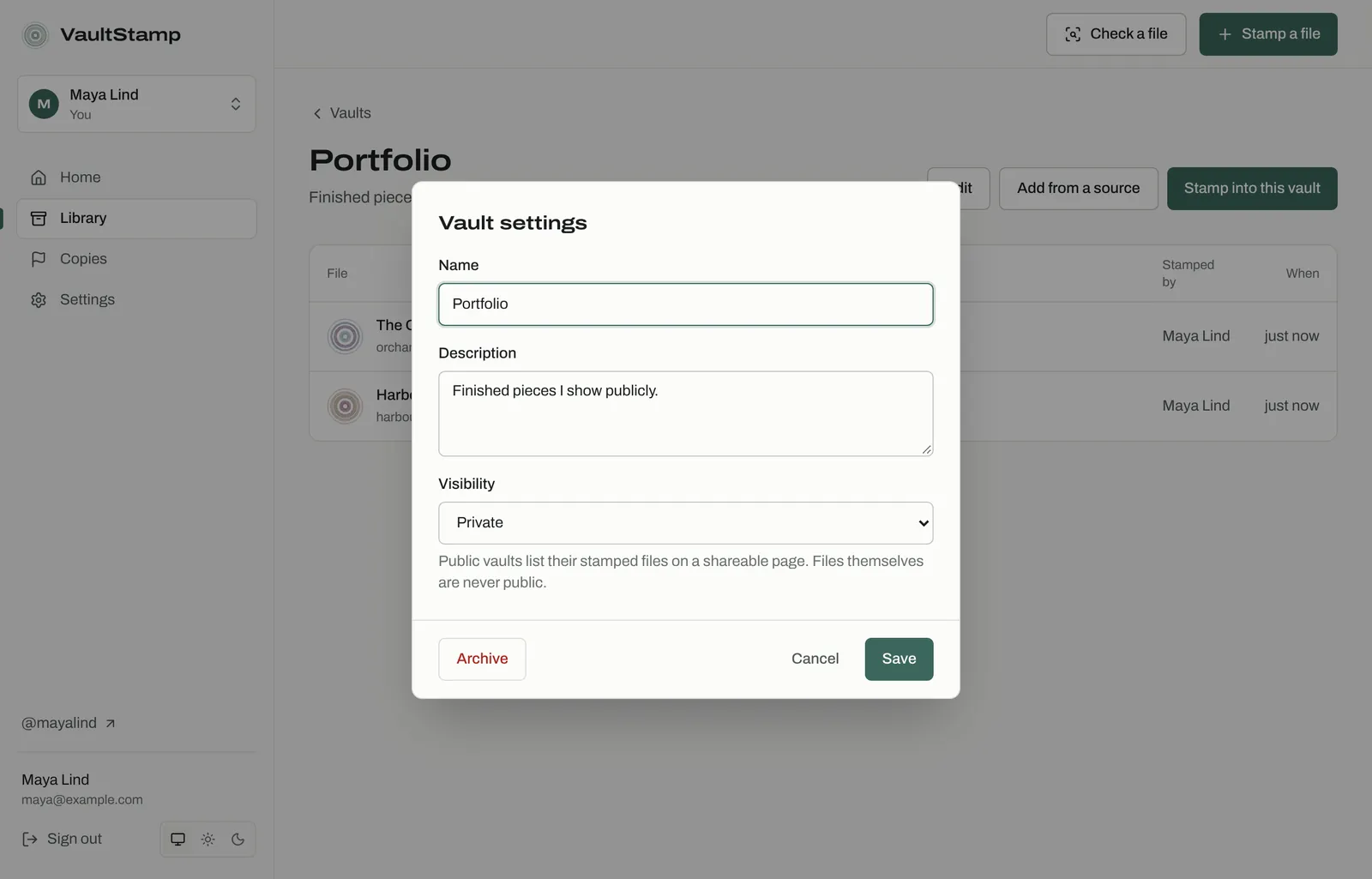
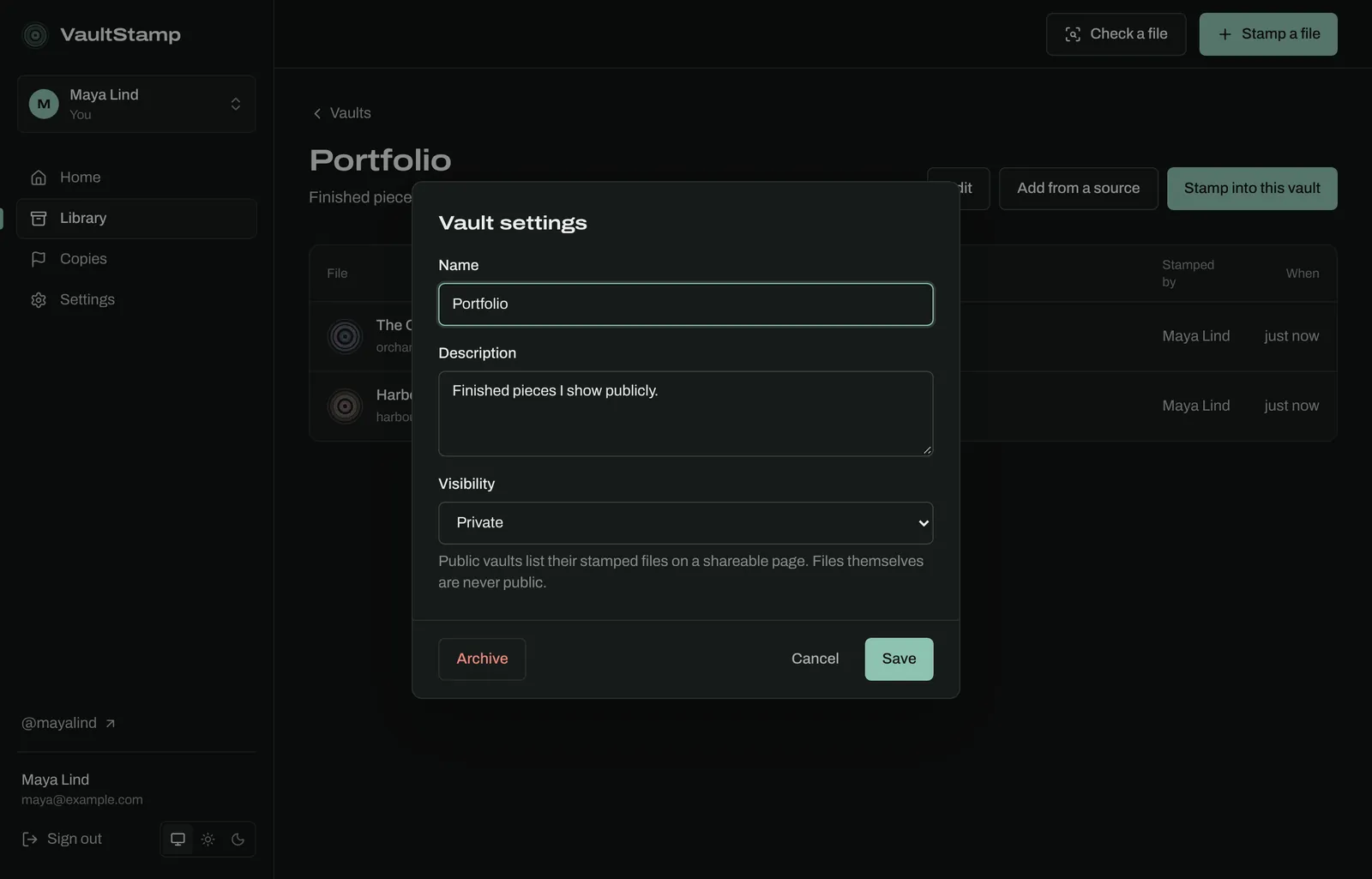
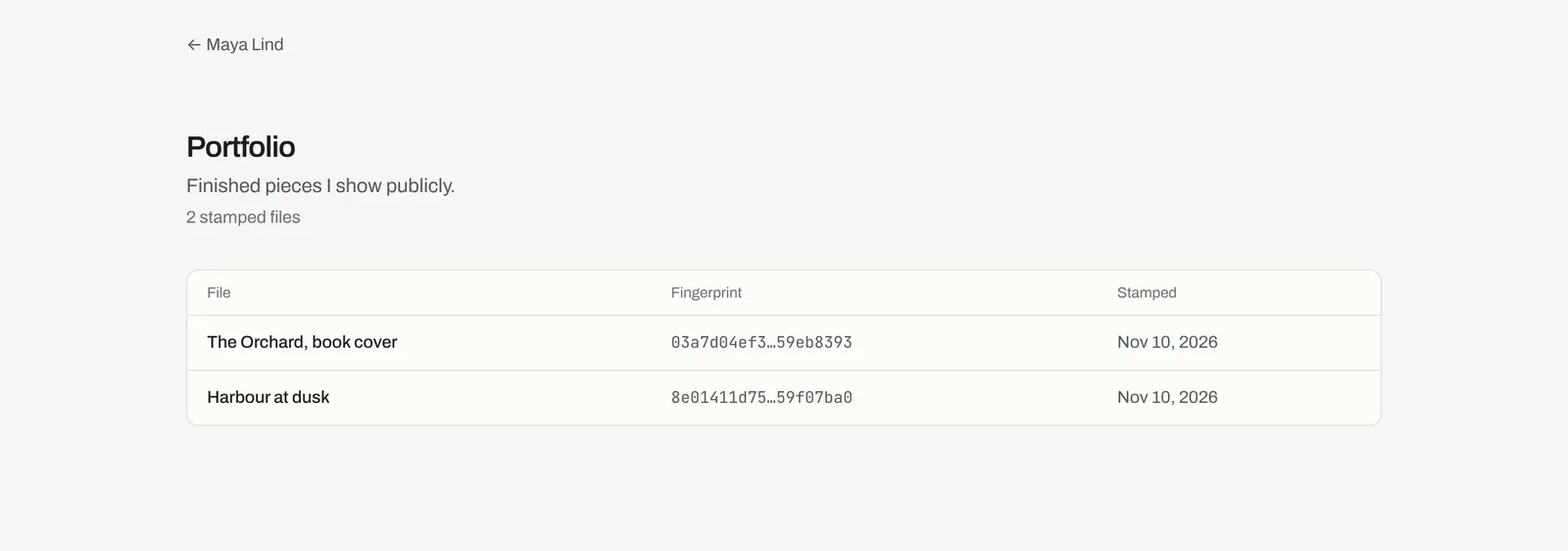
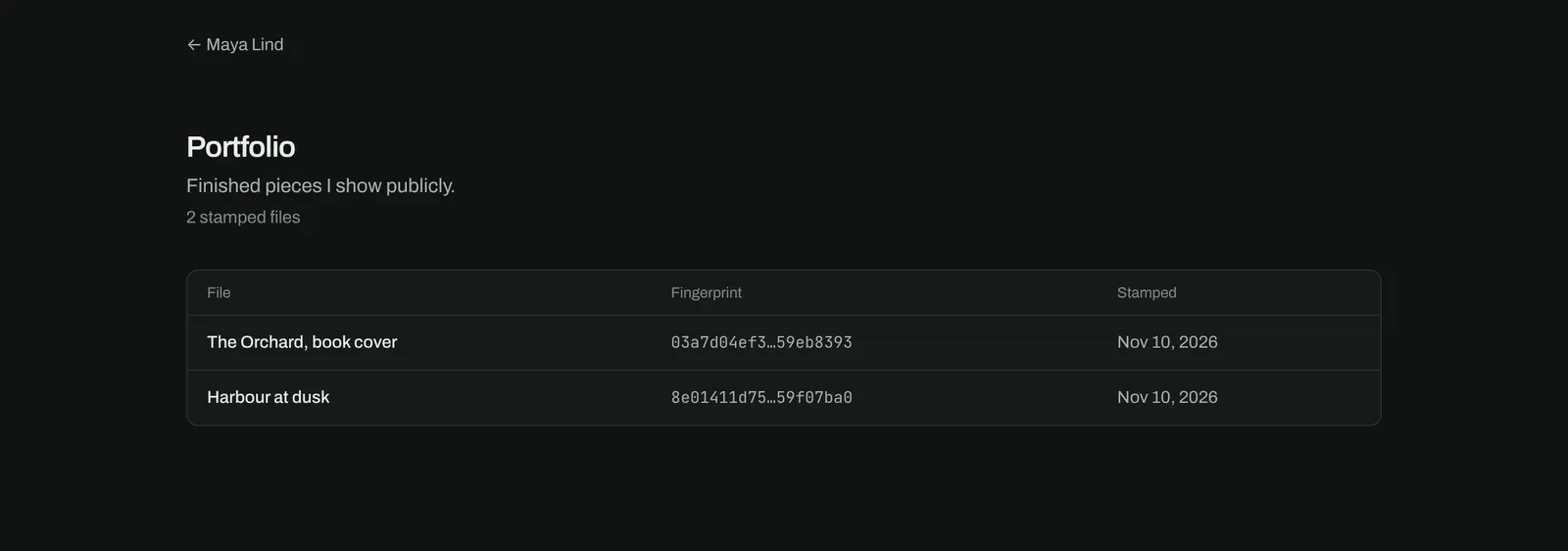
A Public vault gets its own shareable page listing its stamped files, like a collection on your public page. The files themselves are never public, only their seals and receipts.
Stamping in detail
- Many files at once: add up to 20 files. The details you give apply to all of them, and each title defaults to its file name.
- Stamp type: start from Standard, or choose a type for extra details, like Likeness for a person's face, voice or body. Teams can make their own (see Stamp types).
- Rules that apply automatically: some requirements are added by file type, by vault, or by how the file was made. Images, video and audio always declare AI use.
- Approvals: when an agency stamps for talent under “approve each”, the form says so, and the stamp is signed only once the talent approves.
Stamps
Where: Library → Stamps
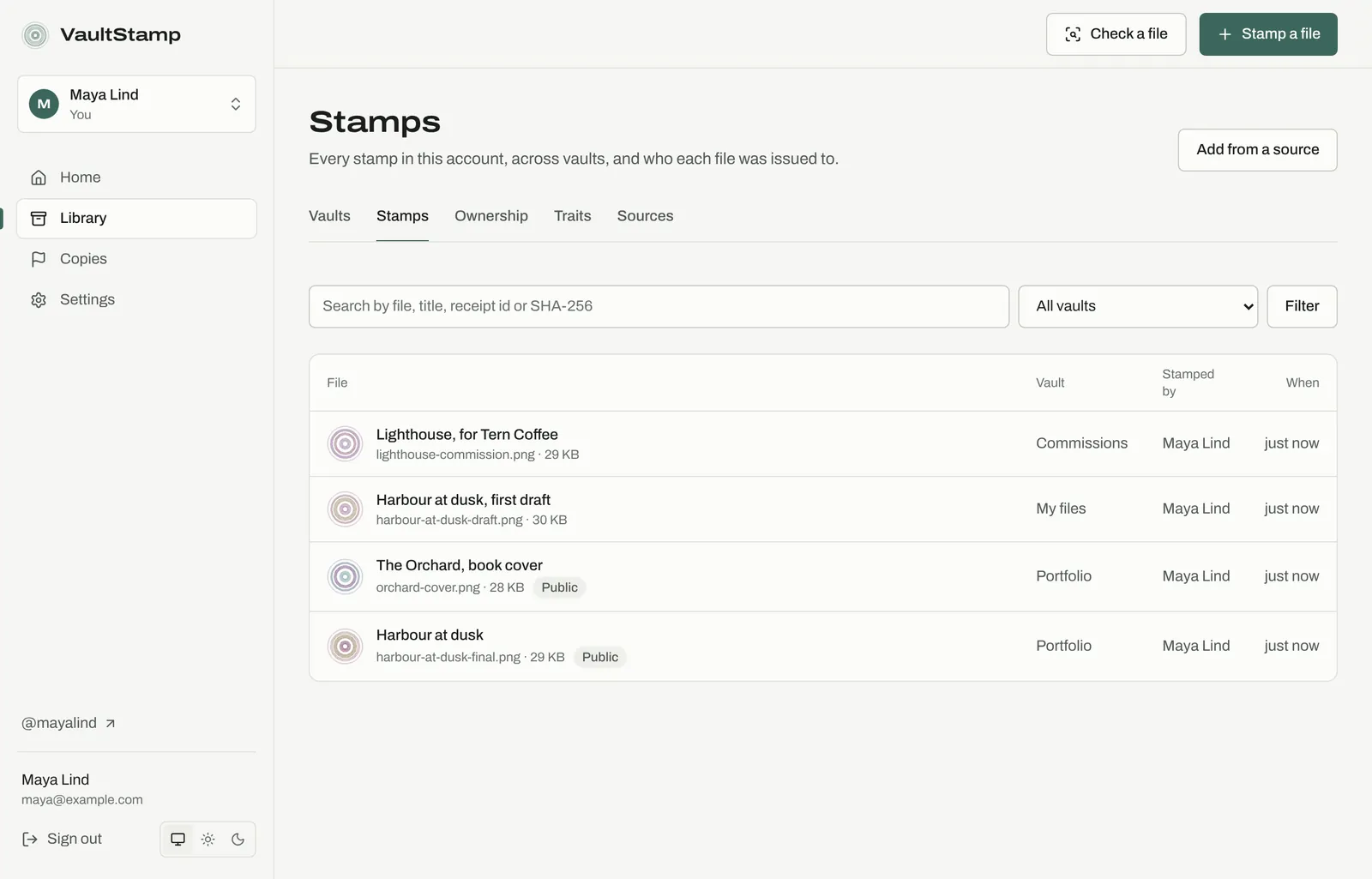
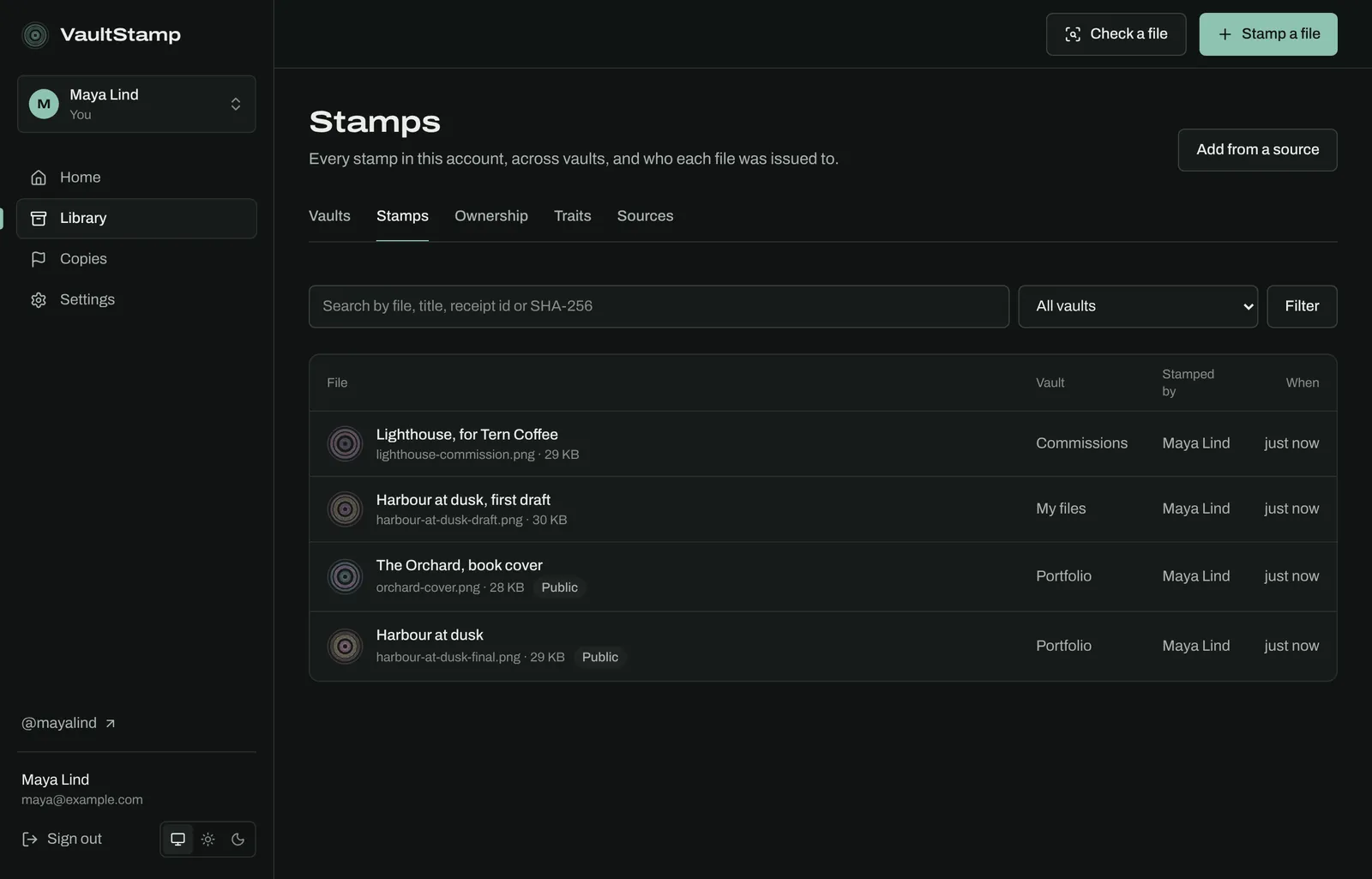
Every stamp in the account, across vaults. Search by file name, title, receipt id or SHA-256, and filter by vault. Public marks stamps shown on your public page.
Sources
Where: Library → Sources, or Add from a source on any vault or stamp list
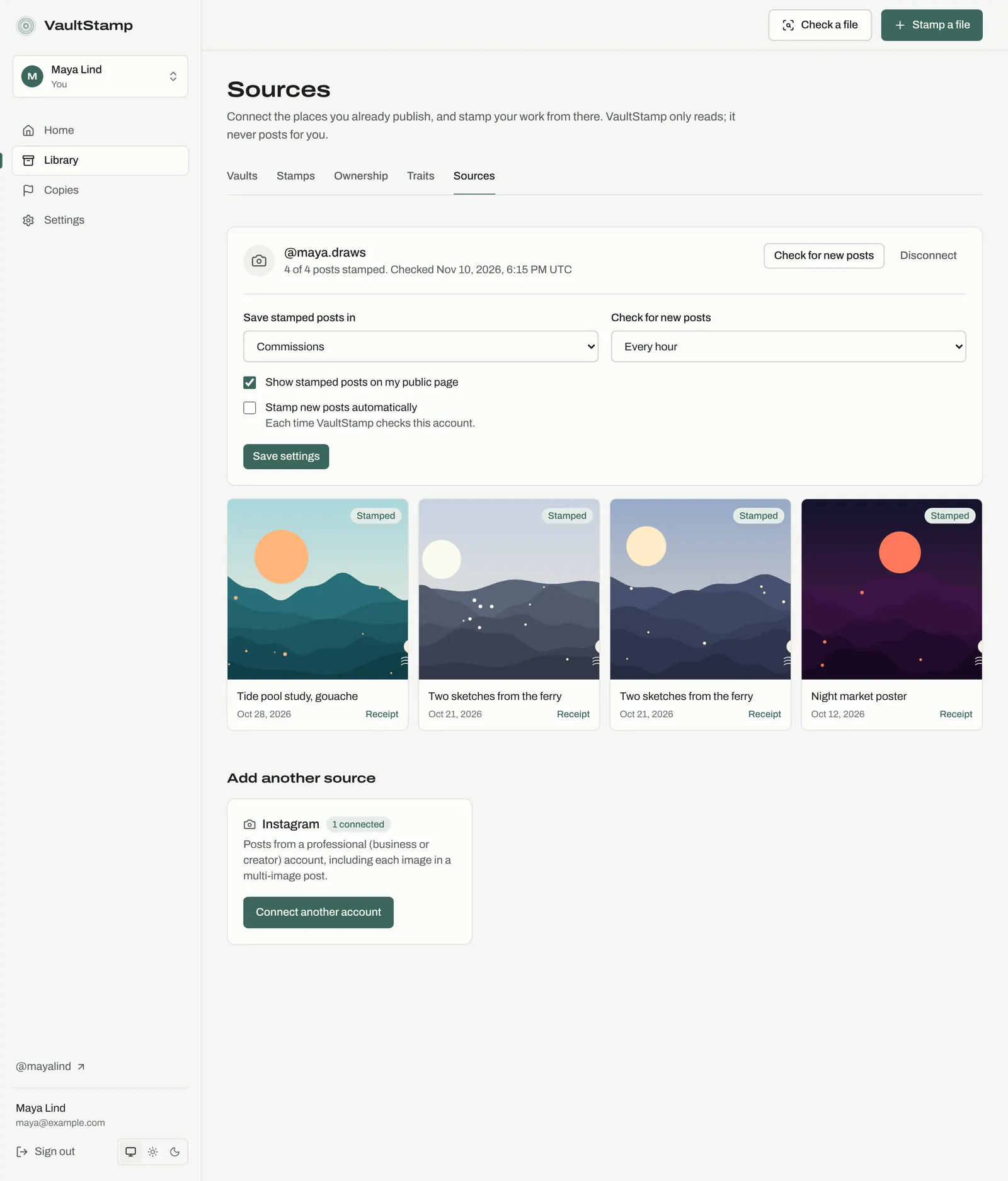
Connect the places you already publish, and stamp your work from there. VaultStamp only reads; it never posts for you. Instagram professional (business or creator) accounts are the first kind of source. Each image in a multi-image post is listed separately, and you can connect more than one account.
- Choose Connect and sign in to Instagram.
- Pick where stamped posts go (Save stamped posts in) and how often to Check for new posts: every 15 minutes, hourly, every 6 hours, daily, weekly, or only when you ask.
- Select posts and choose Stamp posts. Each is downloaded, kept privately in your vault, and stamped with its Instagram address and the date it was posted.
- Optional: tick Stamp new posts automatically (you confirm authorship and AI use once) and Show stamped posts on my public page.
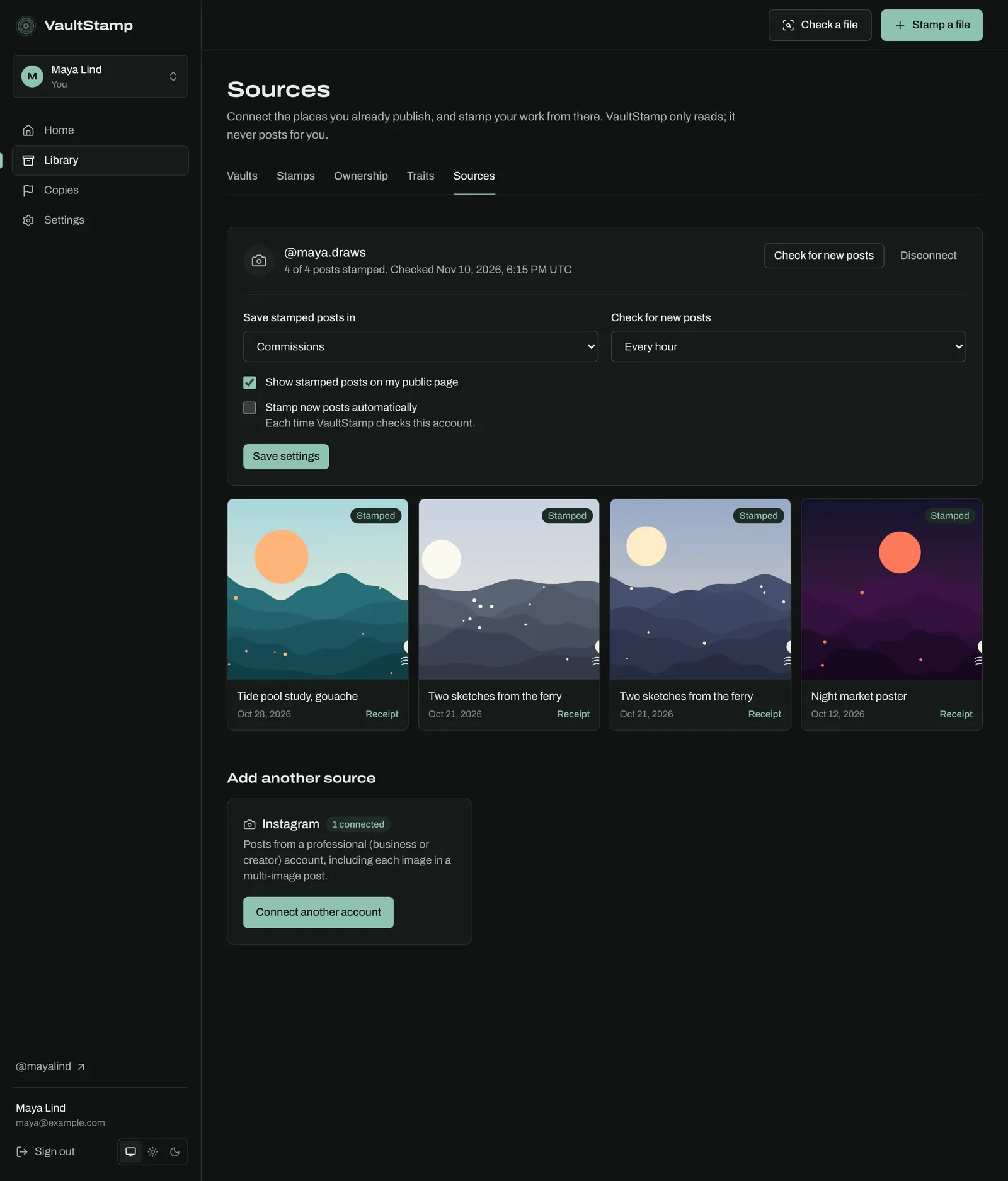
Disconnect stops VaultStamp reading the account. Posts you already stamped keep their receipts.
Receipts and checking files
Where: Check a file in the top bar, or vaultstamp.com/verify, or any receipt
Every receipt has its own link (/r/…) that works whether or not the stamp is on your public page. Anyone can check a file against it, no account needed. Receipts are signed with a published key (Public signing keys in the site footer) and use open standards, so any developer or platform can verify them too.
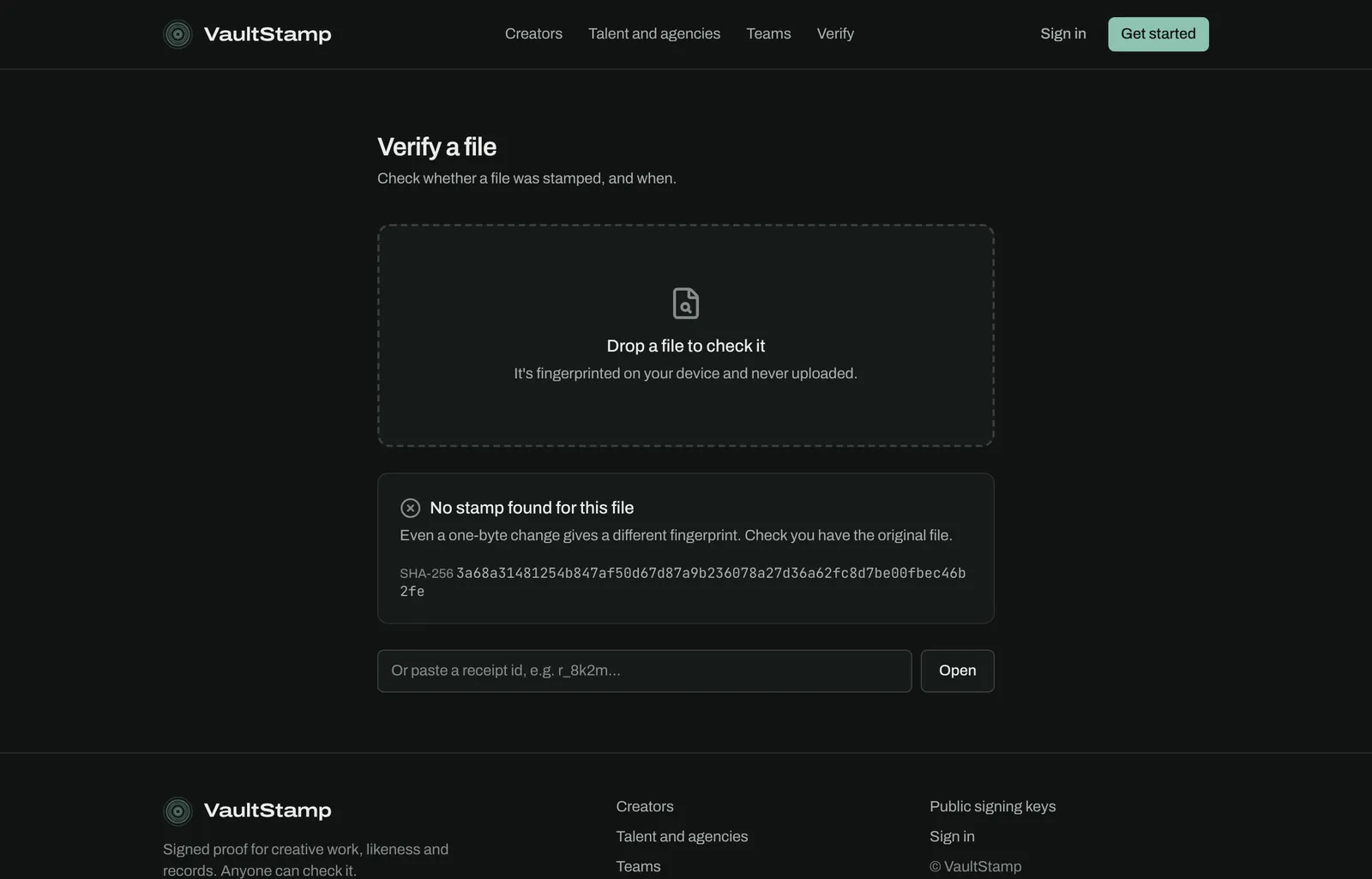
Check a file answers one of two ways. If the file was stamped, you see the receipt it matches. If not, VaultStamp says no stamp was found and reminds you that even a one-byte change gives a different fingerprint.
Fingerprints and similar work
Where: The stamp page, and Copies → Similar work
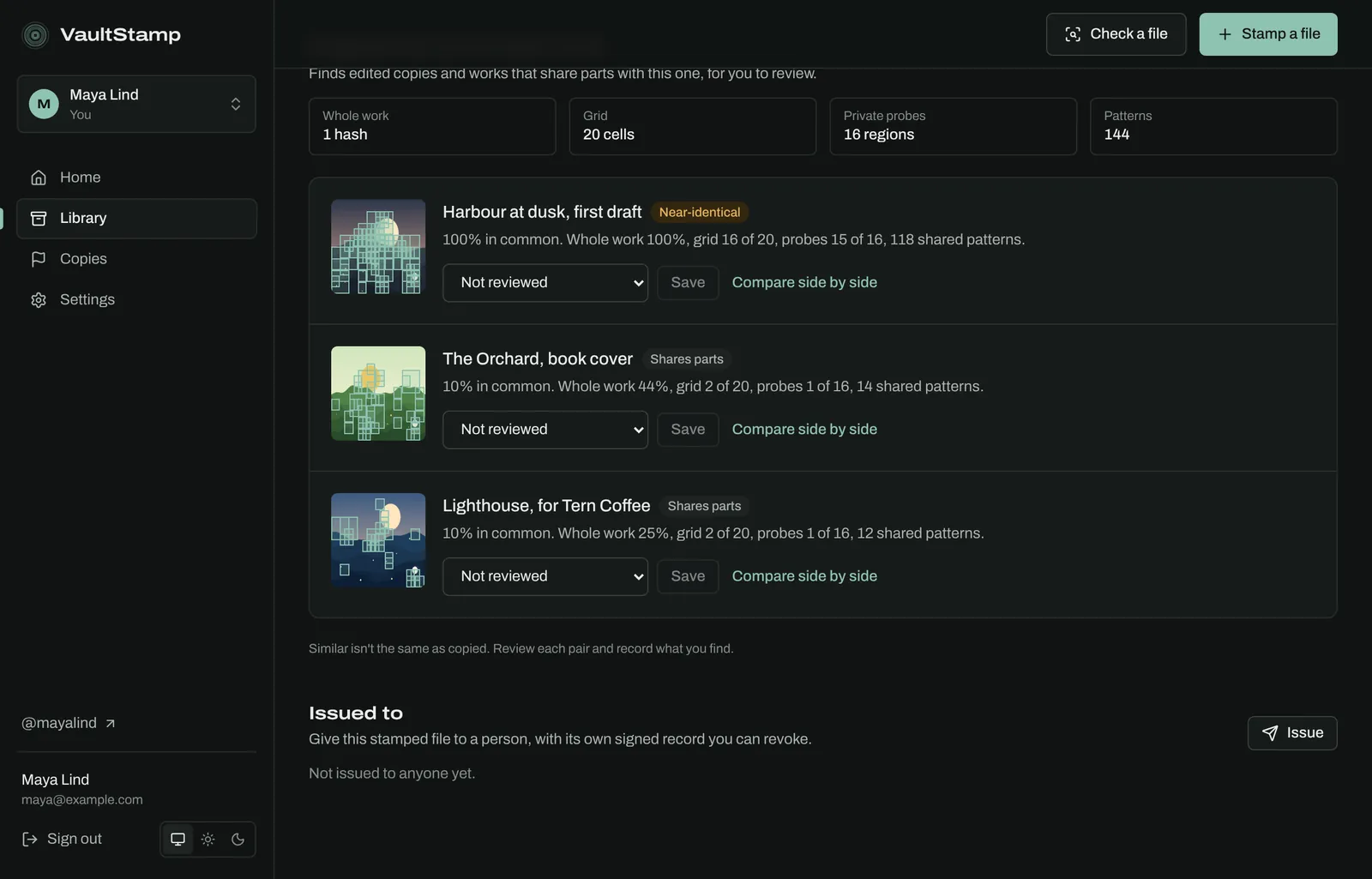
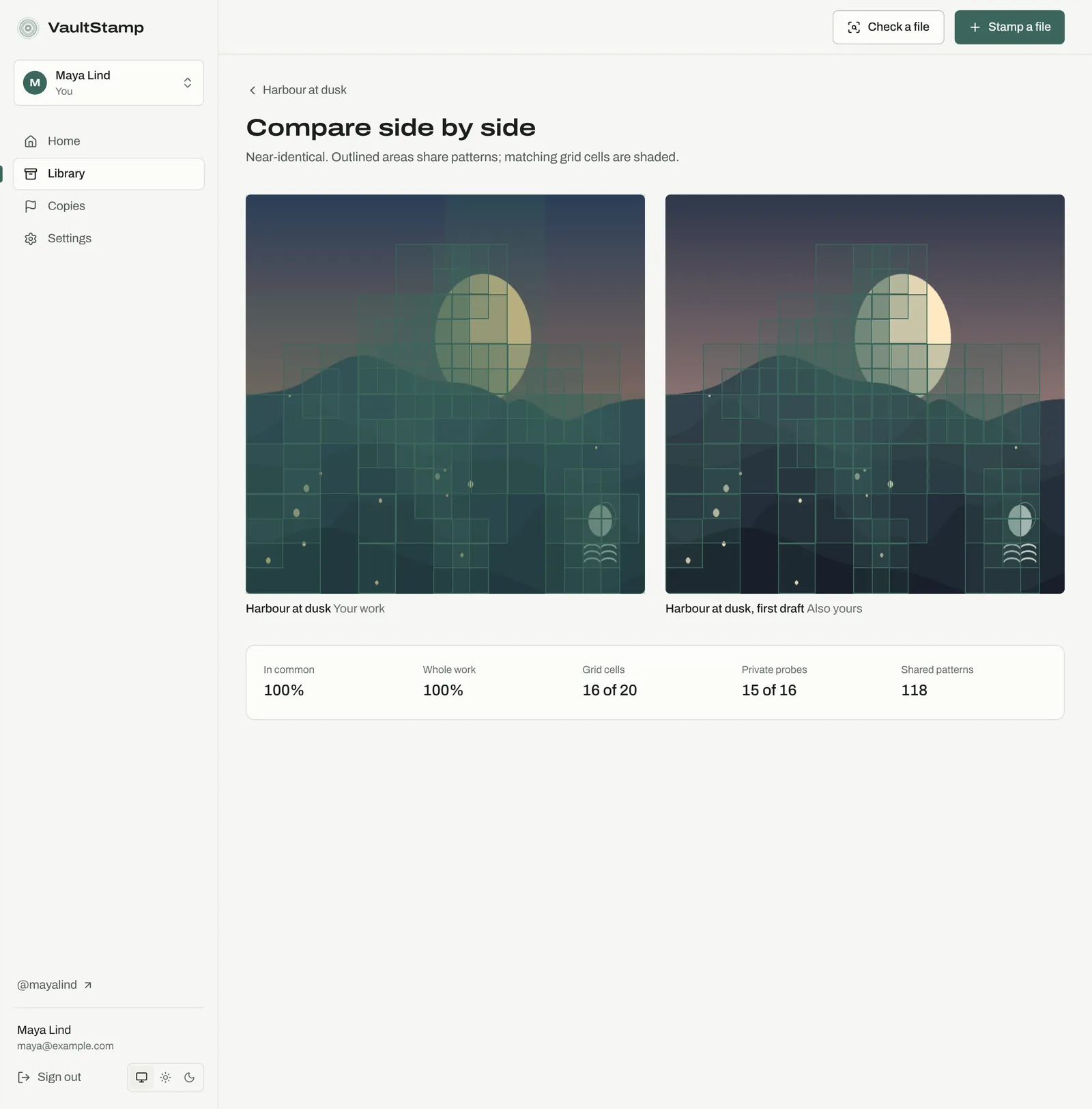
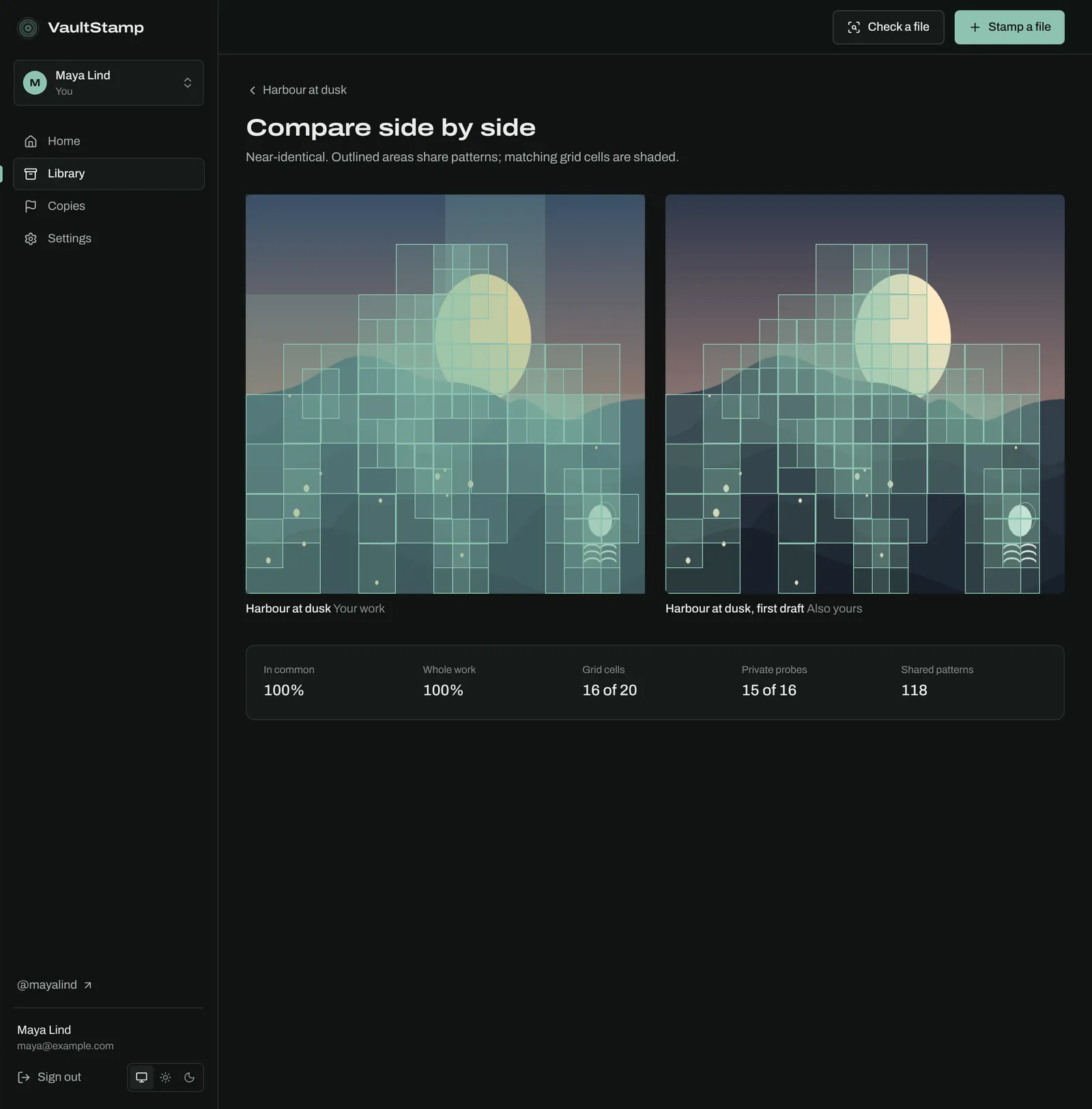
A stamp proves one exact file. Fingerprints go further for images and text: VaultStamp looks at the whole work, a grid of parts, private probe regions and recurring patterns, so it can find edited copies and works that share parts with yours. It compares your own work and other accounts' published work.
Each pair shows how much is in common and a label like Near-identical or Shares parts. Review it and record what it is: Same work, Derived from it, Shares traits only or Unrelated. Similar isn't the same as copied; your review is the finding.
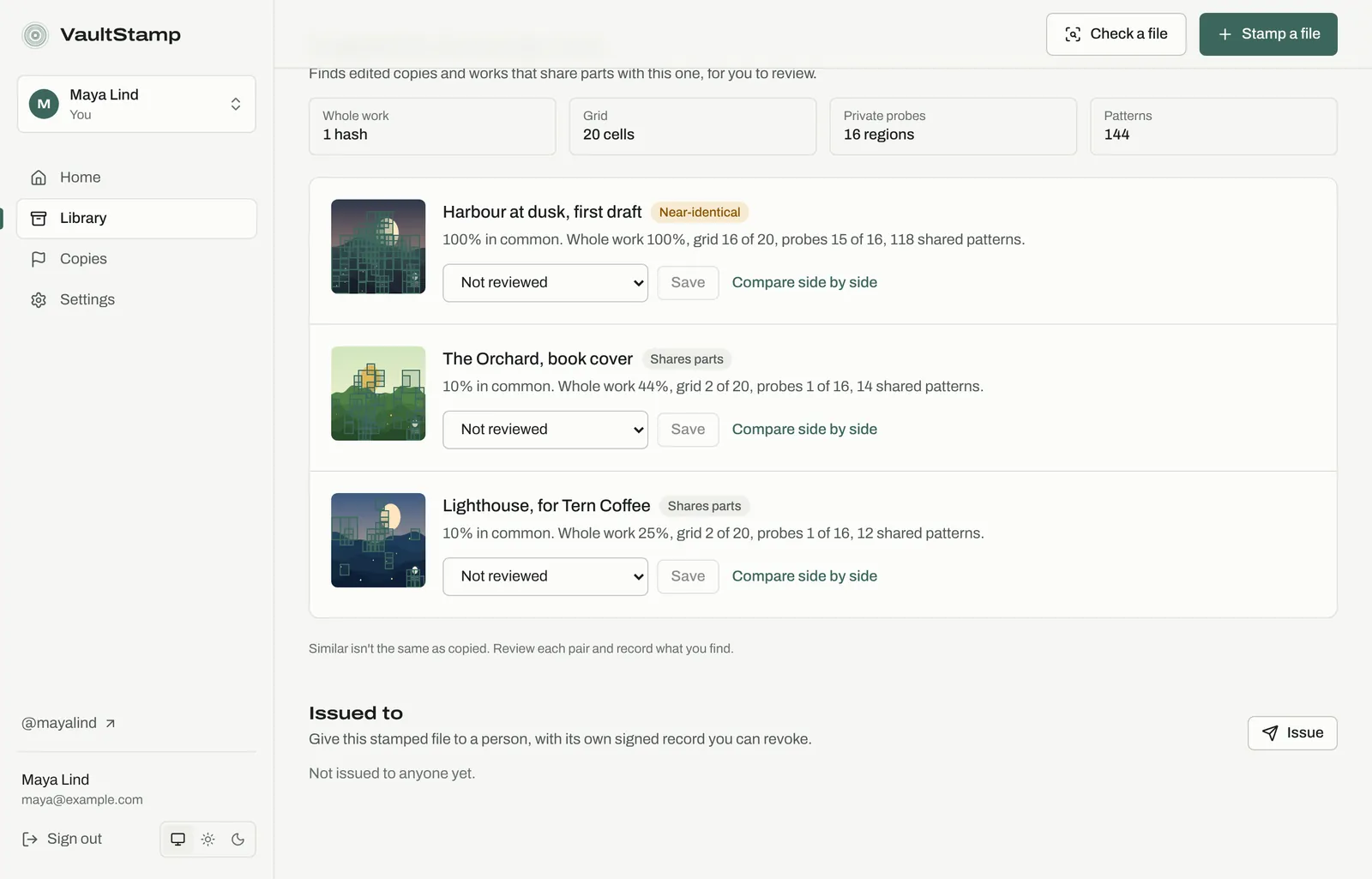
Compare side by side outlines the areas the two works share and shades the matching grid cells.
Copies → Similar work lists every pair waiting for review across the account. Choose Show reviewed too to see ones you've recorded.
Traits
Where: Library → Traits
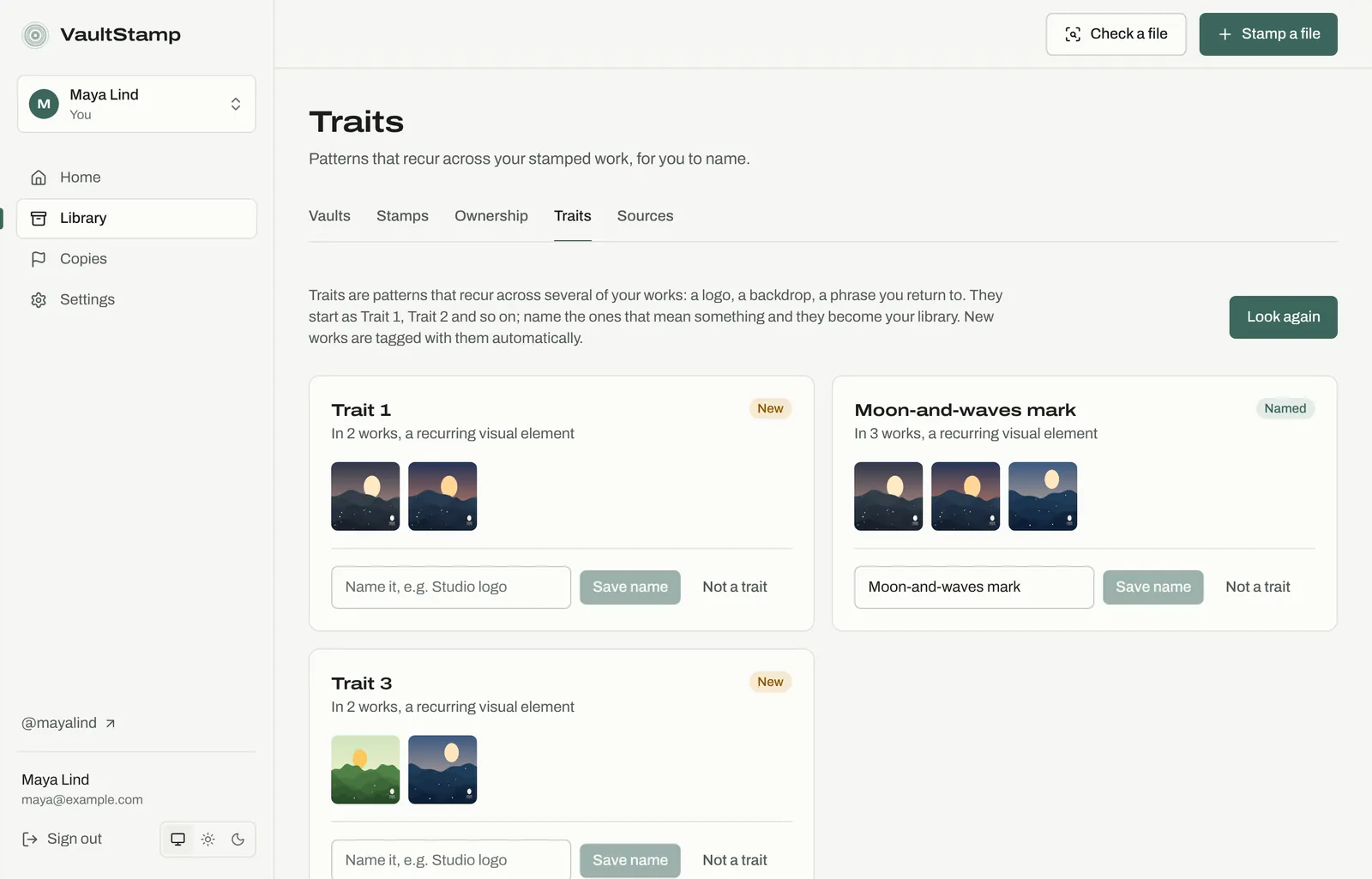
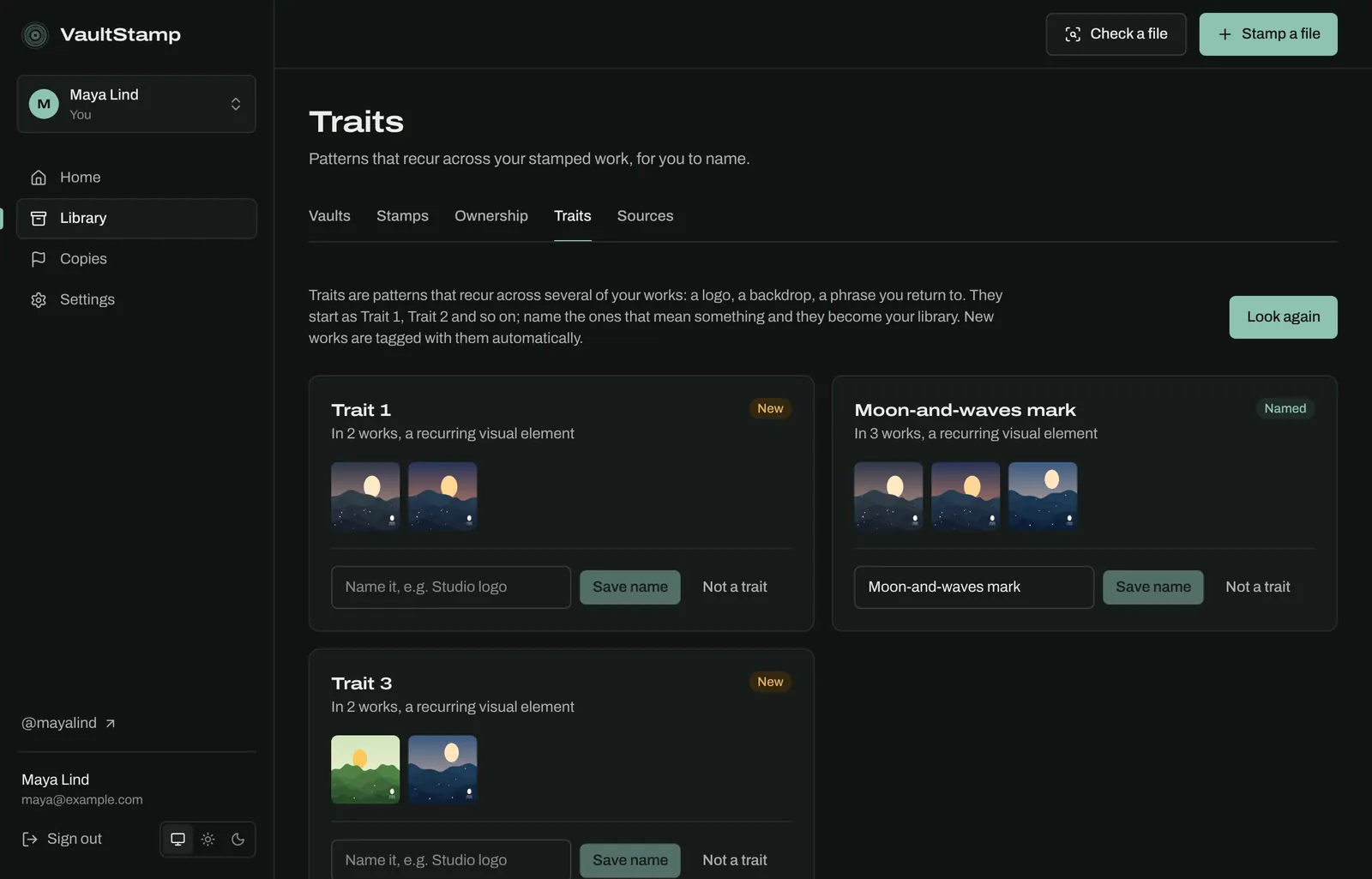
Traits are patterns that recur across several of your works: a logo, a backdrop, a phrase you return to. Choose Find traits. They start as Trait 1, Trait 2 and so on, each with the works it appears in. Name the ones that mean something and they become your library; new works are tagged with them automatically. Choose Not a trait for the rest. Maya names the small moon over three waves she signs every piece with.
Ownership
Where: Who owns this on a stamp page, and Library → Ownership
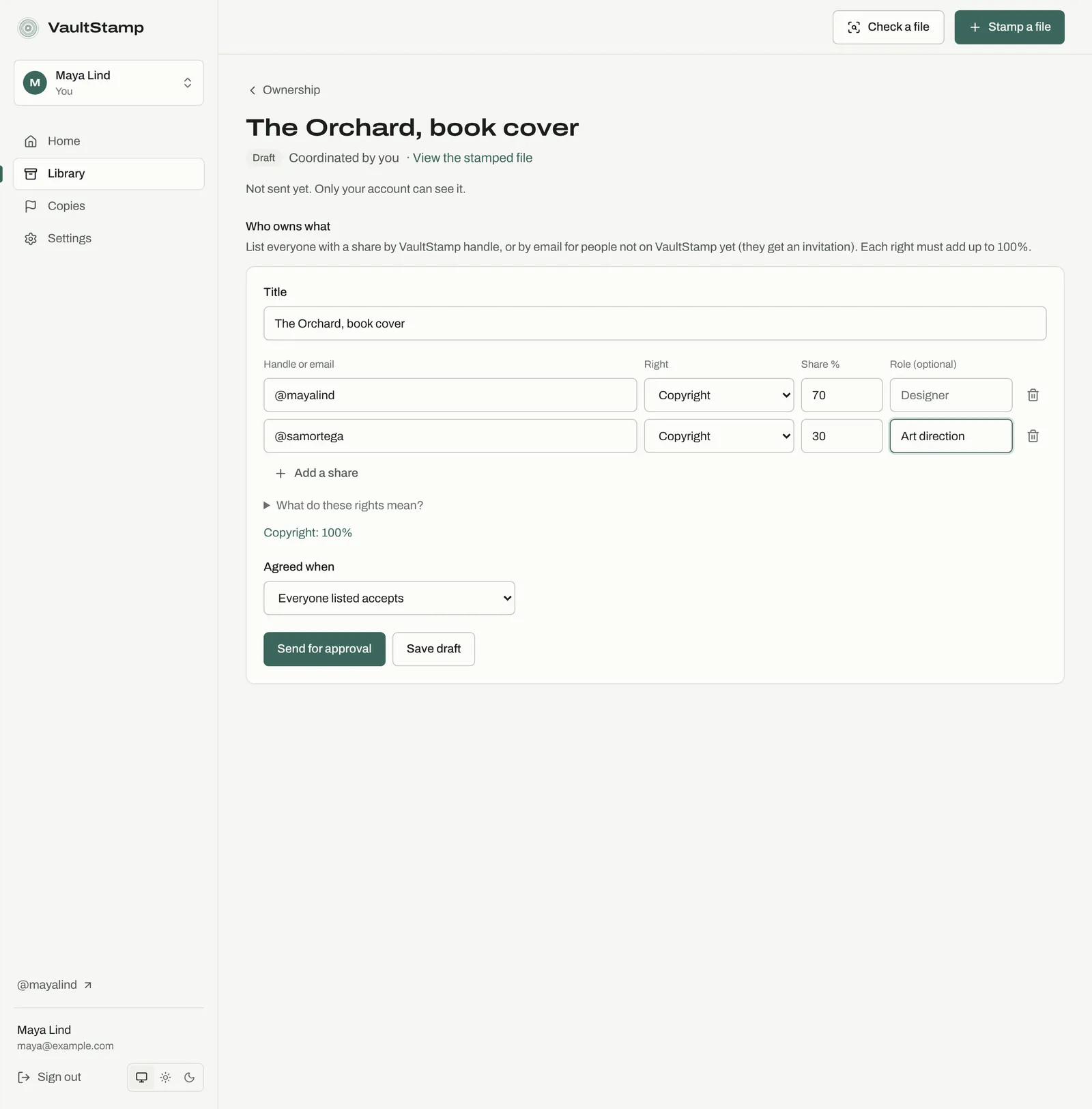
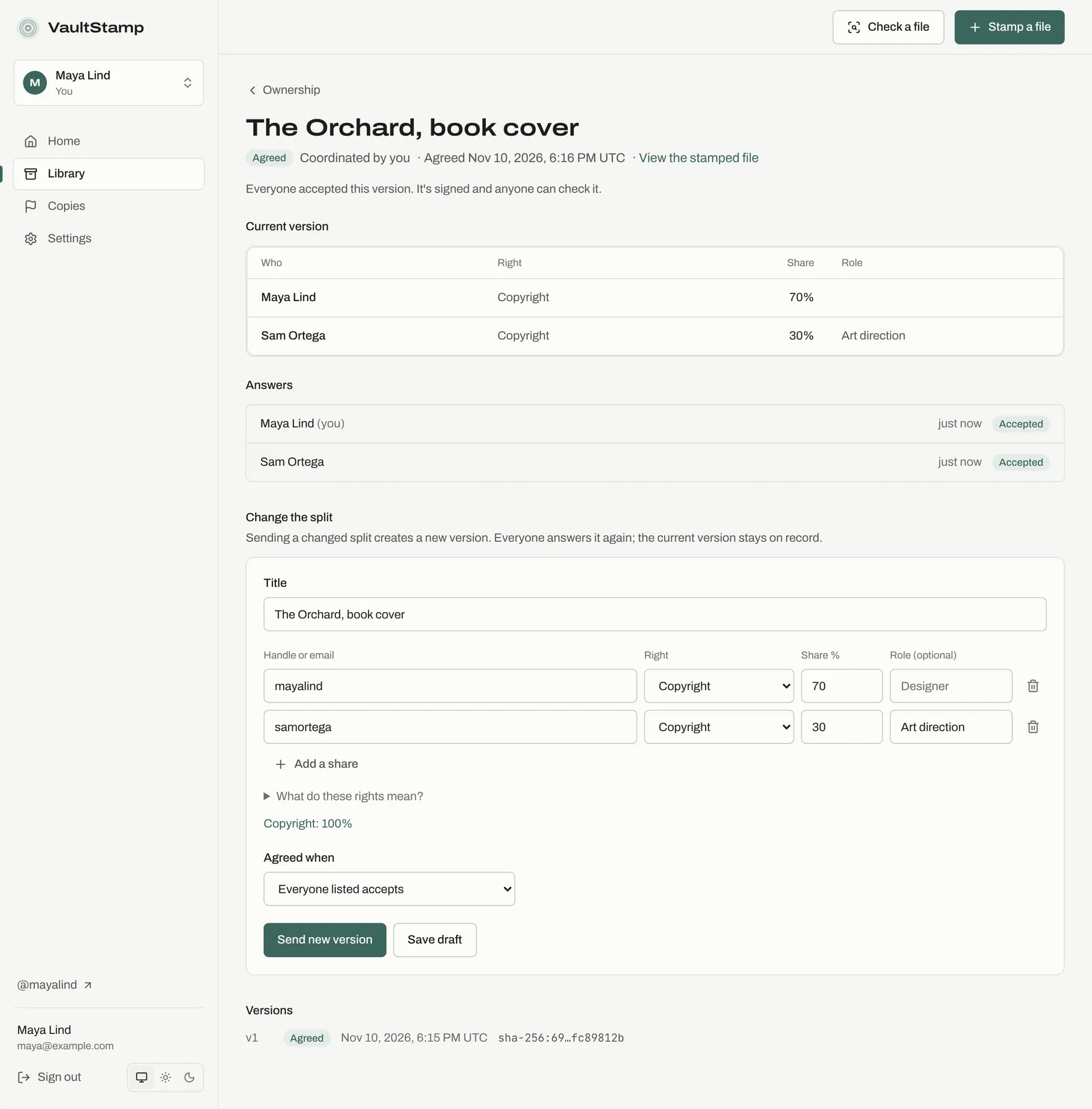
Record who holds which rights in a stamped file, so a split is agreed and signed instead of sitting in an email thread. Maya splits the copyright in her book cover with Sam, who art-directed it.
- On the stamp page choose Record who owns this and say what it is: a song, recording, writing, image, video, design, invention or something else. That sets which rights you split (for a design: copyright, print and licensing income).
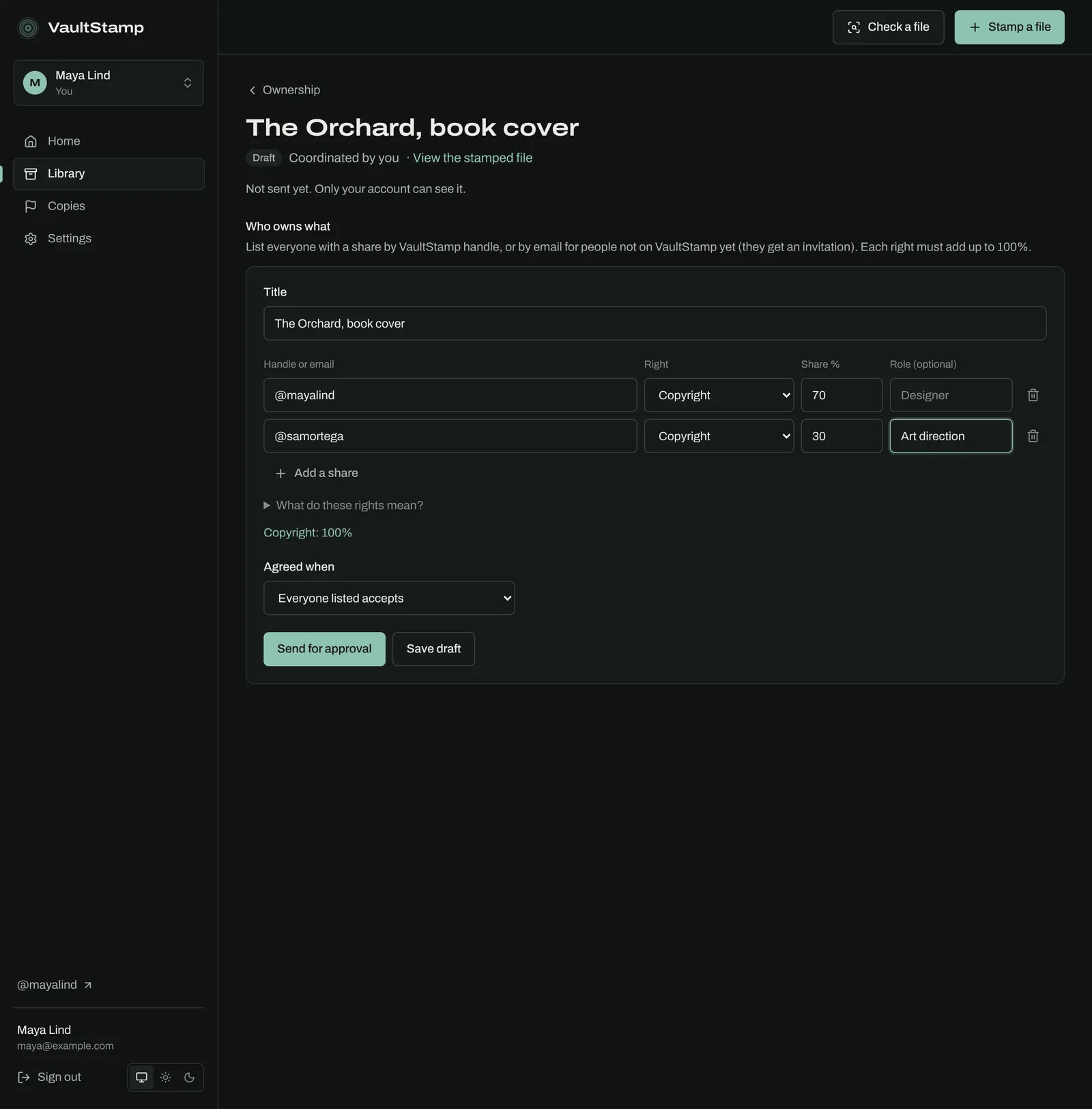
- List everyone with a share, by VaultStamp handle, or by email for people not on VaultStamp yet (they get an invitation). Give each a right, a share and an optional role. Each right must add up to 100%.
- Choose when it's agreed (Everyone listed accepts or Everyone with a share accepts) and Send for approval, or Save draft.
Each person sees it under Library → Ownership and can Accept, Reject or Dispute a share. Every answer is signed and kept with that version.
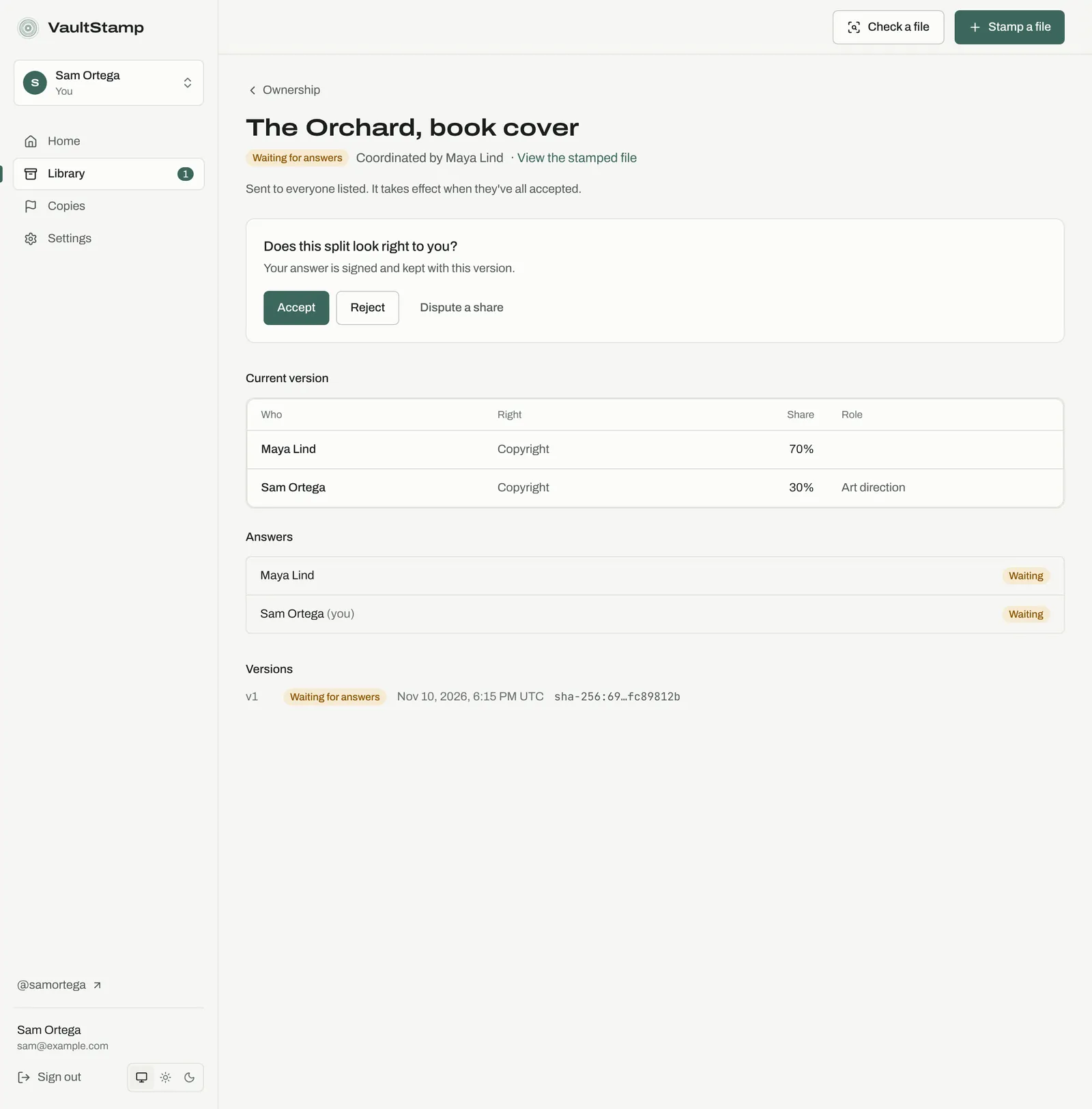
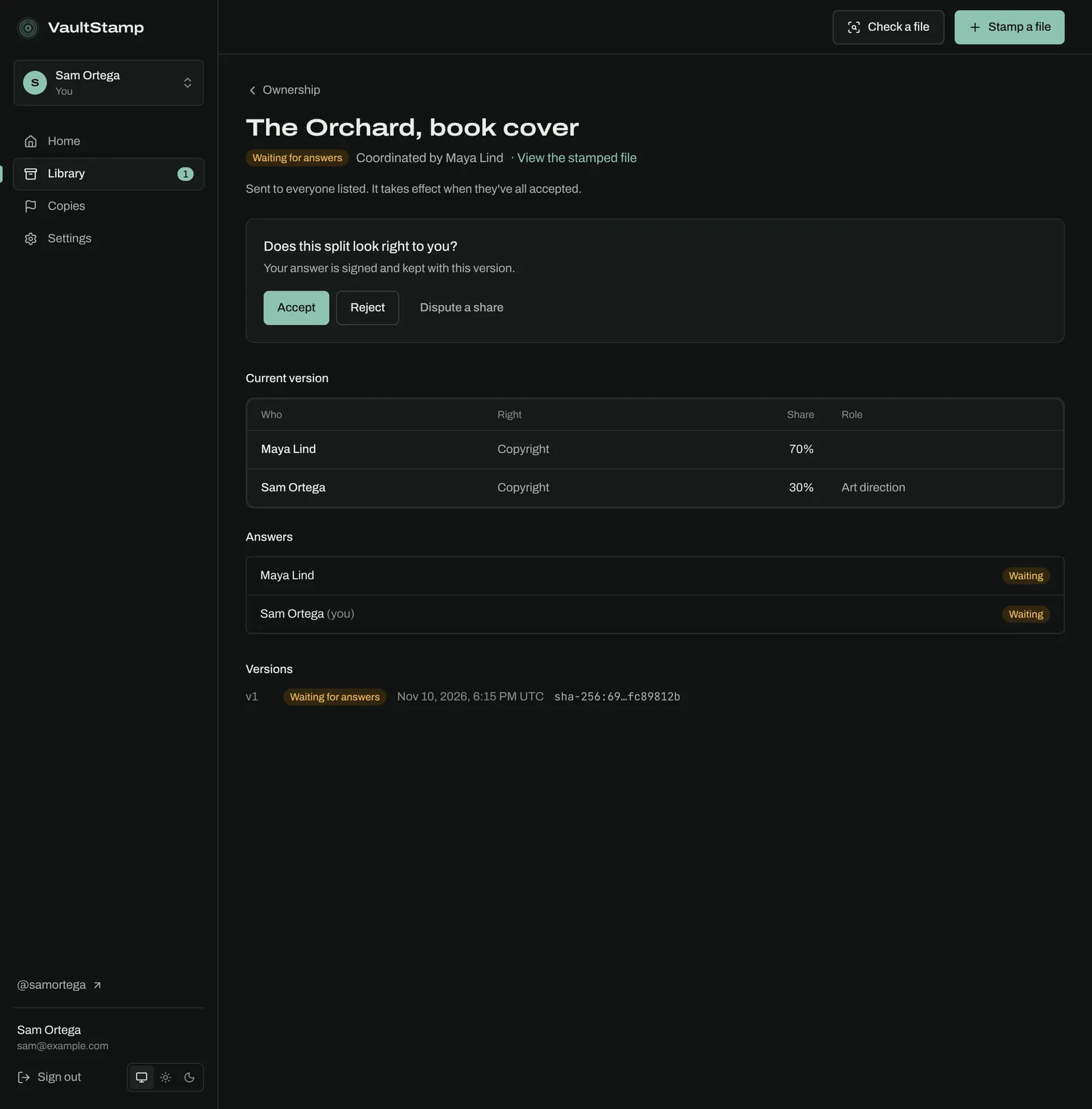
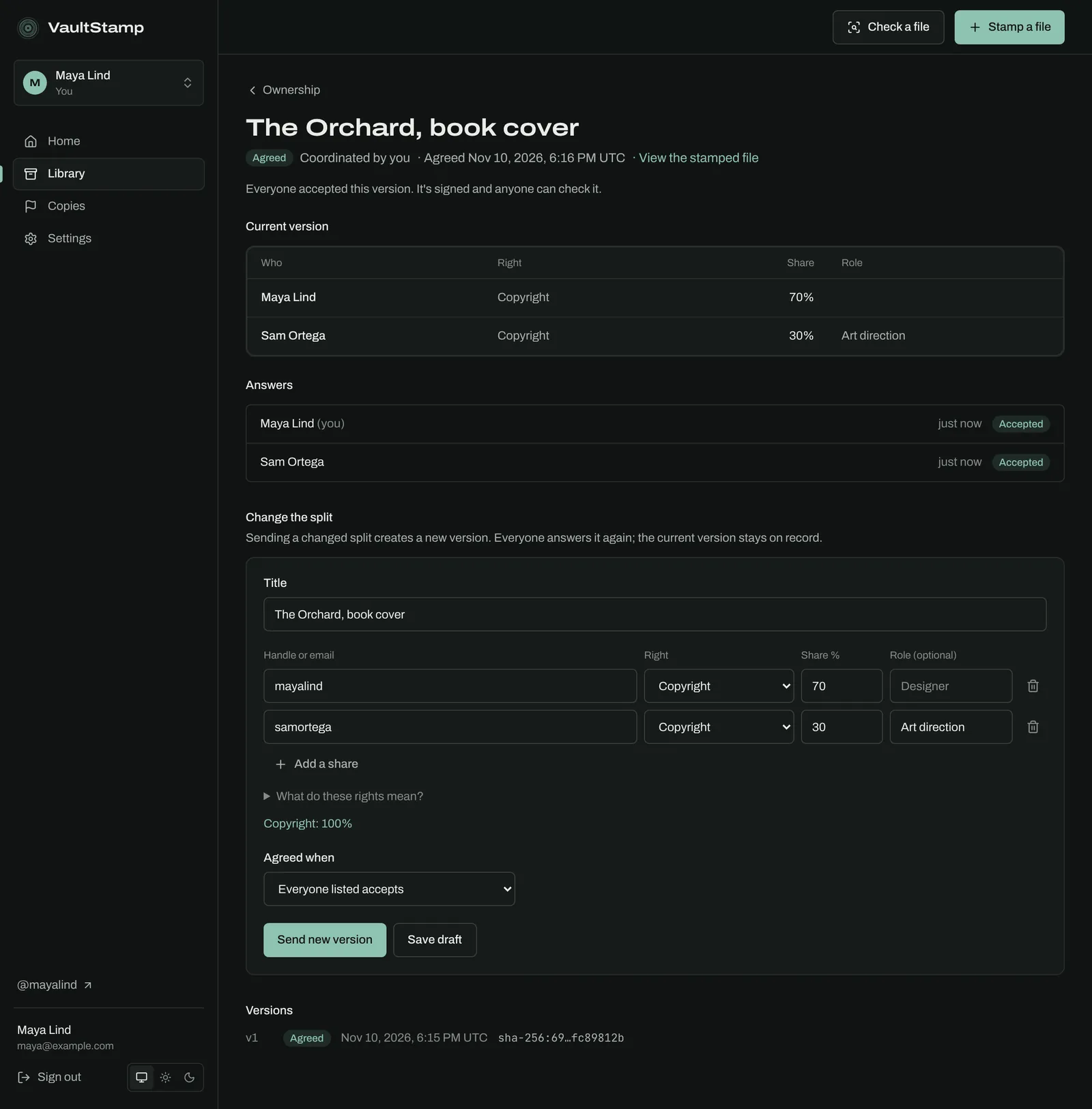
When everyone has accepted, the record is Agreed, signed, and anyone can check it. To change it, send a new version; everyone answers again and the earlier version stays on record. Your claims lets you record a share you hold before anyone sends a split; a split that lists a different share shows the difference to everyone on it.
Issue to someone
Where: Issued to on a stamp page
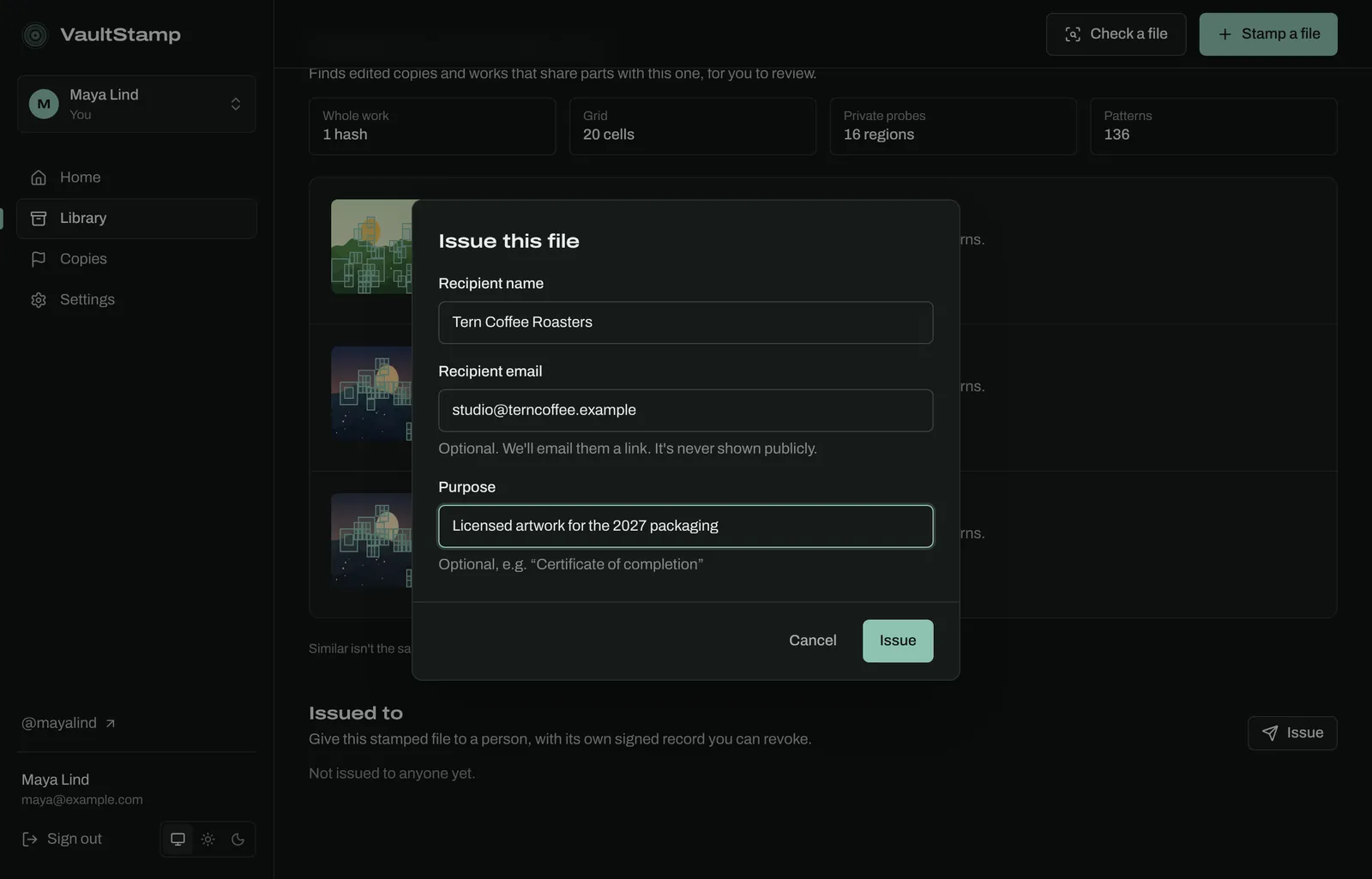
Give a stamped file to one person or company with its own signed record: a licensed artwork, a certificate, a deliverable. Choose Issue and enter the recipient's name, an optional email (they get a link; it's never shown publicly) and an optional purpose.
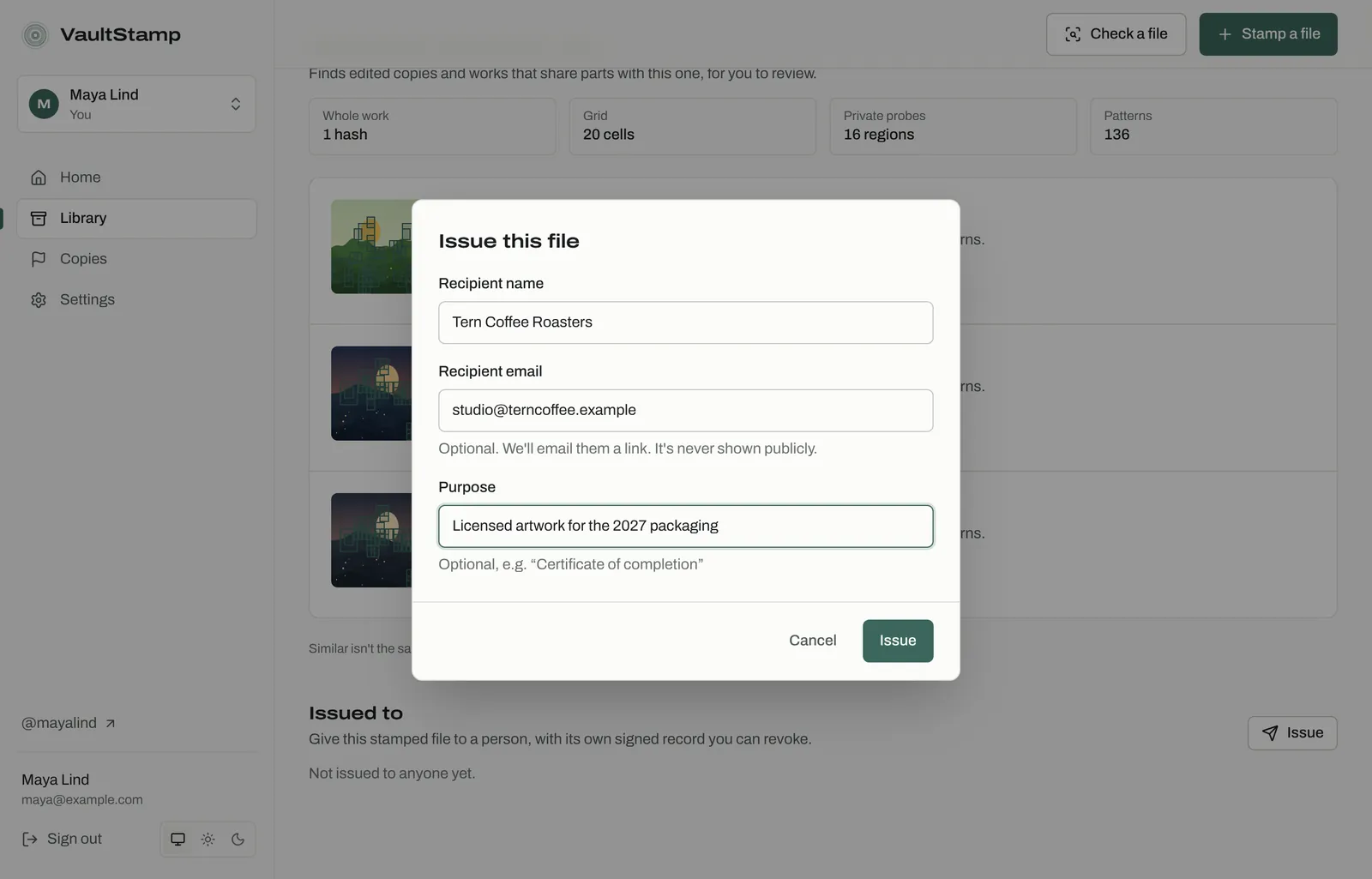
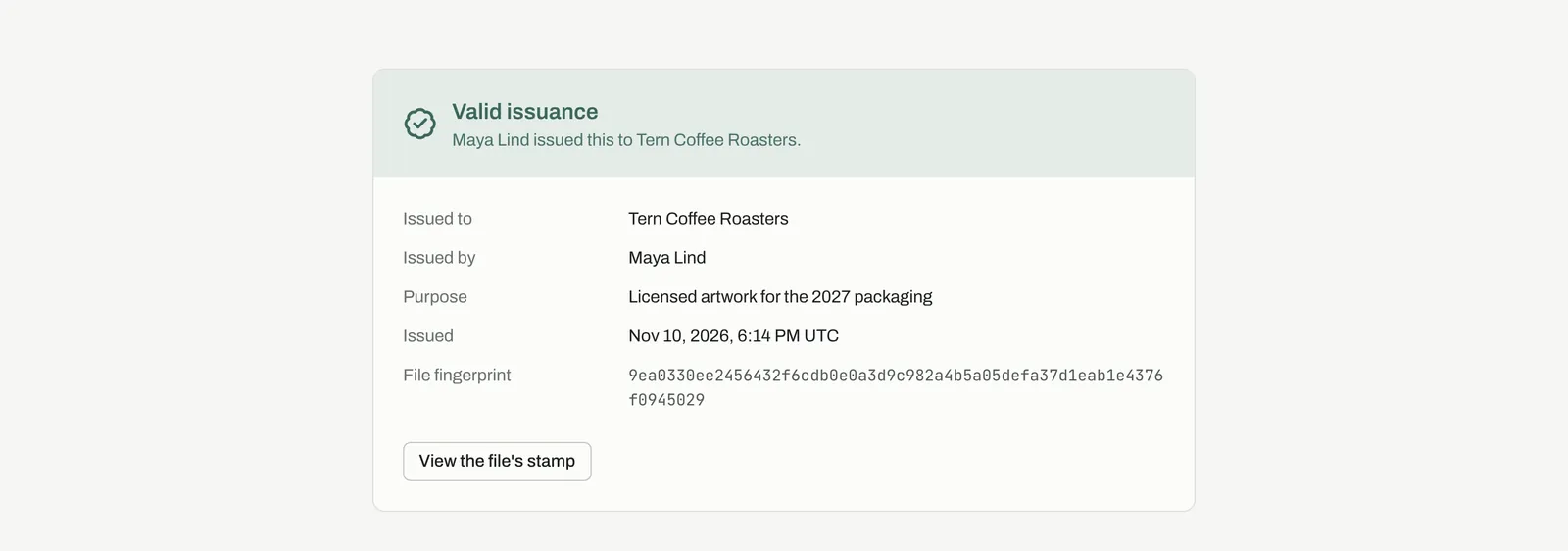
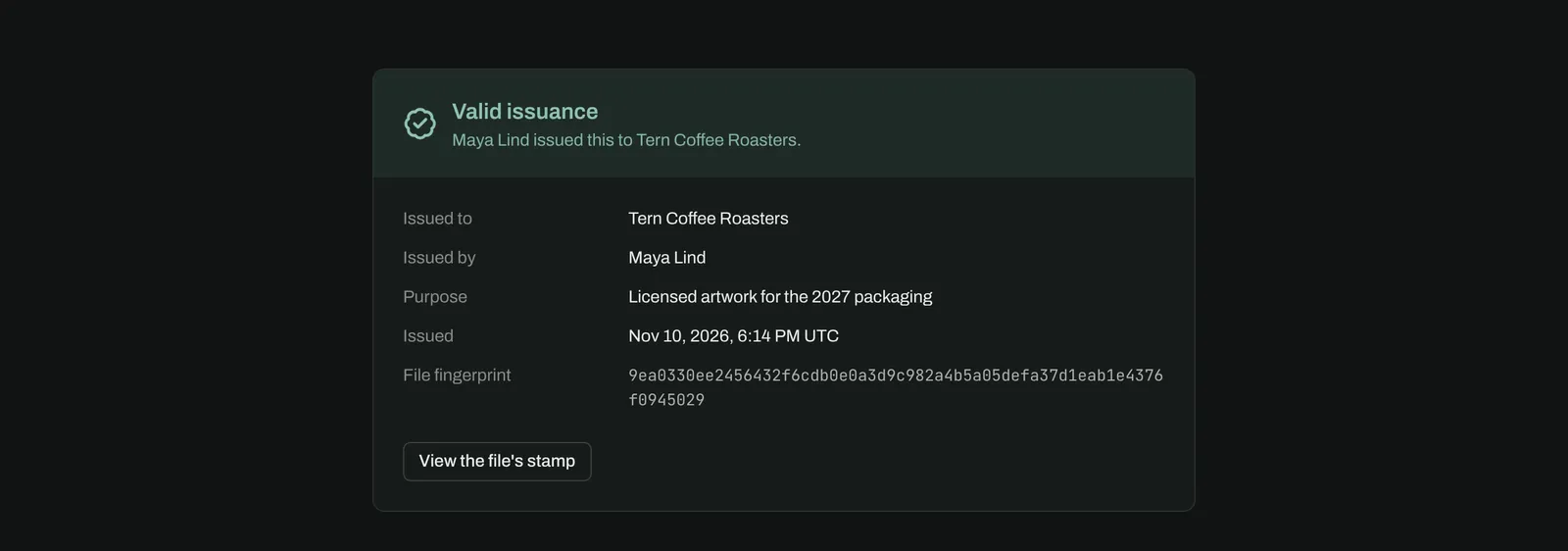
The recipient gets a page that shows it's a valid issuance, who issued it, to whom, for what, and the file's fingerprint. Revoke withdraws it with a reason; the issuance page and receipt then show it as revoked. Revoking can't be undone.
Your public page
Where: Settings → Public page and Page design; your page is at /@handle
Your page shows your name, bio and the stamps you publish, plus collections for public vaults. Every work links to its receipt, and visitors can report copies from it. Turn it on or off, and change your name, handle, bio and website, in Settings → Public page.
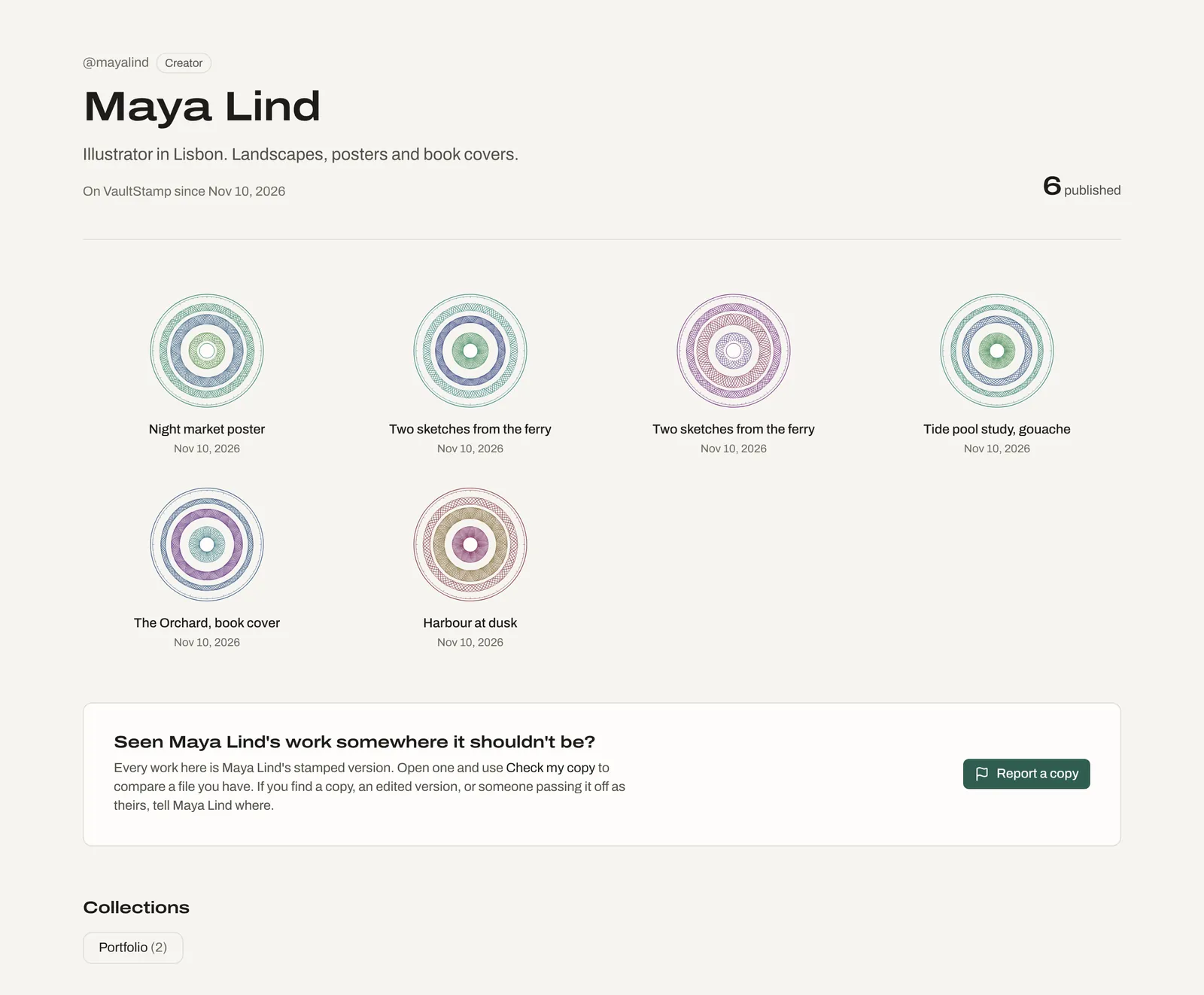
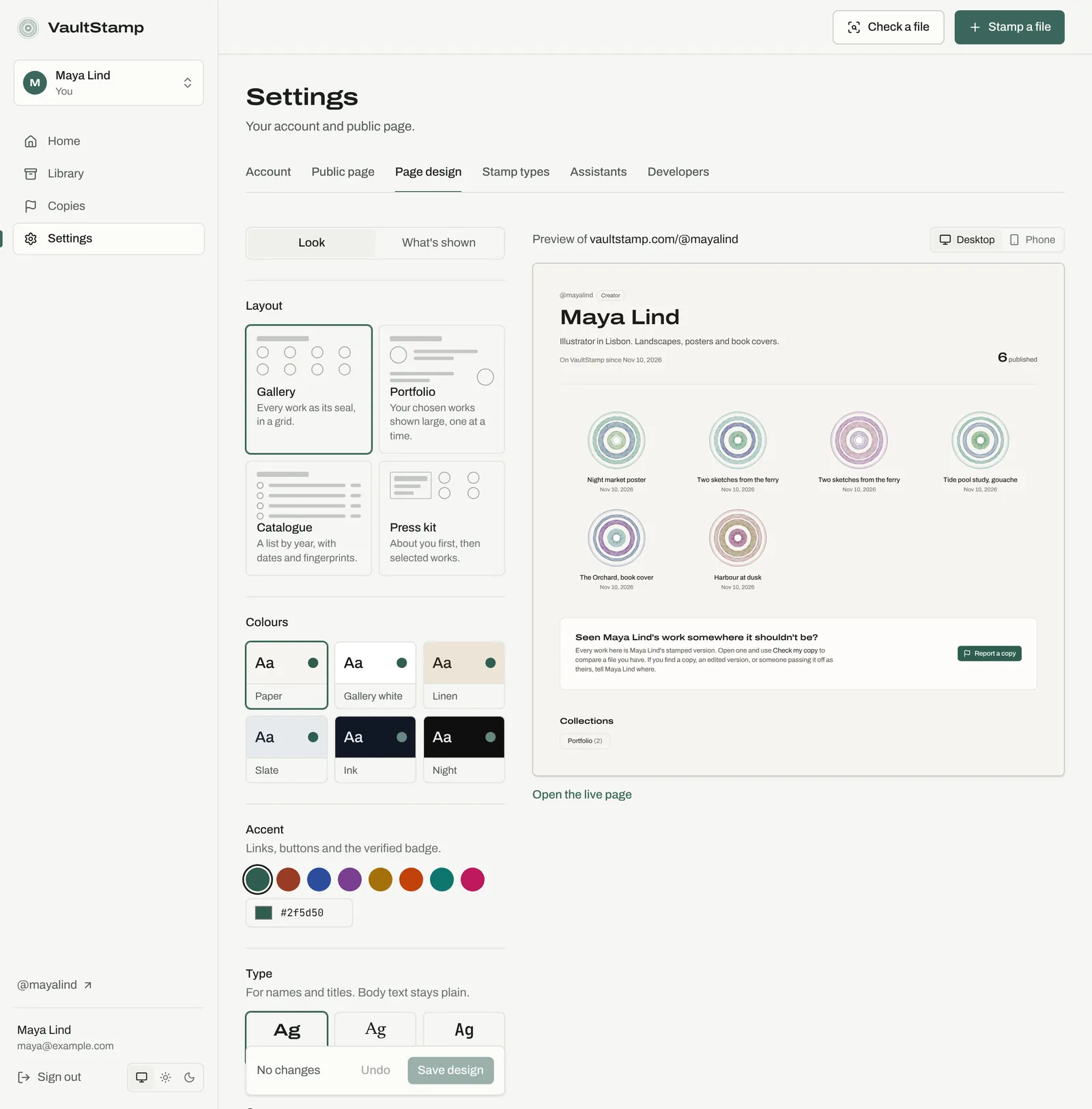
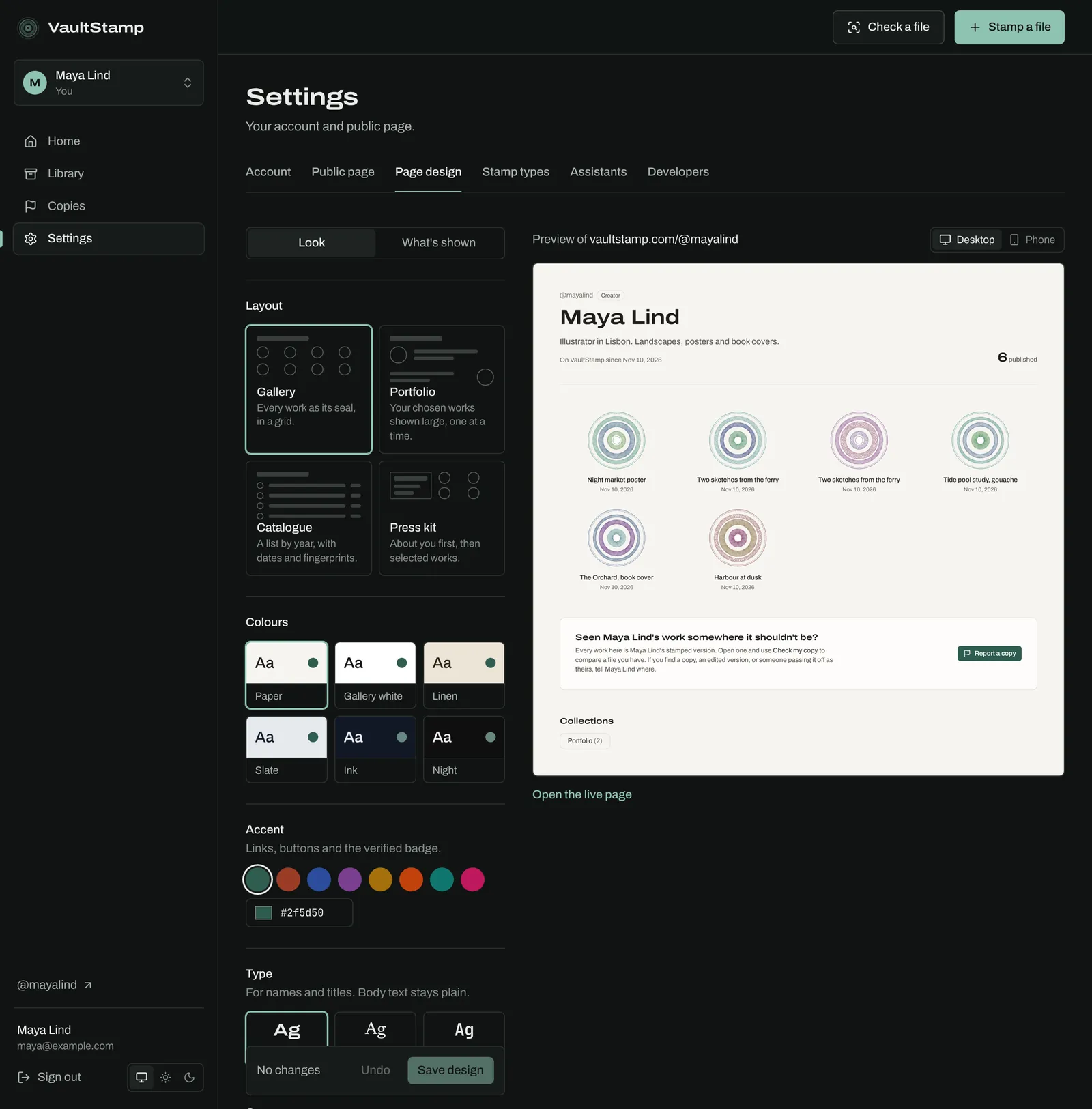
Page design changes how it looks, with a live preview: a layout (Gallery, Portfolio, Catalog or Press kit), colors, an accent, type and corners. Under What's shown you can feature works, pick a photo from your published images, and list where people can find you; visitors are told that accounts not listed aren't you.
Copies
Where: Copies → Reported copies
Reports from people who found your published work somewhere it shouldn't be. Each says where, what's wrong, whether the file they found matches your stamp, and who reported it if they said. Filter by New, Looking into it, Action taken or Dismissed, and add notes as you go. Reports need your public page to be on; owners and admins see them, and agencies do too when the talent allows it.
Talent and agencies
Talent and agencies each keep their own account. The agency asks for what it needs; the talent decides what the agency may do, and every receipt says whose authority it was made under.
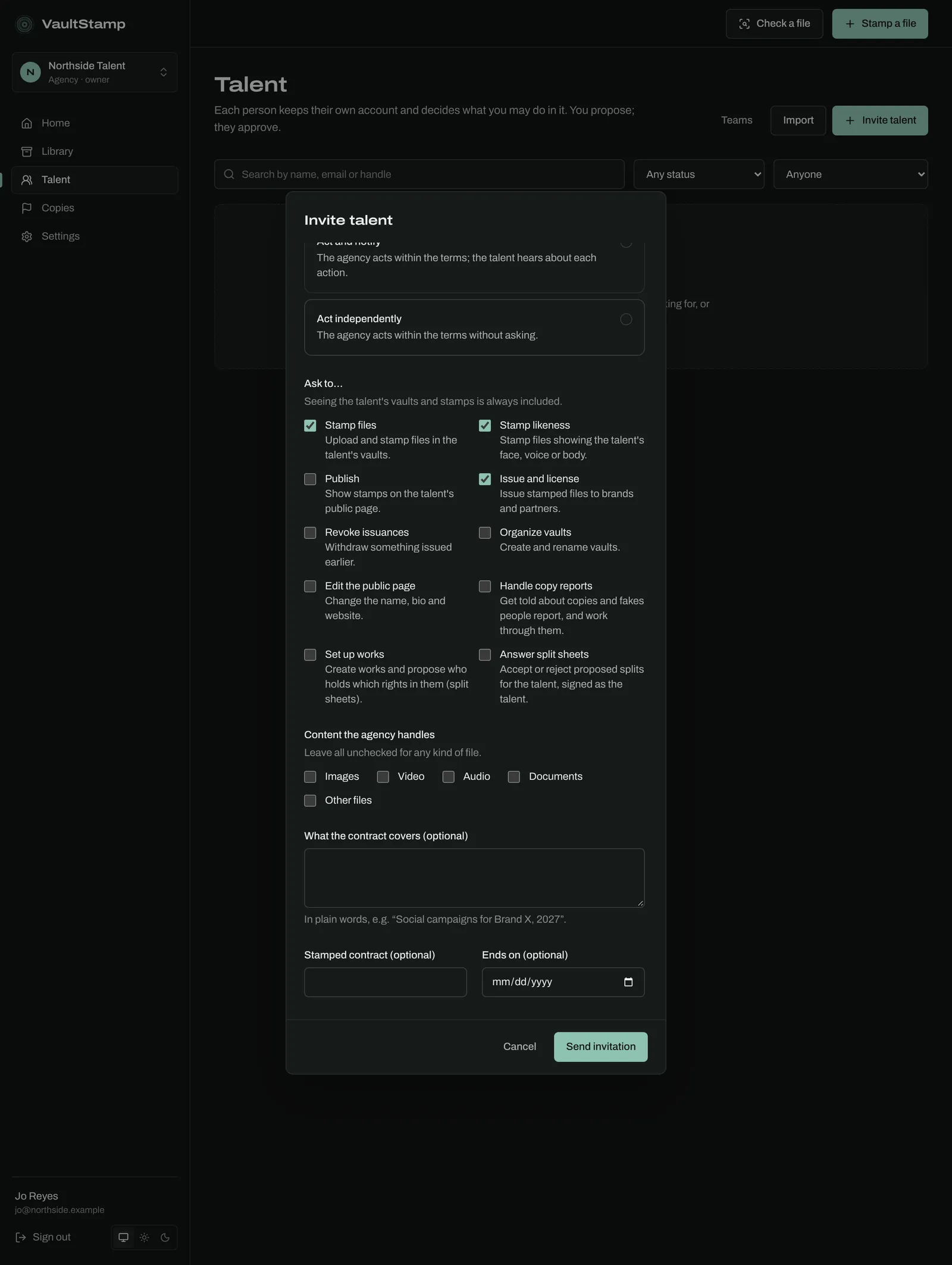
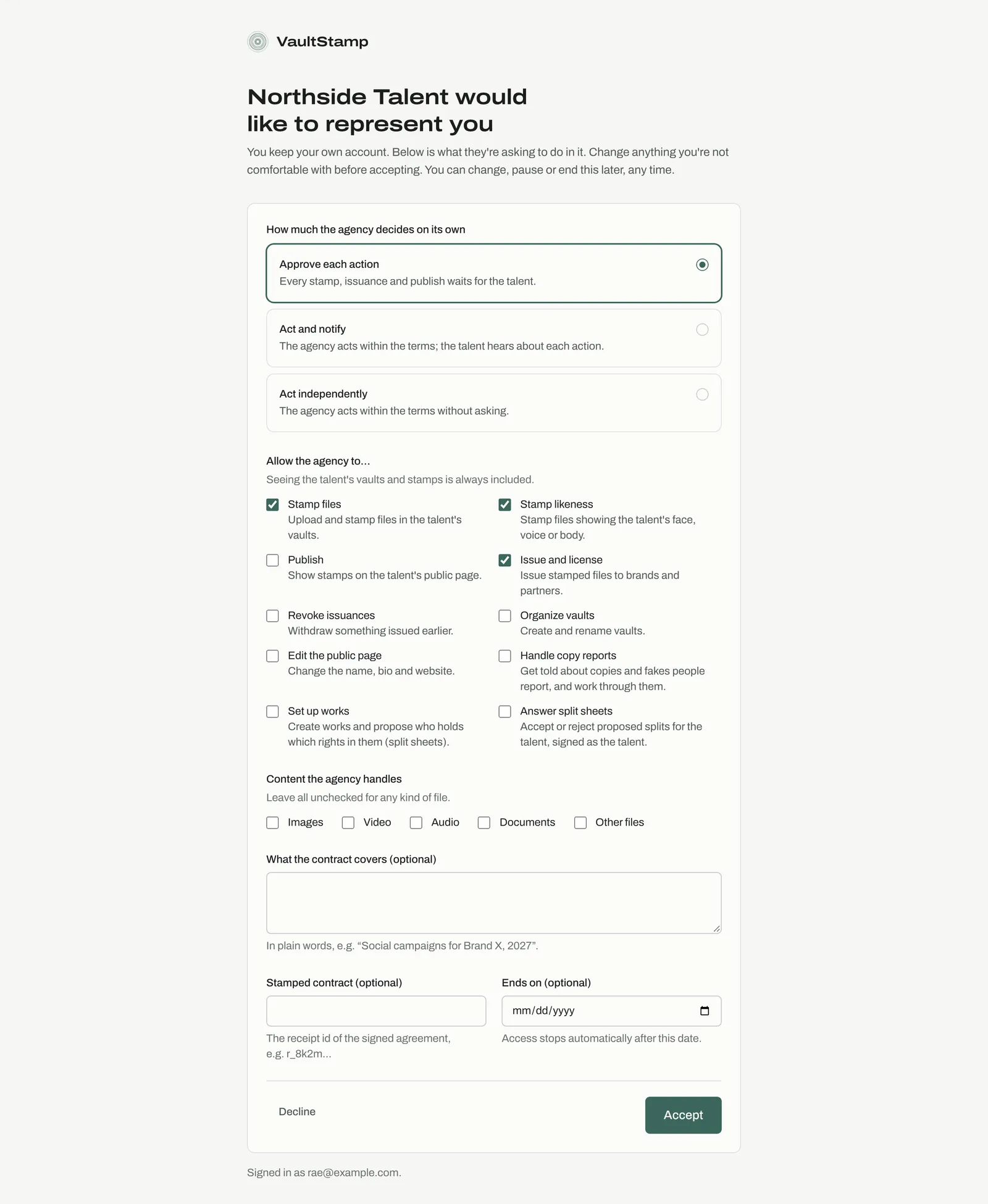
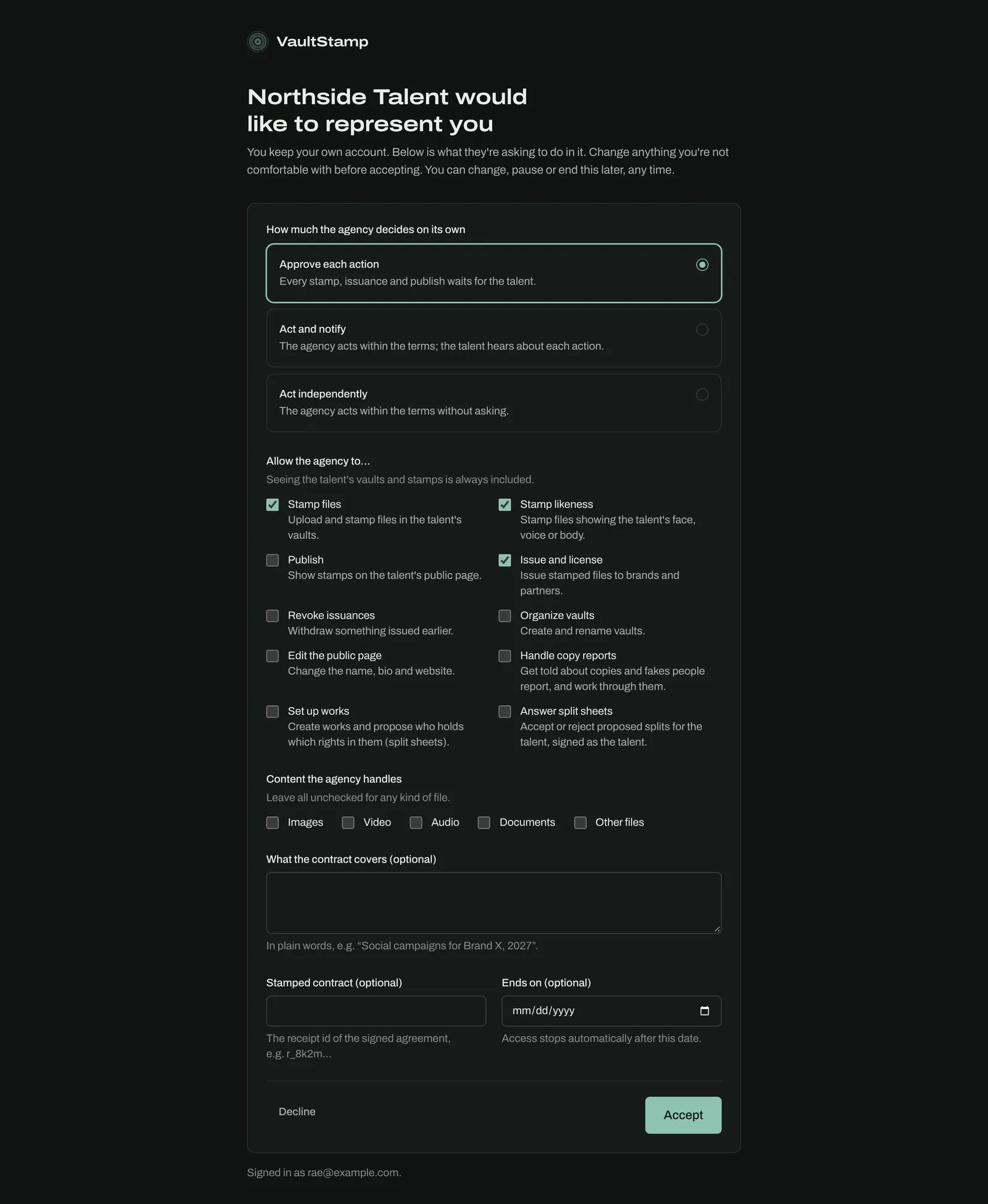
Invite talent (agencies, under Talent): enter their name and email and propose terms:
- How much the agency decides on its own: Approve each action (every stamp, issuance and publish waits for the talent), Act and notify, or Act independently.
- What it may do: stamp files, stamp likeness, publish, issue and license, revoke issuances, organize vaults, edit the public page, handle copy reports, set up works and answer split sheets. Seeing the talent's vaults and stamps is always included.
- The kinds of content covered, a stamped contract, what it covers, and an end date after which access stops.
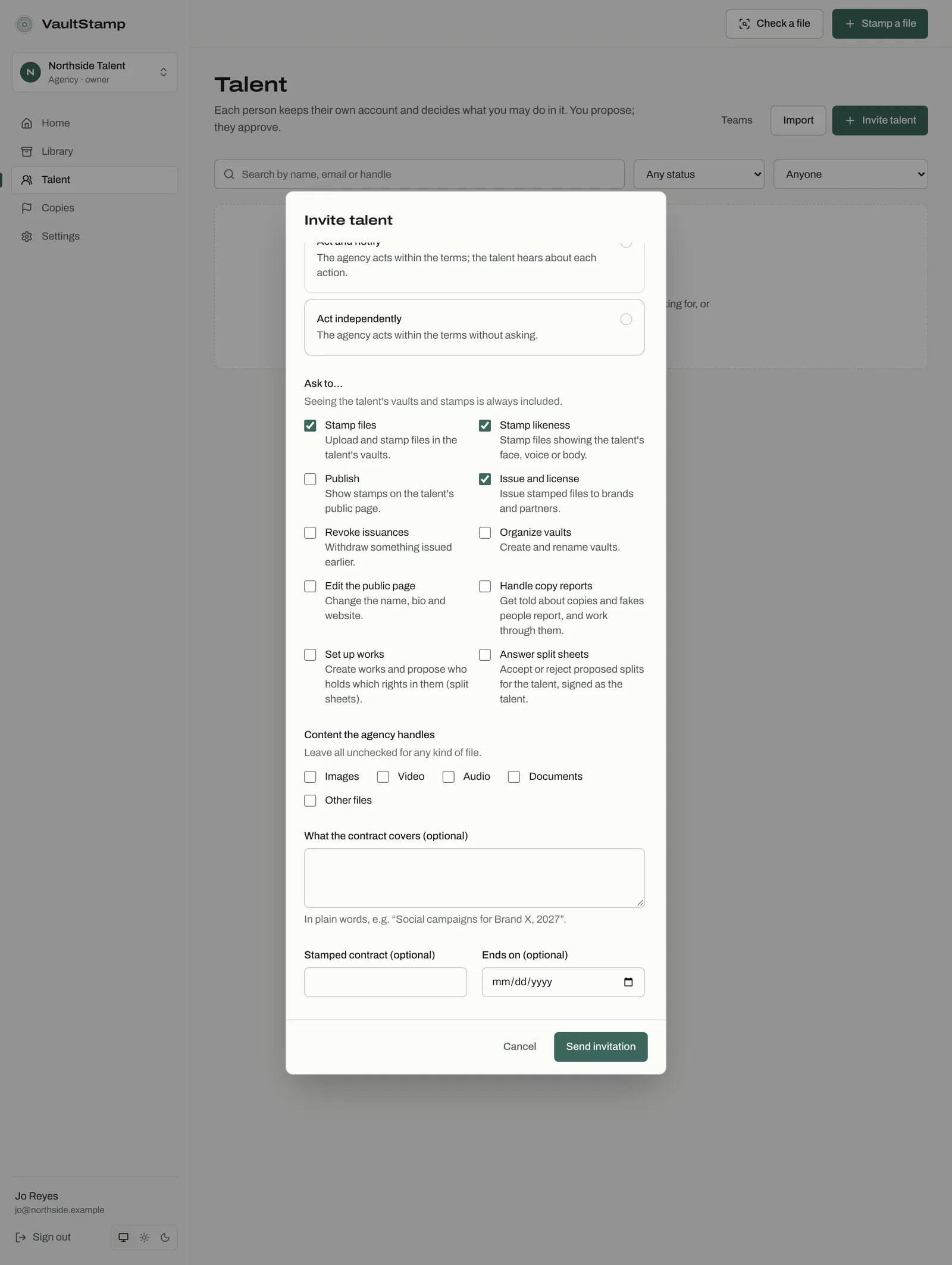
The talent opens the invitation, sees exactly what's asked, can untick anything they're not comfortable with, and accepts or declines. Nothing is allowed until they accept.
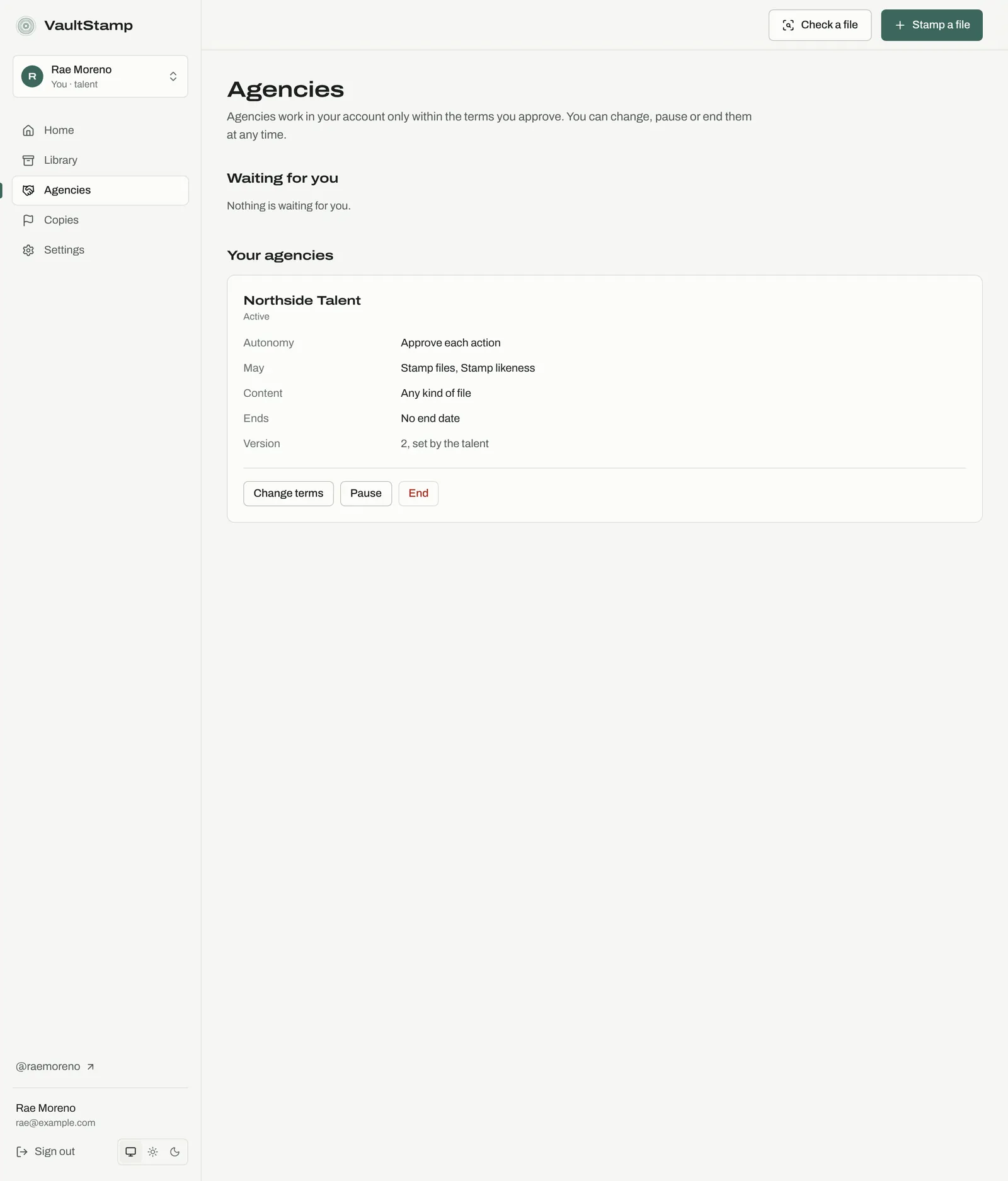
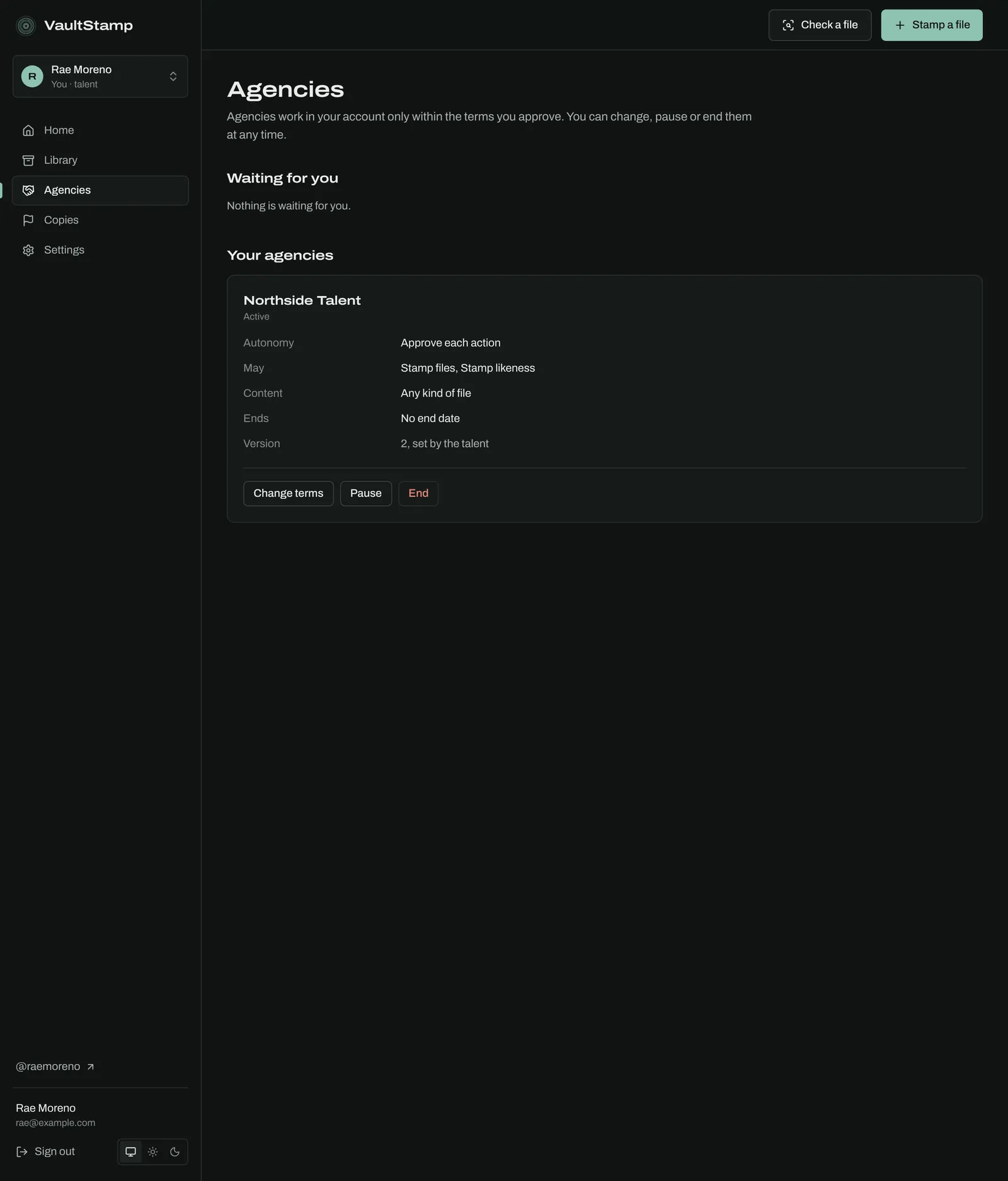
Talent manage it all under Agencies: requests waiting for them, the current terms, and Change terms, Pause or End, which take effect immediately. Stamps made earlier stay valid and still show the terms they were made under.
Agency staff open a client from Talent and choose Work in their account. A banner says whose account they're in and on what terms, and the top bar button becomes Stamp for …. Under “approve each”, the stamp goes to the talent:
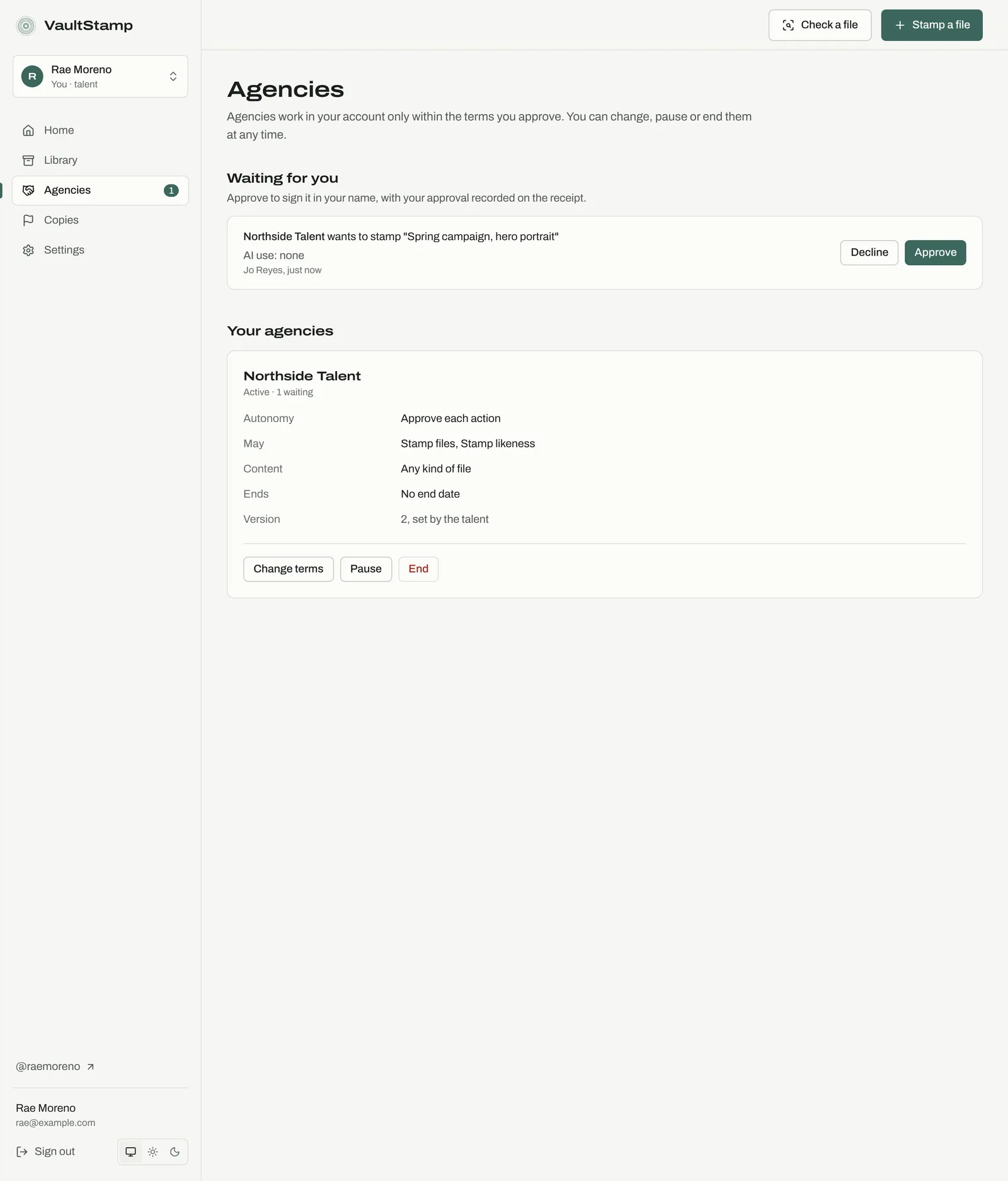
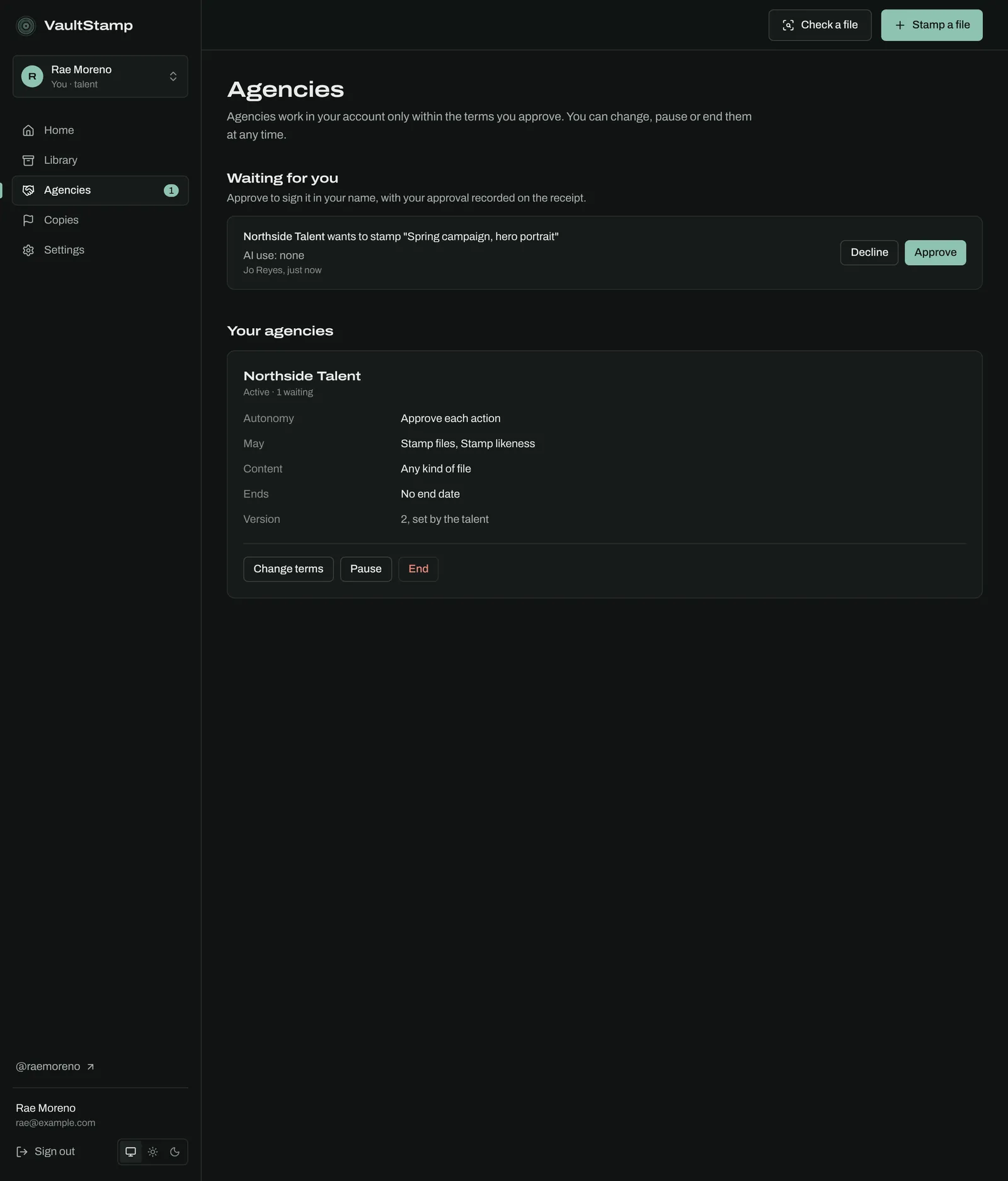
Approving signs it in the talent's name. The receipt says the agency stamped it on the talent's behalf, under which terms, and when the talent approved.
Larger agencies also have:
- Import: invite many talent at once by pasting names and emails or uploading a .csv file.
- Teams: group staff, and choose Who can open which clients (everyone, or only assigned clients).
- Search and filter the client list by status and who handles each client.
Teams and organizations
An organization is a shared account for a team. Create one from the account switcher with New organization or agency.
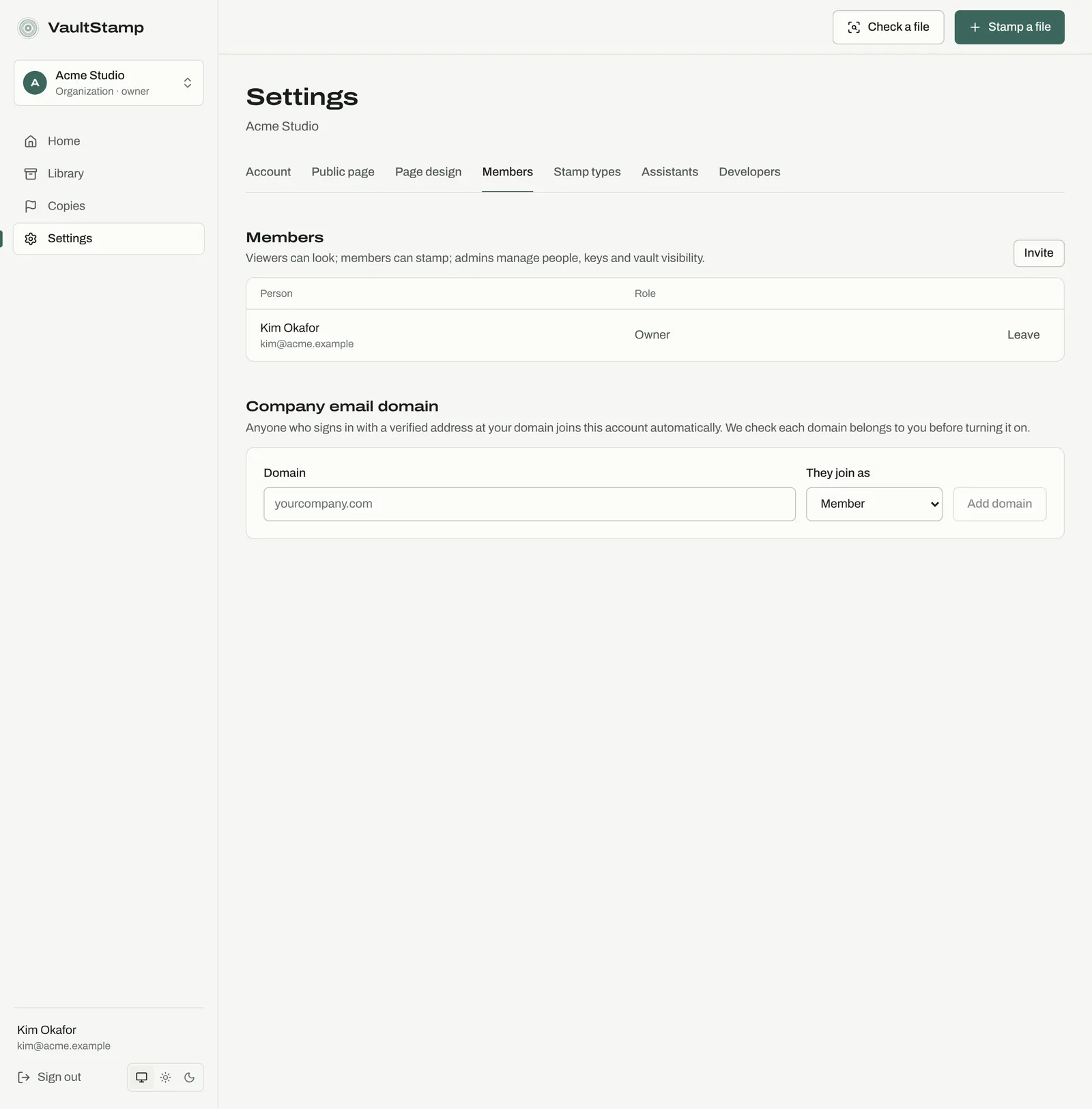
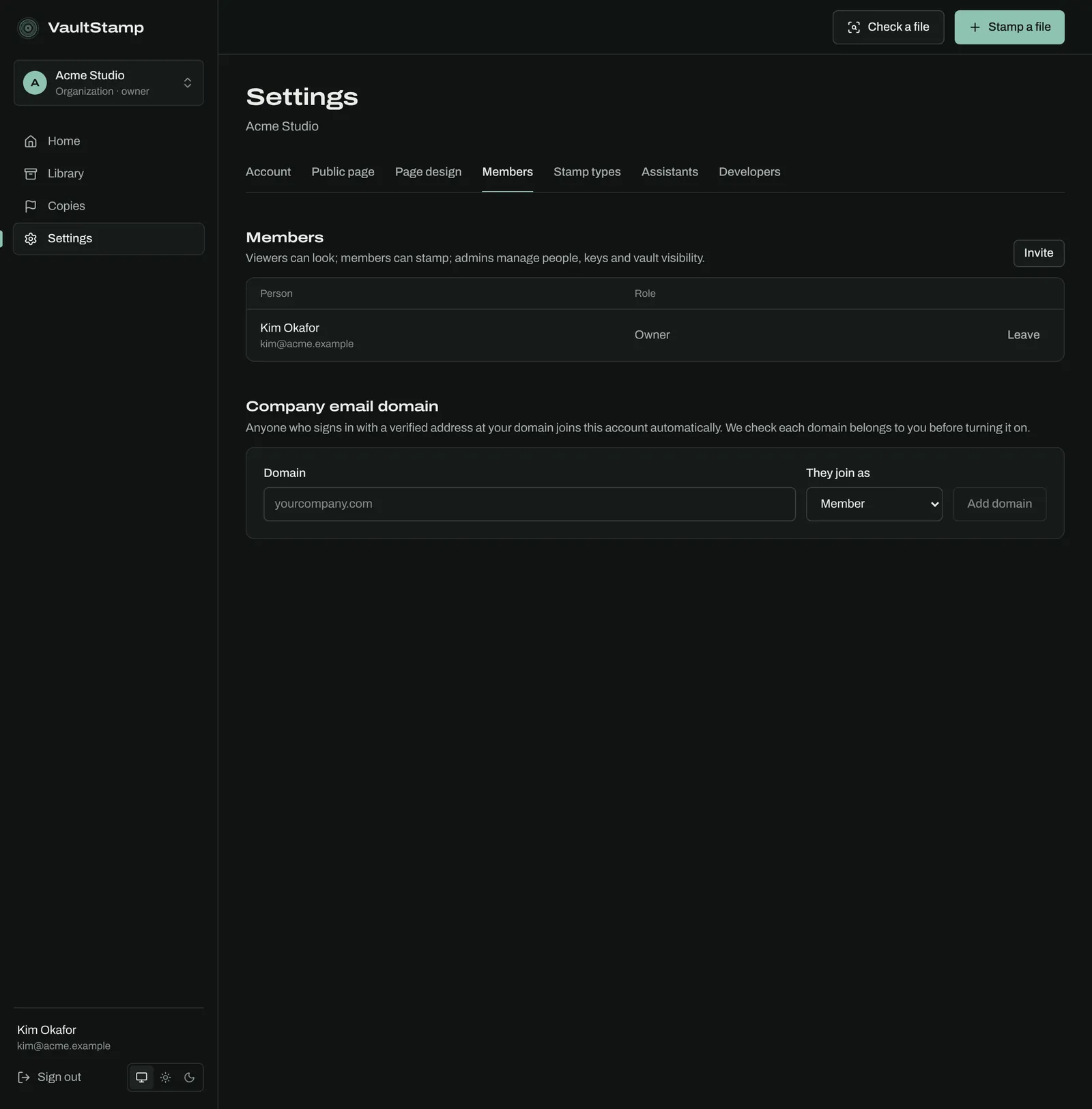
Settings → Members: Invite people as a viewer (can look), member (can stamp) or admin (manages people, keys and vault visibility). Add a Company email domain so anyone who signs in with a verified address at your domain joins automatically; VaultStamp checks the domain is yours first. Single sign-on is available for teams.
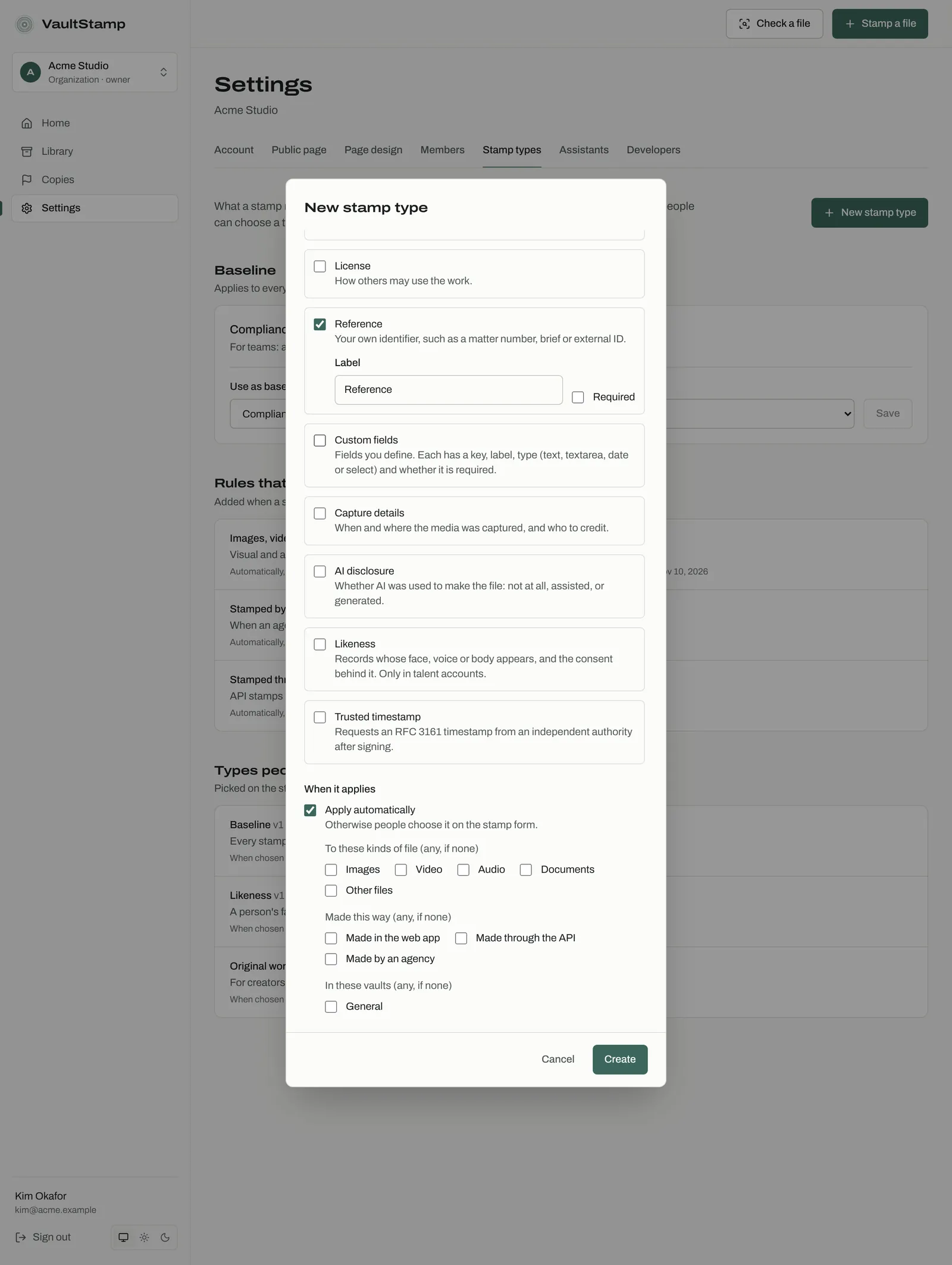
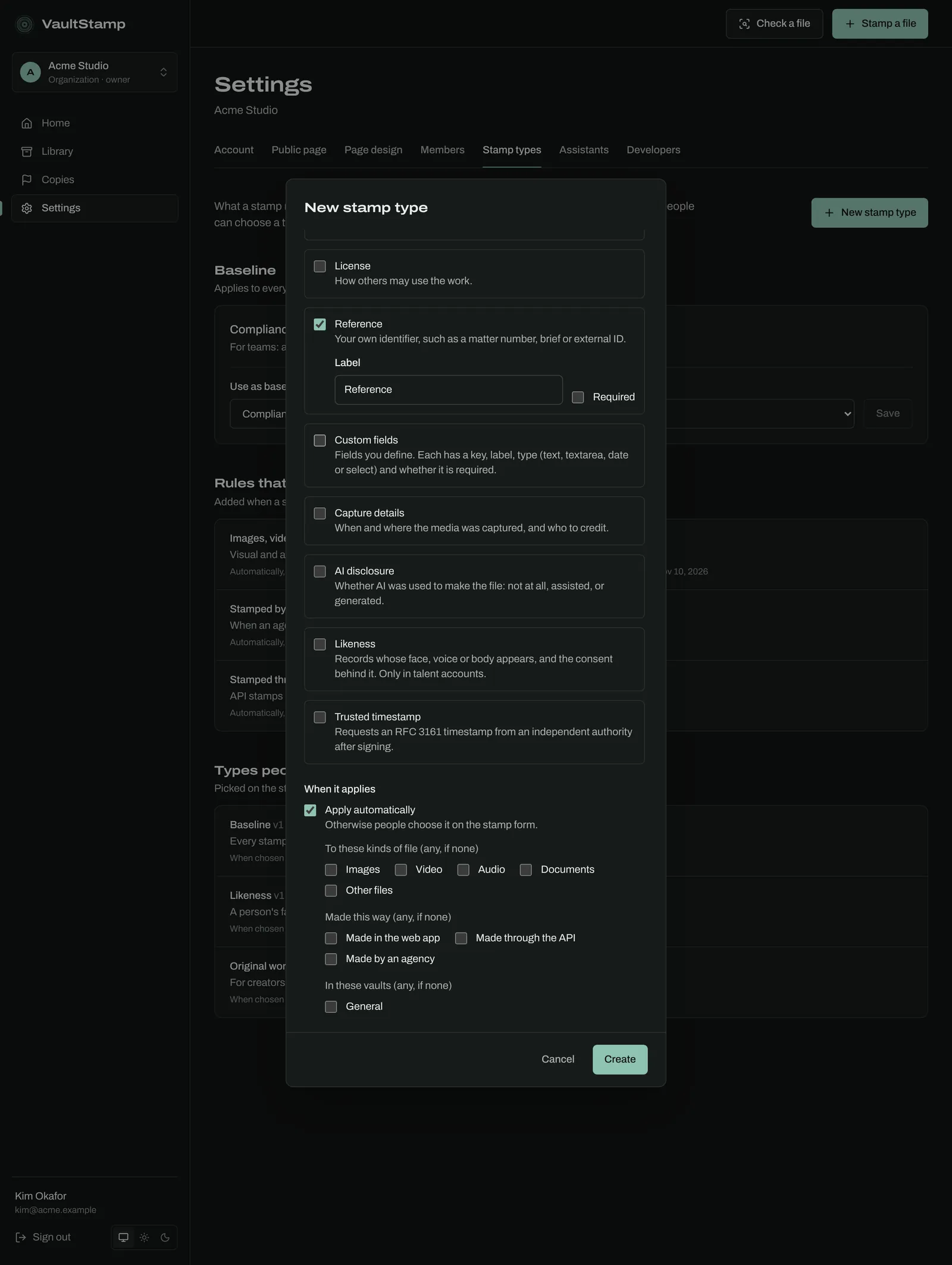
Settings → Stamp types: decide what a stamp must record. Every stamp starts from the Baseline; Rules that apply automatically add more by file type, how it was made, or vault; Types people can choose appear on the stamp form. Requirements only ever add up. Choose New stamp type, pick what it builds on and what it adds (title and note, authorship, license, a reference such as a matter number, your own fields, capture details, AI disclosure, likeness), and when it applies. Every change publishes a new version, and receipts name the versions they were held to.
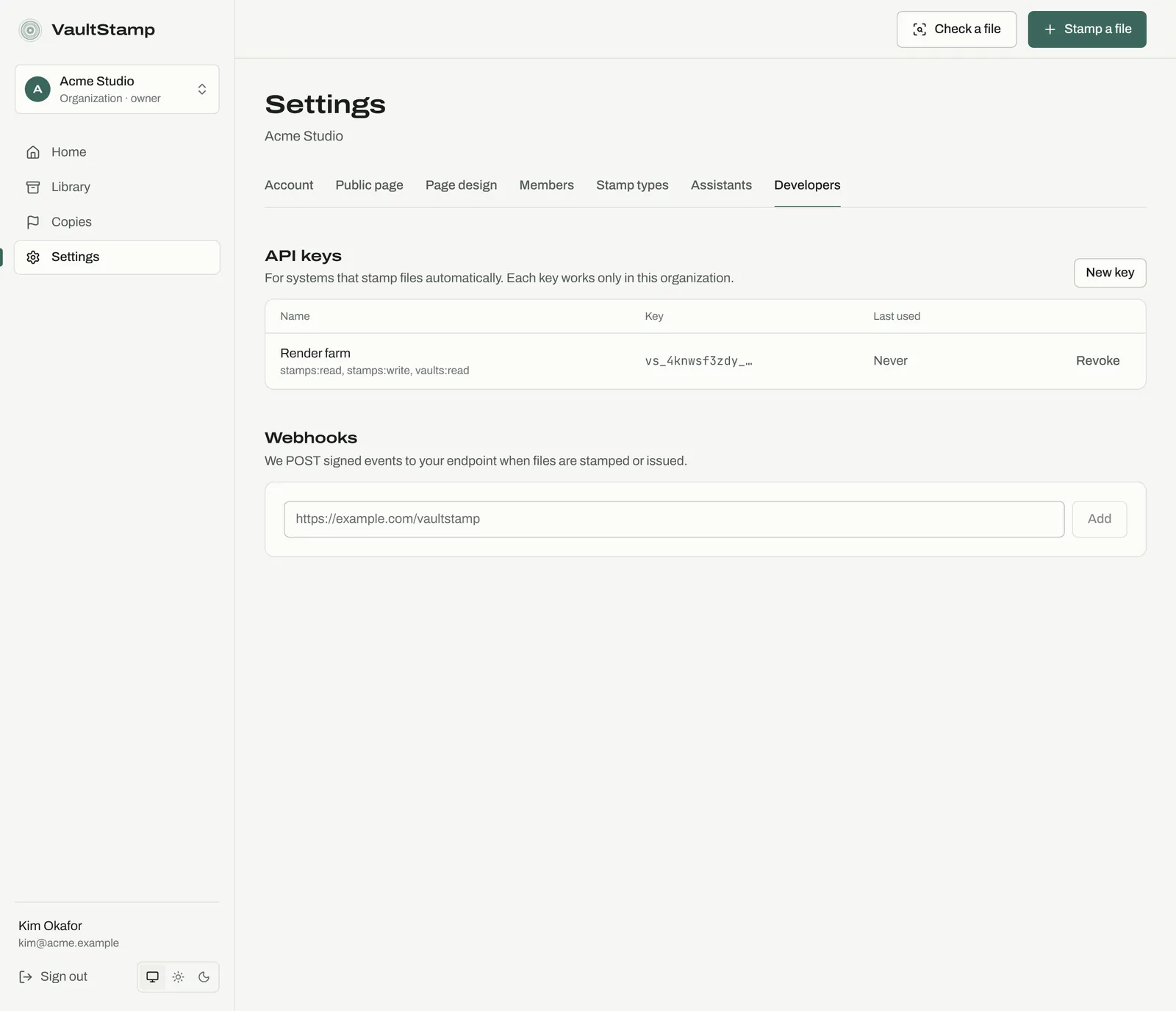
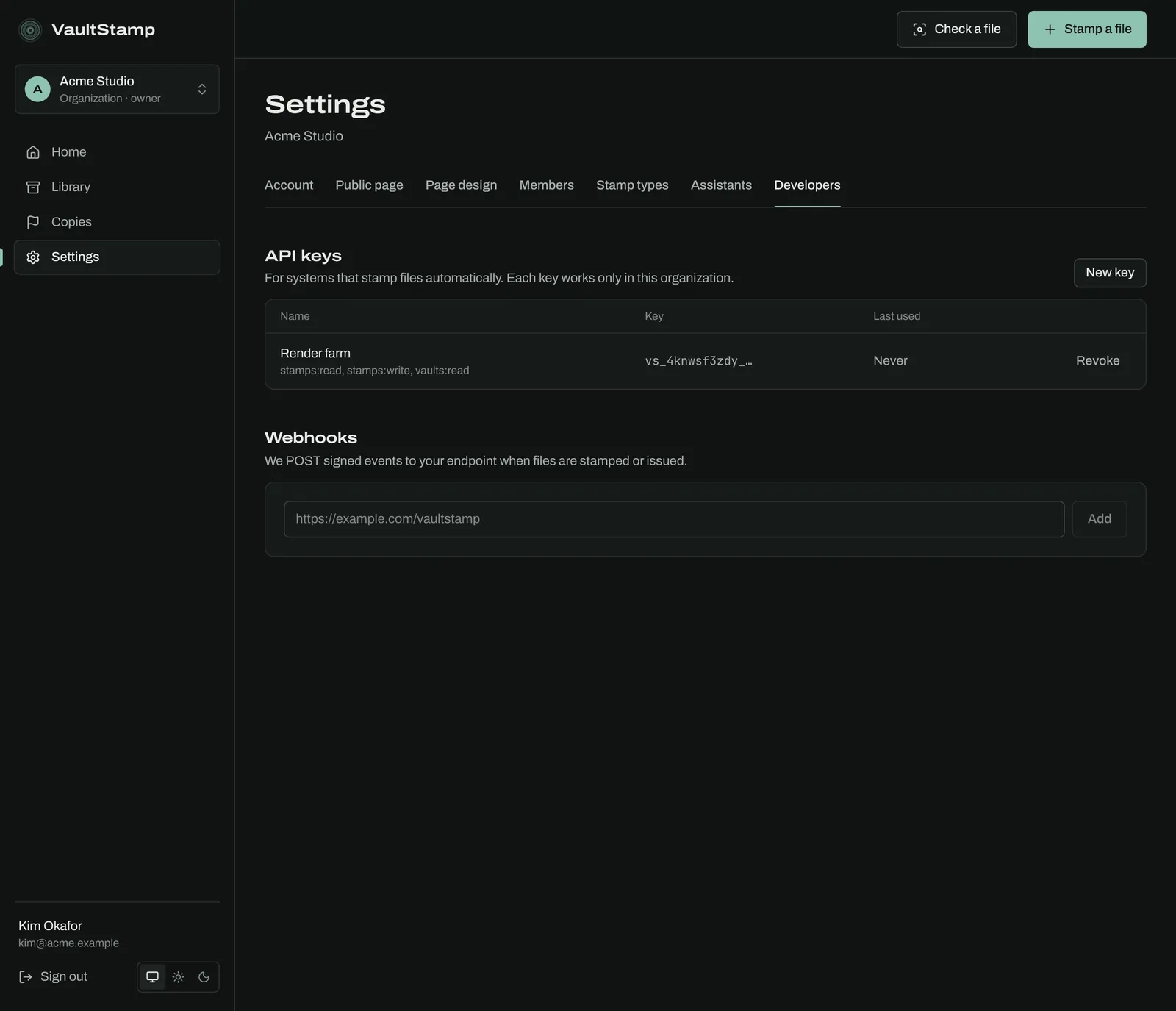
Settings → Developers (owners and admins): API keys for systems that stamp files automatically, each limited to this account and to the permissions you pick; and Webhooks, which send signed events to your endpoint when files are stamped or issued. Every action is kept in an append-only audit trail.
AI assistants
Where: Settings → Assistants
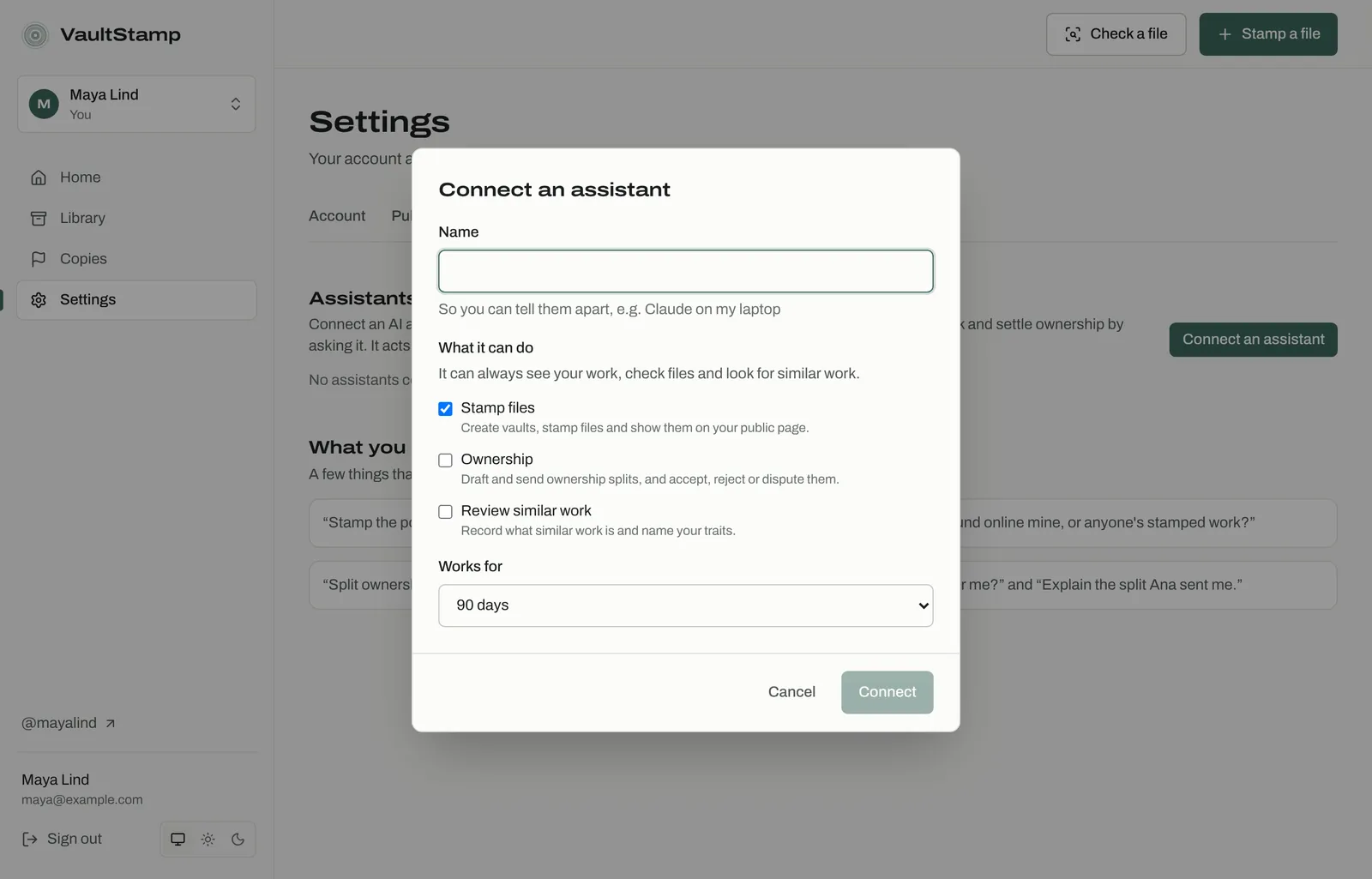
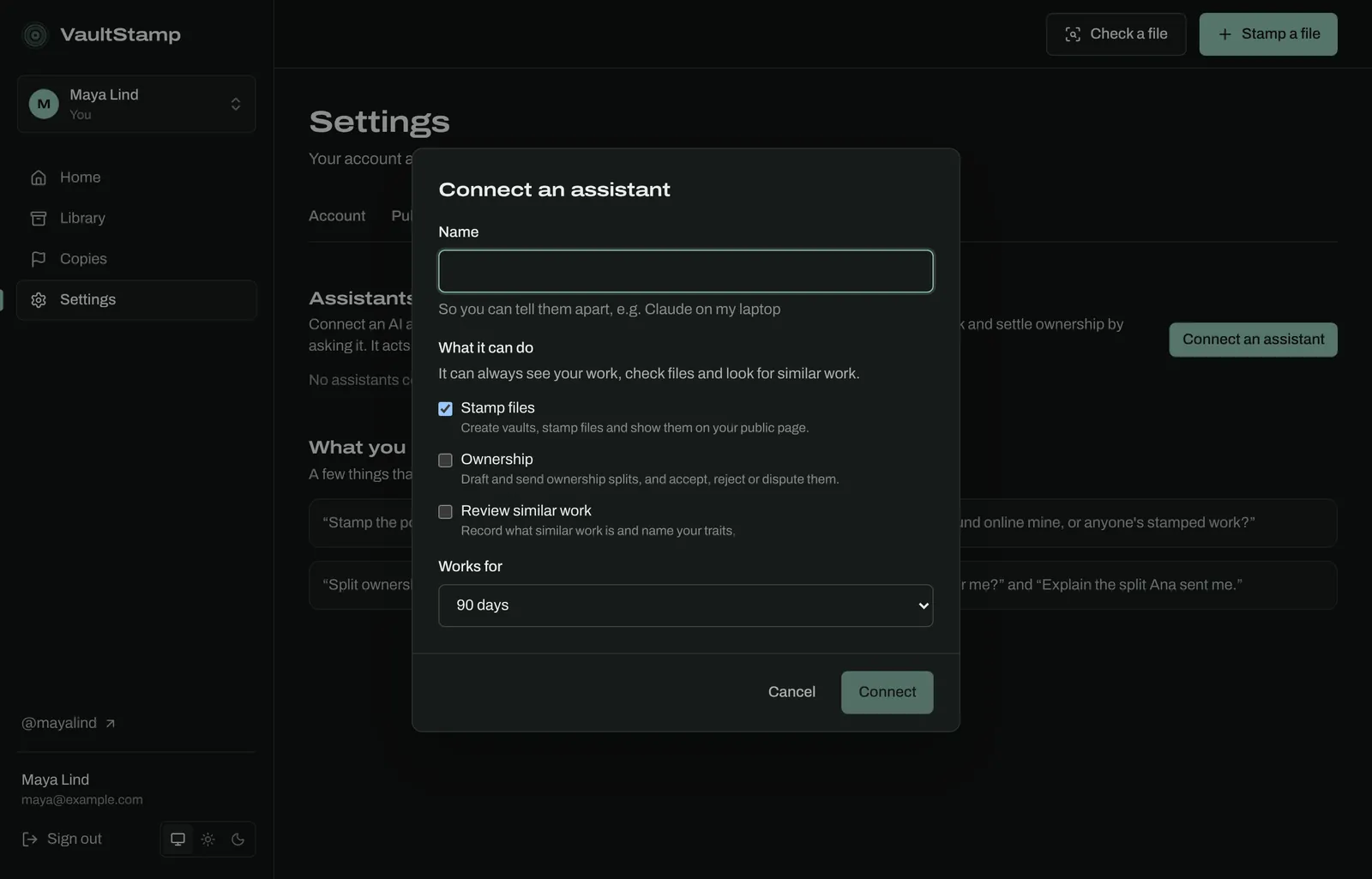
Connect an AI assistant, like Claude or ChatGPT, so you can stamp, check files, look for similar work and settle ownership by asking it. Choose Connect an assistant, name it, choose what it can do (Stamp files, Ownership, Review similar work) and for how long, then add the server address and key it shows you to your assistant. It acts as you: it can do only what you can, agency terms and approvals still apply, and it checks with you before stamping or sending anything.
Things to ask it:
- “Stamp the poster I just finished in my Prints vault.”
- “Is this image I found online mine, or anyone's stamped work?”
Account settings
Where: Settings → Account
- Profile: your name, shown on receipts.
- Password: add one so you can sign in even when email doesn't reach you. Email links keep working. Changing it signs you out everywhere else; Forgot your password? on the sign-in page sends a link.
- Appearance: light, dark, or match your system. The switch is also at the bottom of the menu.
Questions
- Do you keep my files? Who can see them?
- Files you stamp stay in your vault, private to you and locked against deletion. Only the fingerprint and the details you declare go on the receipt, and your page shows only what you publish.
- Is the time on a receipt trustworthy?
- Each receipt is signed by VaultStamp with a key held in a hardware security module, and can also carry an RFC 3161 timestamp from an independent authority, so the date doesn't rest on our word.
- What if VaultStamp disappears?
- Download the evidence pack. It contains the file, the receipt, its signature and the public key, with OpenSSL commands to verify it offline.
- Can I change or delete a stamp?
- No. A stamp is a record of a moment, so it can't be edited or deleted. Stamp a new version when a file changes. You can hide a stamp from your public page, and revoke an issuance.
- Does someone need an account to check a file?
- No. Receipts, public pages and Verify work for anyone. Checks run in the browser, so the file being checked isn't uploaded.
- Is similar work proof that someone copied me?
- No. Similar work shows what two files have in common, for a person to review. Your review, the receipt dates and the evidence pack are what you take to a host.
- Can an agency do more than the talent approved?
- No. Agency staff can only use the actions in the current, unexpired terms. Account settings, members and keys stay with the talent, who can pause or end the representation at any time.
Your first stamp takes a minute.
Get started